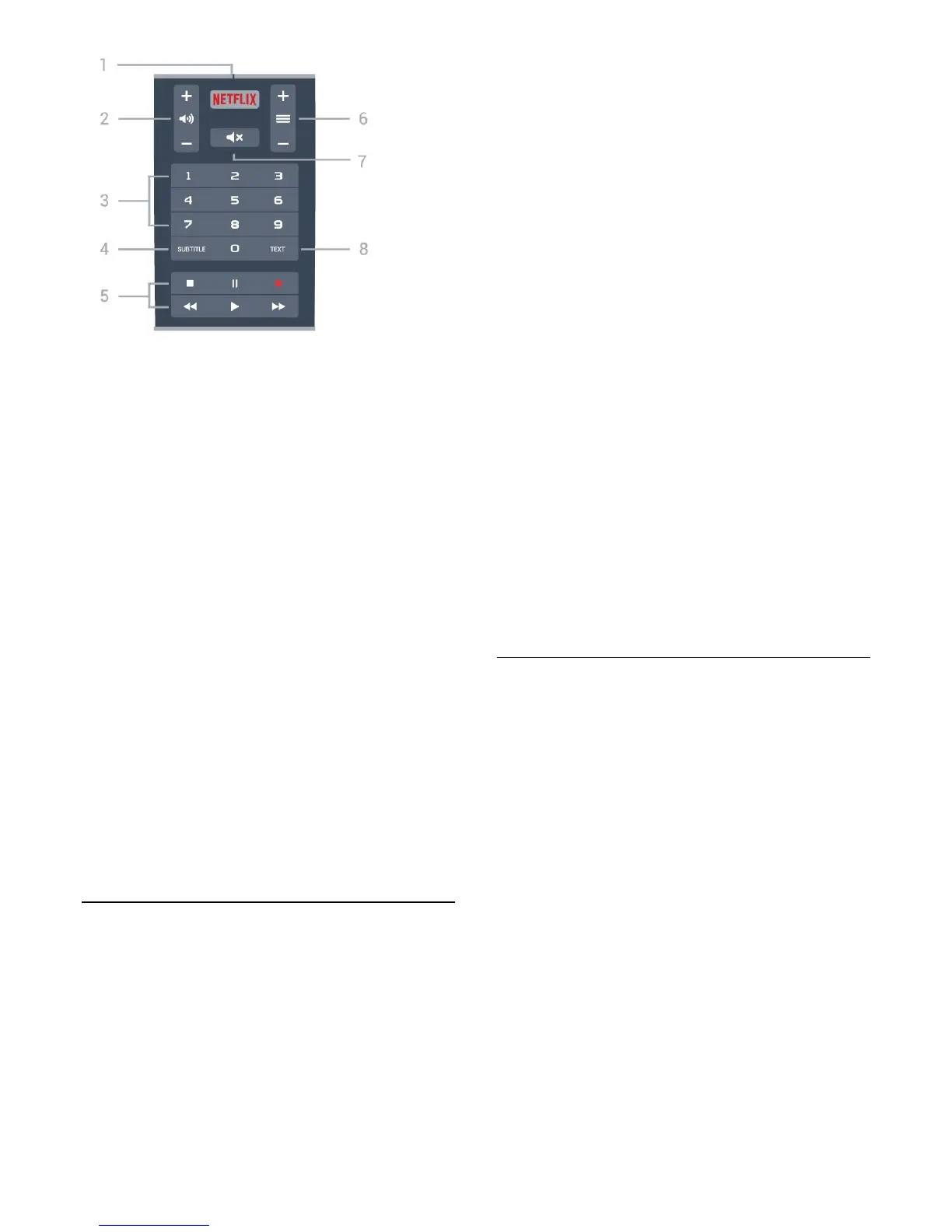
1 -
To open the Netflix App directly.
2 -
Volume
To adjust the volume level.
3 - Number keys
To select a channel directly.
4 - SUBTITLE
To switch Subtitles on, off or on during mute.
5 - Playback and Record
• Play
, to playback.
• Pause
, to pause playback
• Stop
, to stop playback
• Rewind
, to rewind
• Fast forward
, to go fast forward
• Record
, to start recording
6 -
Channel
To switch to the next or previous channel in the
channel list.
To open the next or previous page in Text/Teletext.
7 -
Mute
To mute the sound or to restore it.
8 - TEXT
To open or close Text/Teletext.
2.2
Pair Your Remote Control to
TV
This remote control uses both Bluetooth and IR
(infrared) to send its commands to the TV.
• You can use this remote control via IR (infrared) for
most operations.
• To use advanced operation like voice search and
remote control keyboard, you need to pair (link) the
TV with the remote control.
When you started the initial TV installation, the TV
invited you to long press the PAIR key, and by
doing so, the pairing was done.
Note: If the TV does not launch the voice search
field when press
VOICE, pairing was
unsuccessful.
Pairing or pairing again
If the pairing with the remote control was lost, you
can pair the TV with the remote control again.
You can simply long press
the PAIR key (approximate for 3 seconds) for
pairing.
Alternatively, go
(TV
menu) >
Settings > Wireless and
network > Remote control > Pair remote control,
then follow the on-screen instructions.
A message appears when the pairing is successful.
Remote Control Software
(TV menu) >
Settings > Wireless and
network > Remote control > Current software info
Once the remote control is paired, you can check the
current remote control software version.
(TV menu) >
Settings > Wireless and
network > Remote control > Update remote
control software
Check available remote control software for updates.
2.3
Voice search
You can search for videos, music or anything else on
the Internet by simply using your voice. You can
speak into the microphone on the remote control.
You need to pair the remote control to the TV before
use voice search.
To use Voice...
1 - Press and hold
VOICE on remote
control, the blue light on the remote control lights up
and the search field opens, the microphone is active.
2 - Speak out what you are looking for with clear
pronunciation. You can speak for 10 seconds before
the microphone switches off. It might take some time
for the results to appear.
3 - In the list of search results, you can select the
item you want.
Set the language you like to use with voice
interaction
(TV menu) >
Settings > Android
settings > Preferences > Speech
7









 To Next Page