65BDL3050Q
14
4. Operation
NOTE: The control button described in this section is mainly on the
remote control unless specied otherwise.
4.1. Watch the Connected Video Source
1. Press
[ ] SOURCE button.
2. Press [ ]
or [ ] button to choose a device, then press [ ]
button.
4.2. Change Picture Format
You can change the picture format to suit the video source. Each video
source has its available picture formats.
The available picture formats depend on the video source:
1. Press [ ] FORMAT button to choose a picture format.
• PC mode: {Full} / {4:3} / {Real} / {21:9}/ {Custom}.
• Video mode: {Full} / {4:3} / {Real} / {21:9}/ {Custom}.
4.3. Overview
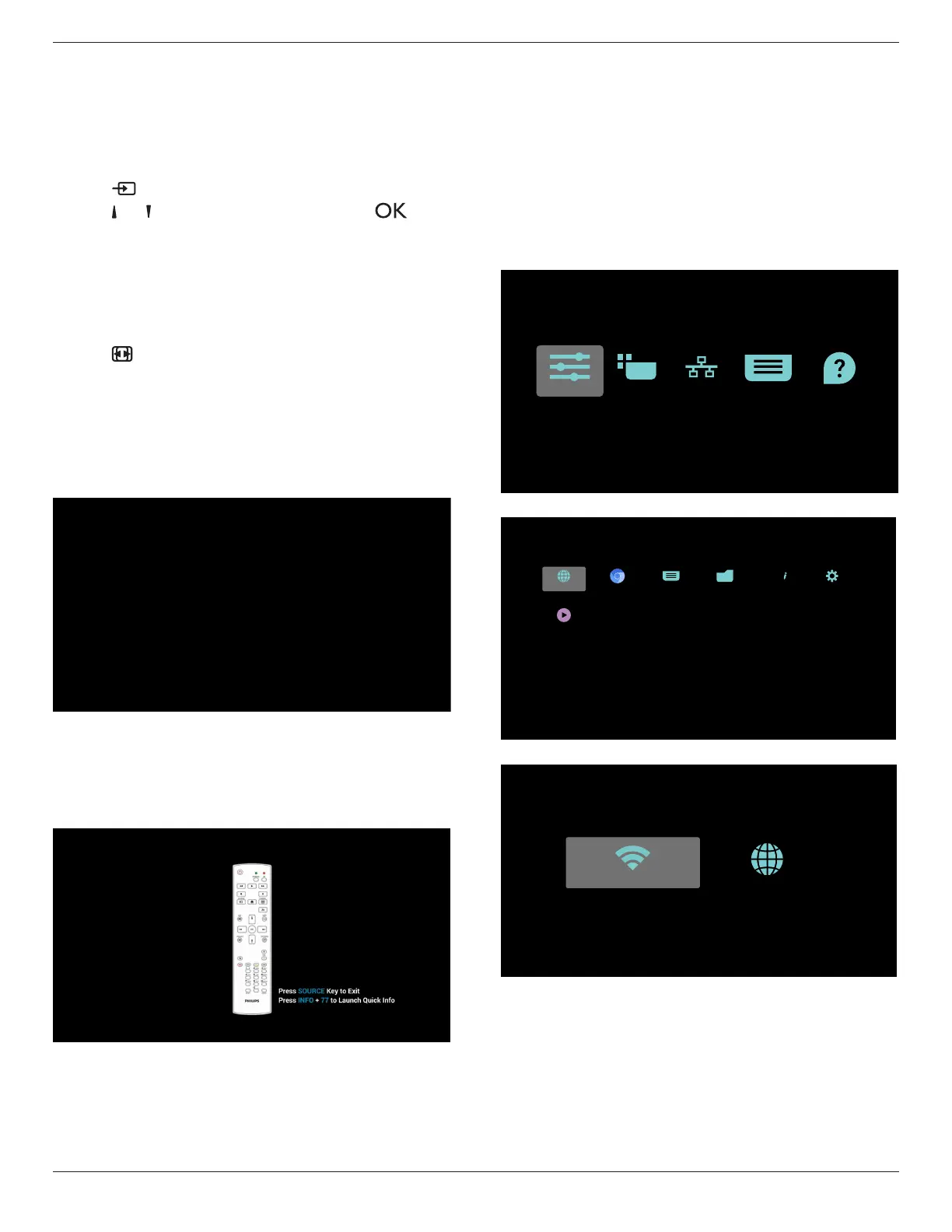
1. Android PD launcher:
• Android PD launcher is black page, as below:
• Every apps leave by press back key, the screen will go to android
PD launcher.
• When you return to android PD launcher, the screen will show
hint image, the hint image only show 5 second, as below:
• The hint image will notify you can press source key to change
source.
2. Admin mode:
• You can press “Home + 1888” to enter admin mode. Please
make sure you see the Home OSD menu after “Home” is
pressed, and then press 1888 in sequence. Two continuous
“Home” keys will not be a valid hotkey.
• Admin mode will show ve icons: “Settings”, “Apps”, “Network”
“Storage” and “Help”.
• When you leave admin mode, system will return to last source.
1)Home page of admin mode, this page has ve items: “Settings”,
“Apps”, “Network” “Storage” and “Help”.
Settings : go to settings app.
Applications : show all apps.
Network : set Wi-Fi (optional), Ethernet
Storage : display current PD Android storage information.
Help : display QRcode.
Settings Apps Network Storage Help
2.) Application page:
PDF PlayerMedia PlayerFile ManagerChromium
SmartCMS
Browser Settings
ABC
3
)
Network page


 To Next Page