65BDL3050Q
20
4.6. PDF reader play
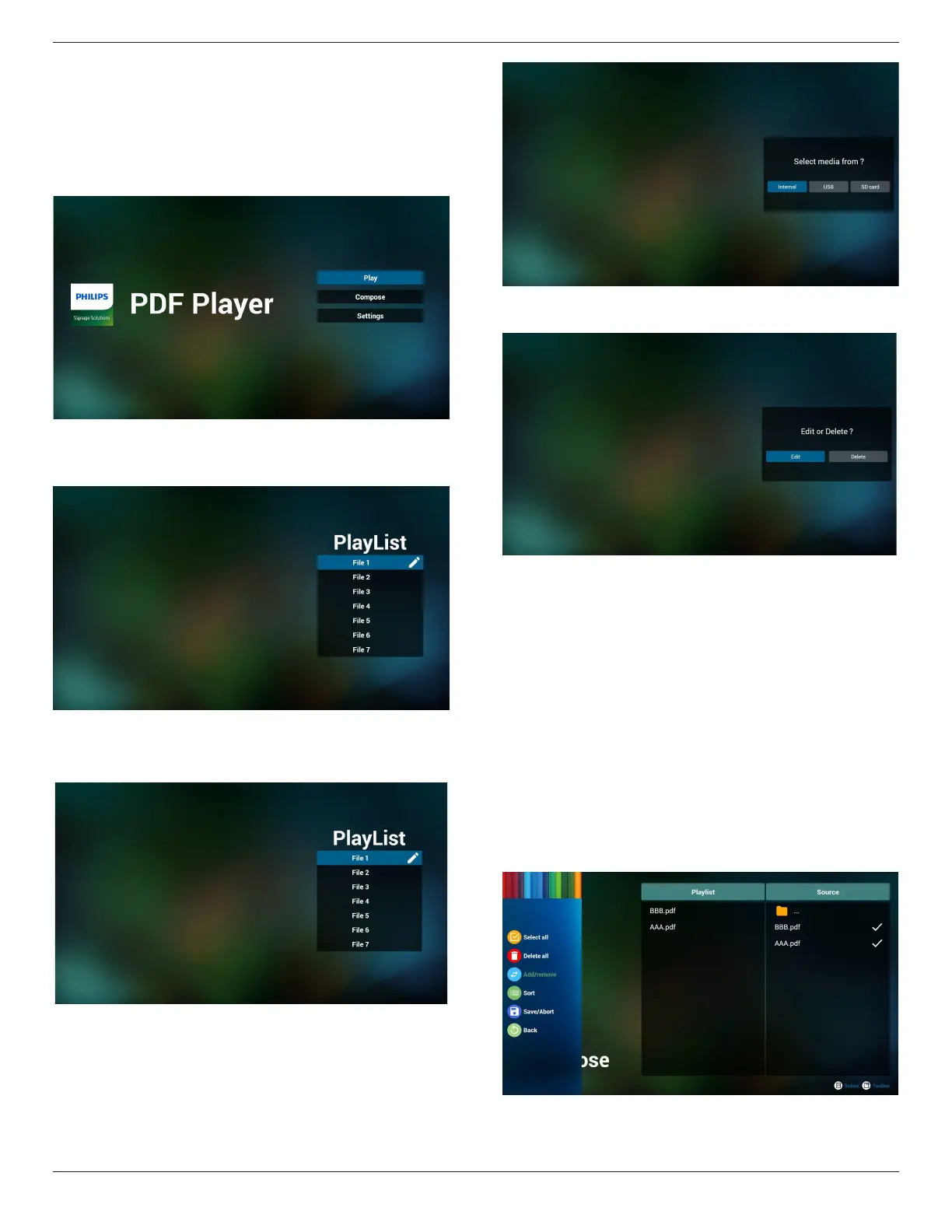
1. Home page of PDF Player, this page has three items: “Play”,
“Compose” and “Settings”.
Play : select playlist to play.
Compose: edit playlist.
Settings: setting play properties.
2. Select “Play” on home page, rst you should choose one playlist to
play between FILE 1 and FILE 7.
The pencil icon means the playlist is non-empty.
3. Select “Compose” on home page, rst you should choose one
playlist to edit between FILE 1 and FILE 7.
The pencil icon means the playlist is non-empty.
4. If an empty playlist is chosen, the app will guide you to select the
media source.
All media les should be placed in /philips/ of root directory. For
example,
pdfs : {root dir of storage}/philips/pdf/
5. You could edit or delete a non-empty playlist, just choose the
desired playlist which is with pencil icon.
6. Once you start to edit a playlist, you will see below screen.
Source - les in storage.
Playlist – les in playlist.
There are 4 icons which map to the keys of remote controller.
Option key – launch slide bar
Play key – play media le.
Info key – show media info.
Ok key – select/unselect le.
6-1. In the slide bar, it helps you to do the following:
- select all : select all storage les.
- delete all : delete all playlist les.
- add/remove : update playlist from source.
- sort : sort playlist.
- save/abort : save or abort playlist.
- back : return.


 To Next Page