65BDL3050Q
17
12. Media Hotkey
Play : Playback le.
Pause: Pause le.
Fast forward: forward 10 second.
Rewind: back 10 second.
Stop: Stop le and return to start. If the gif le, it like the pause.
13. Media format please refer to SupportedMediaFormats.
14. How to edit playlist via FTP.
Step 1. Create media player text le.
- File name : mpplaylistX.txt, “X” means playlist
number(1,2,3,4,5,6,7).
Ex. mpplaylist1.txt, mpplaylist2.txt
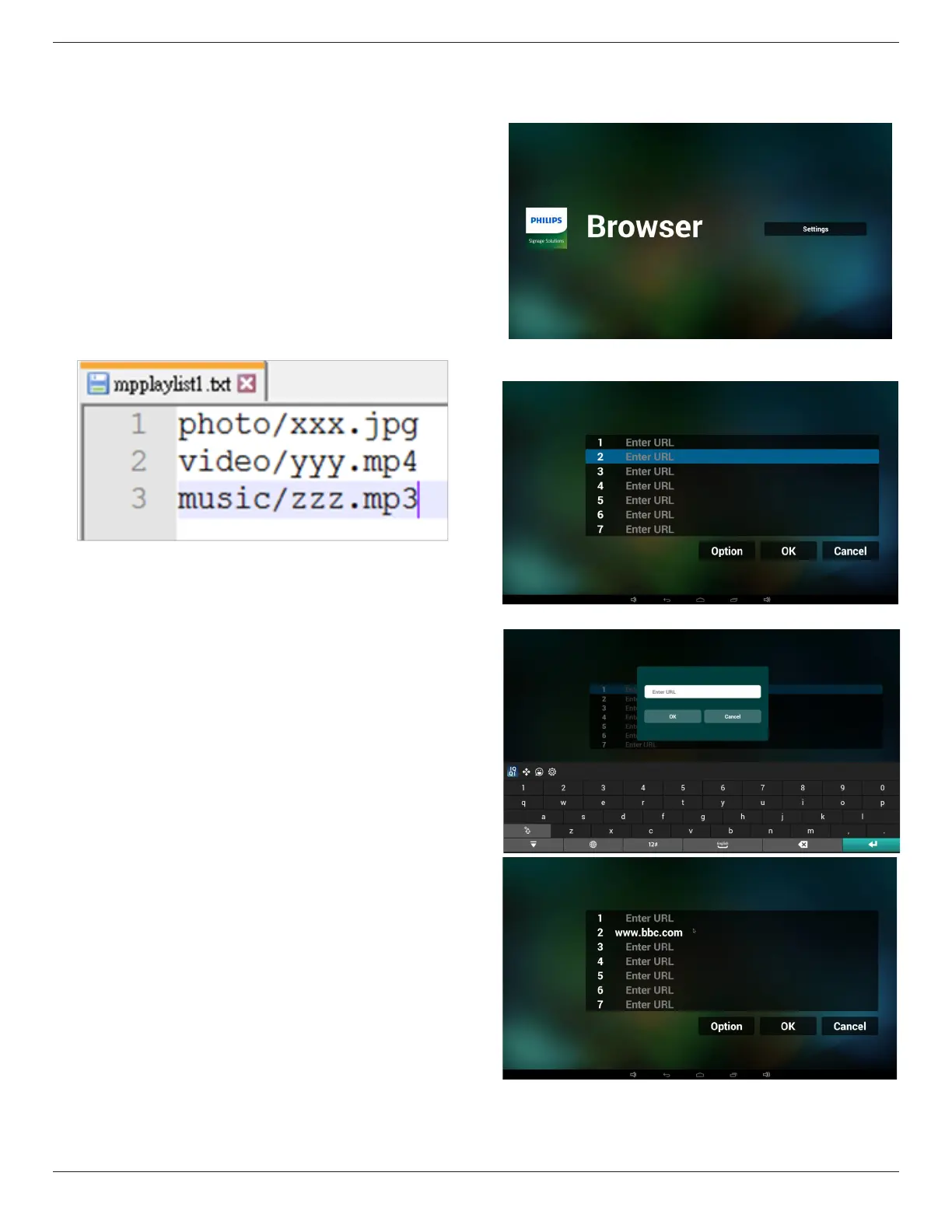
- Content :
Note : if playlist le contains video and music, when the pd plays
music le, the screen will be black.
Step 2. Copy mpplaylistX.txt to “philips” folder of internal storage.
You may use FTP to do this.
- File path : /storage/emulated/legacy/philips
Ex. /storage/emulated/legacy/philips/mpplaylist1.txt
Step 3. Prepare media les to “photo”, “video” and “music” folder
under “philips” folder, internal storage only.
- Ex. /storage/emulated/legacy/philips/photo/xxx.jpg
/storage/emulated/legacy/philips/video/yyy.mp4
/storage/emulated/legacy/philips/photo/zzz.mp3
Step 4. Start media player app, it will auto import media player text
le.
PS. Once the playlist le (text) is imported, if an user change playlist
by remote controller, this change will not be written to playlist text
le.
4.5. Browser manual
1. Home page of Browser app, this page has one item: “Settings”.
Press Settings then enter next page.
2. Users can choose 1~7.
Press any one will show a dialog.
3. Enter url and press OK then data will save on List


 To Next Page