DAB RADIO
11
AZ 6000/05 page 11
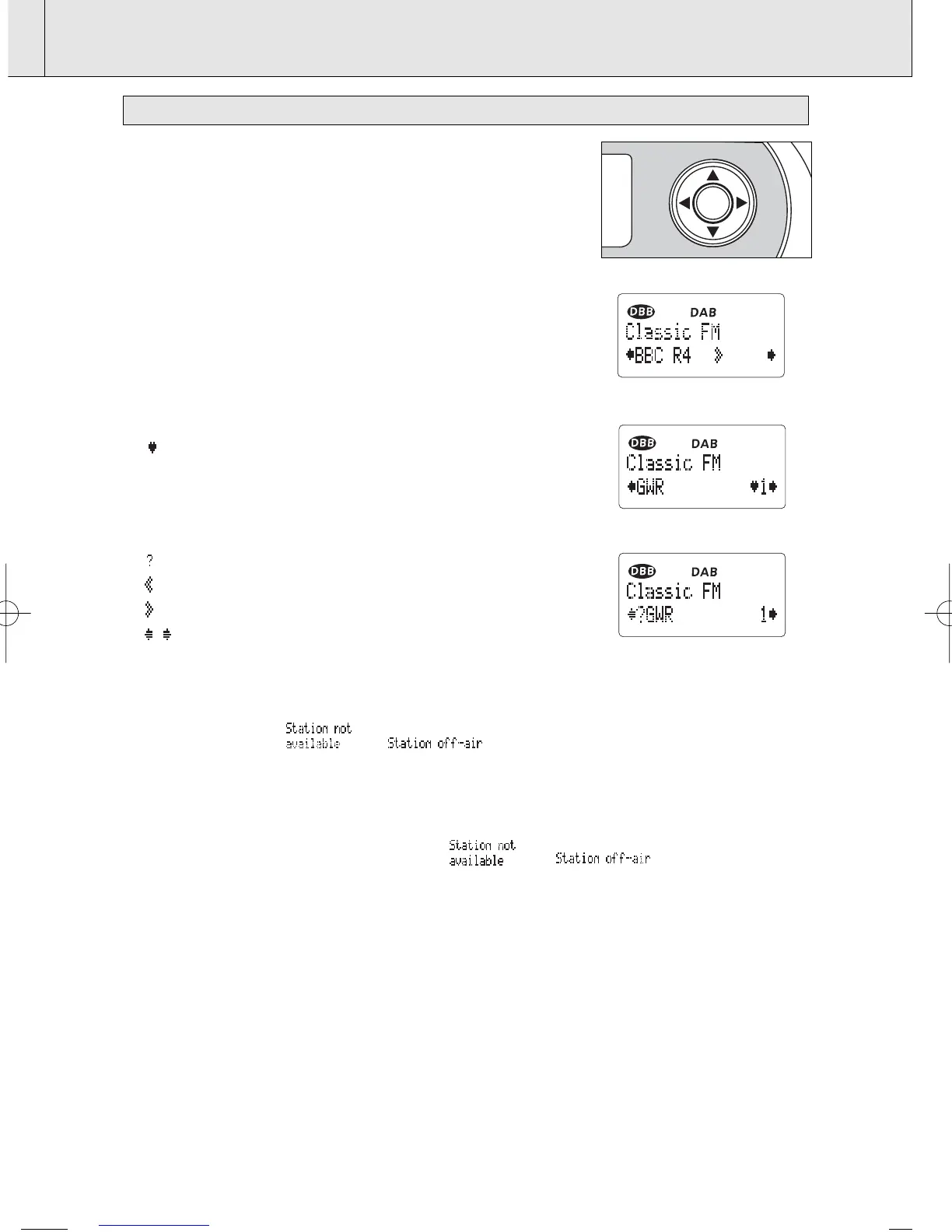
After your DAB has been tuned, you can select a station using the
Navigation controls.
1. Push left/right 1,2 once or more (or
5
,
6
on the remote control) to
scroll the list of stored stations.
= 1st display line: current station you are tuning to.
2nd display line: station name changes as you scroll through the
list.
2. When your desired station appears, press ENTER to select the
station.
= Tuning to the station starts.
Indication of display symbols
– The station is one of your most listened to stations;
– The list of available stations is now sorted by the
station order of favorite stations
(See Fav station in SORTING STATIONS).
A number – Preset number assigned to presets (e.g.1, 2)
–Station off air
–A primary service, followed by secondary services
–A secondary service, preceded by a primary service
–You can press left/right 1,2 to scroll backward/
forward the list
If tuning to a selected station fails:
– the display shows or .
= Retuning to alternative services/frequency starts.
= A dot appears in the screen every 0.5 second.
= After successful tuning, the station name appears and broadcasting text scrolls.
– If the retuning also fails, the display shows or . You should then either:
•Use Autoscan to refresh the list of available stations (see chapter RESETTING)
or
•Press ENTER to go to a tuning indication (see chapter TUNING/RETUNING, To improve
reception).
SELECTING A STATION


 To Next Page