EN 57
continued on next page
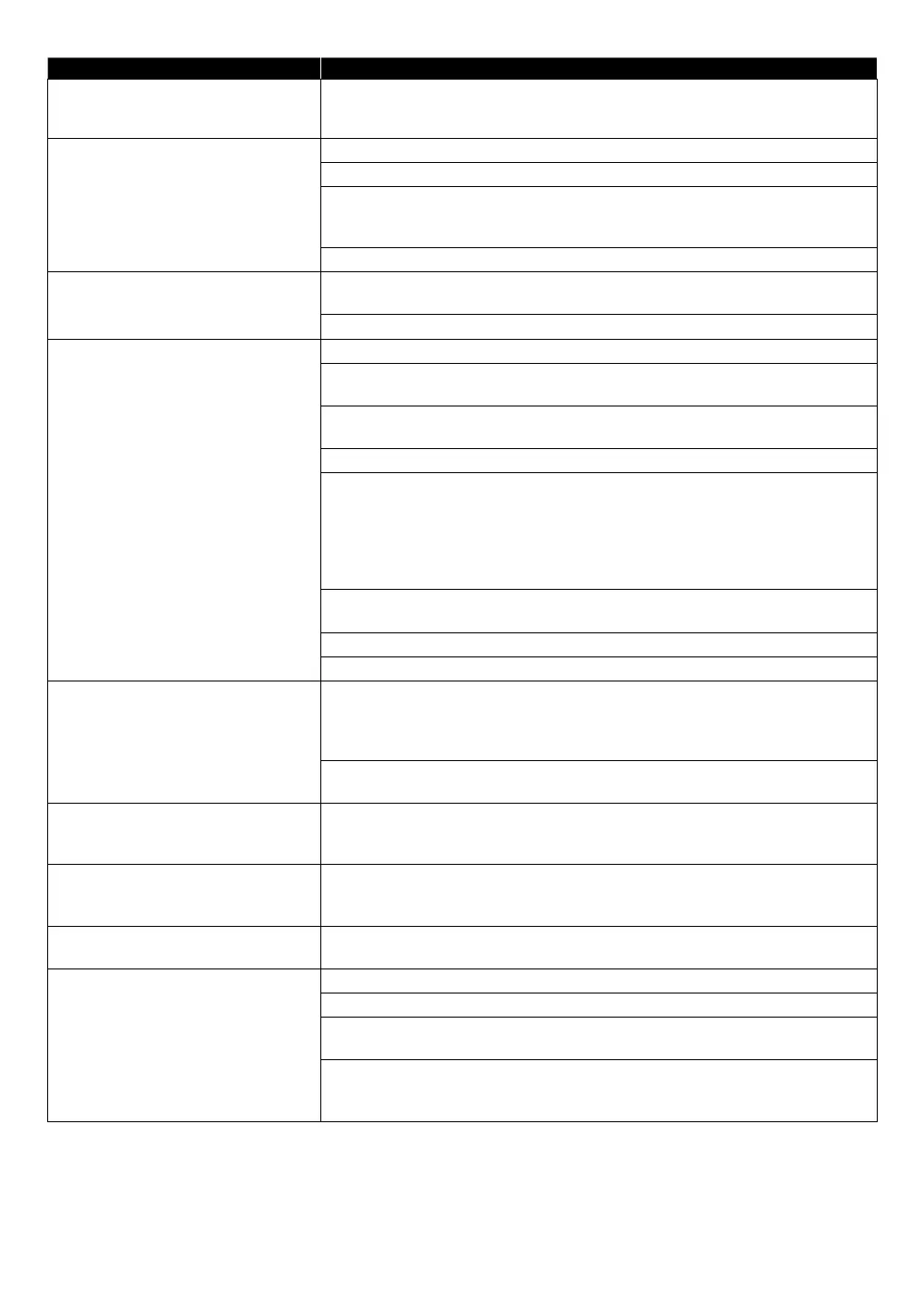
Problem Tip
Music files play choppy. CDs / DVDs containing FLAC (.flac) / WAV (.wav) files with high frequency
and large quantization bit rates may not play properly. In such cases, copy
the music files to a Blu-ray Disc™ or USB memory stick, then try playing.
No audio signal from surround
system of the audio system.
Make sure the audio system is turned on.
Check the Input mode on the audio system if it is on the correct channel.
Check if the surround system is compatible with either Bitstream or
LPCM. If not sure, please check the user manual or contact the surround
manufacturer. Once confirmed, check the setting in the “Setup” of this unit.
Increase the volume level of the surround system.
Cannot connect to the Internet
although the connection test
passes.
Make sure that the ethernet cable is properly connected to the modem and
router.
Confirm that another device, such as a PC, can connect to the Internet.
Cannot connect to the network. Check to see if the modem and router have power turned on.
Make sure that the ethernet cable is properly connected to the modem and
router.
Confirm if the Internet light is showing activity (light blinking) on the modem
and router.
Check network settings on the unit.
Turn off this unit and the modem and router (if it has a power button), then
unplug their AC cords. After 30 seconds, plug them back in and turn the
devices back on. If you have a telephone / internet modem with your cable
service, then you may have to use its reset button or remove the Backup
battery to reset this type of modem. Now wait for the lights to show activity
and try reconnecting.
Check the cable connection to the router when connecting with an ethernet
cable.
Confirm “View network settings” in the setup.
Turn on the DHCP function on the router.
Cannot use “Easy Connect” to
connect to the access point.
If the access point's security mode is set to “WEP”, change the setting to
“AES + TKIP”, then try “Easy Connect” again. Refer to “
D
” on page
47. (For access point configuration, please consult its user manual or
manufacturer.)
Connect the unit to the access point using “Auto setup” or “Manual setup”
mode.
Cannot use the wireless connection. Once you have activated the wireless connection please wait 30 seconds for
the connection to be established after turning on the unit, before trying to
access network features such as BD-Live™ and third-party network services.
Cannot connect to the network
while my PC is connected to the
network.
Check the content of your Internet service contract to see if your Internet
Service Provider prevents multiple terminals connecting at the same time.
You are not sure if the unit is
connected to the Internet.
Perform the connection test. (refer to page 44)
Cannot use the BD-Live™ function
or Internet data does not download
properly.
Confirm that this unit is successfully connected to the Internet.
Confirm the BD-Live access level setting in the setup.
Connect a USB memory stick before inserting a disc. The USB memory stick
must have 1GB or more free space.
Confirm that the USB memory stick is properly connected to this unit.
Make sure that the USB memory stick connected to this unit is not write-
protected.


 To Next Page