CH. VOL.
When you watch a program that has closed captions, you can
access on-screen boxes containing the program’s dialogue (for
example, what a character is saying), dialogue in a foreign lan-
guage, or information (such as a channel guide, schedule, or
announcements). Follow the steps below to select closed cap-
tions.
Not all TV programs and commercials have closed captions.
Similarly, all types of closed captions (second language, half-screen
text, etc.) are not always broadcast. If closed captioning is not
broadcast, you cannot receive it. This does not indicate a prob-
lem with the TV/VCR. Refer to your area’s TV program listings
for shows with closed captions.
1
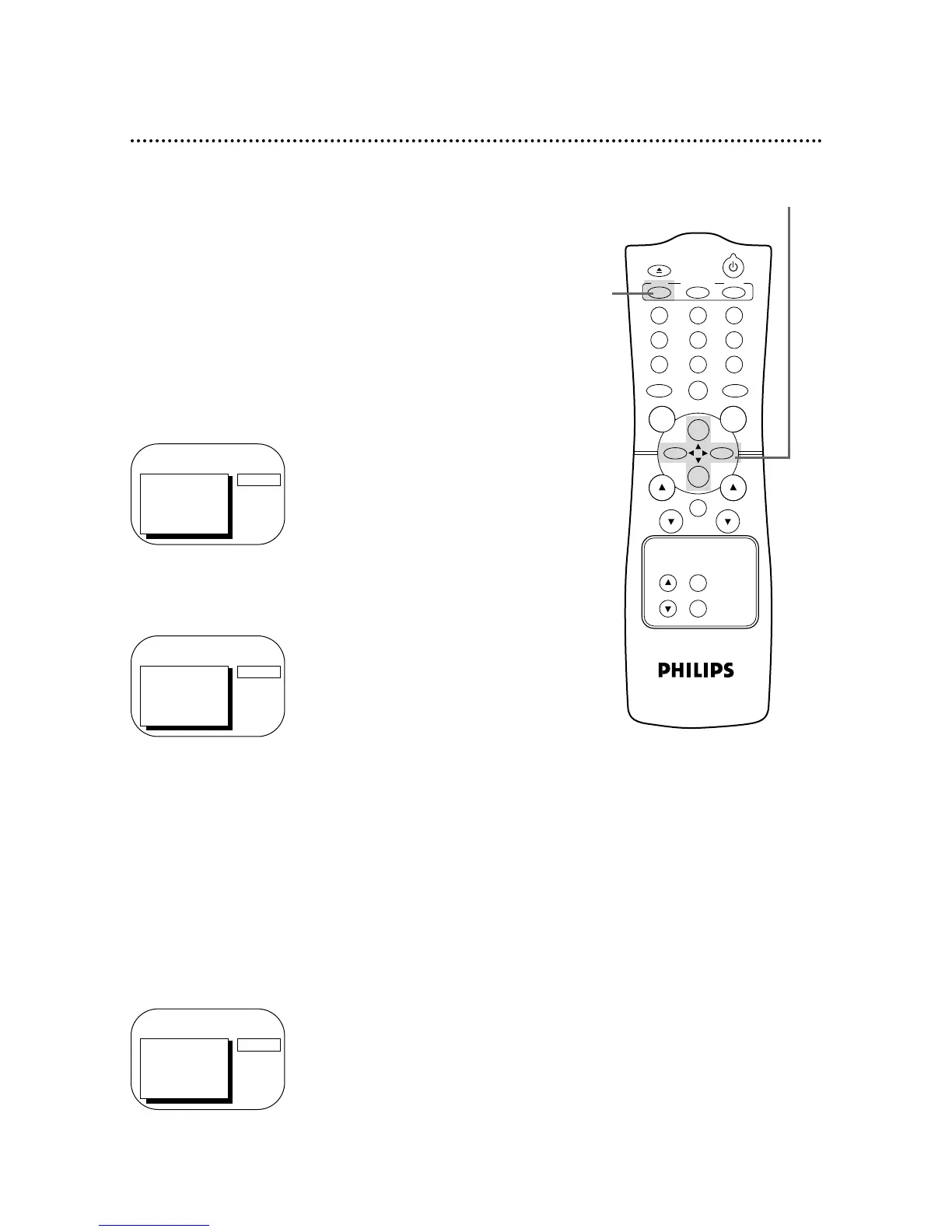
Press the MENU button.
2
Press the PLAY/▲ button or the STOP/▼ button to select
CAPTION.
3
Press the REW(ind)/{ button or the F.FWD/B button to
select your desired closed caption mode.
The selected closed caption mode will appear beside CAPTION
on the screen.
● CAPTION1 displays standard closed captions (what a character
is saying).
● CAPTION2 displays foreign language closed captions (foreign
language words showing what a character is saying).
● TEXT1 and TEXT2 display half-screen text (such as a channel
guide, schedule, or announcement).
● OFF turns off closed captions. Captions will not appear on the
screen.
TO ADJUST PRESS { / B
> CAPTION
REMINDER
BRIGHTNESS
PICTURE
COLOR
TINT
CAPTION1
Example:
CAPTION1
Menu
Screen
50 Closed Caption
> PRIM. SETUP
VCR PROGRAM
VCR SETUP
CAPTION
REMINDER
BRIGHTNESS
PRESS B
TO ADJUST PRESS { / B
> CAPTION
REMINDER
BRIGHTNESS
PICTURE
COLOR
TINT
OFF
1
2-3









 To Next Page