CH. VOL.
8 Turning On the TV/VCR
Before you turn on the TV/VCR, make sure batteries are in the
remote control and you have connected the TV/VCR correctly.
The instructions on this page work only when you turn on the
TV/VCR for the first time.
1
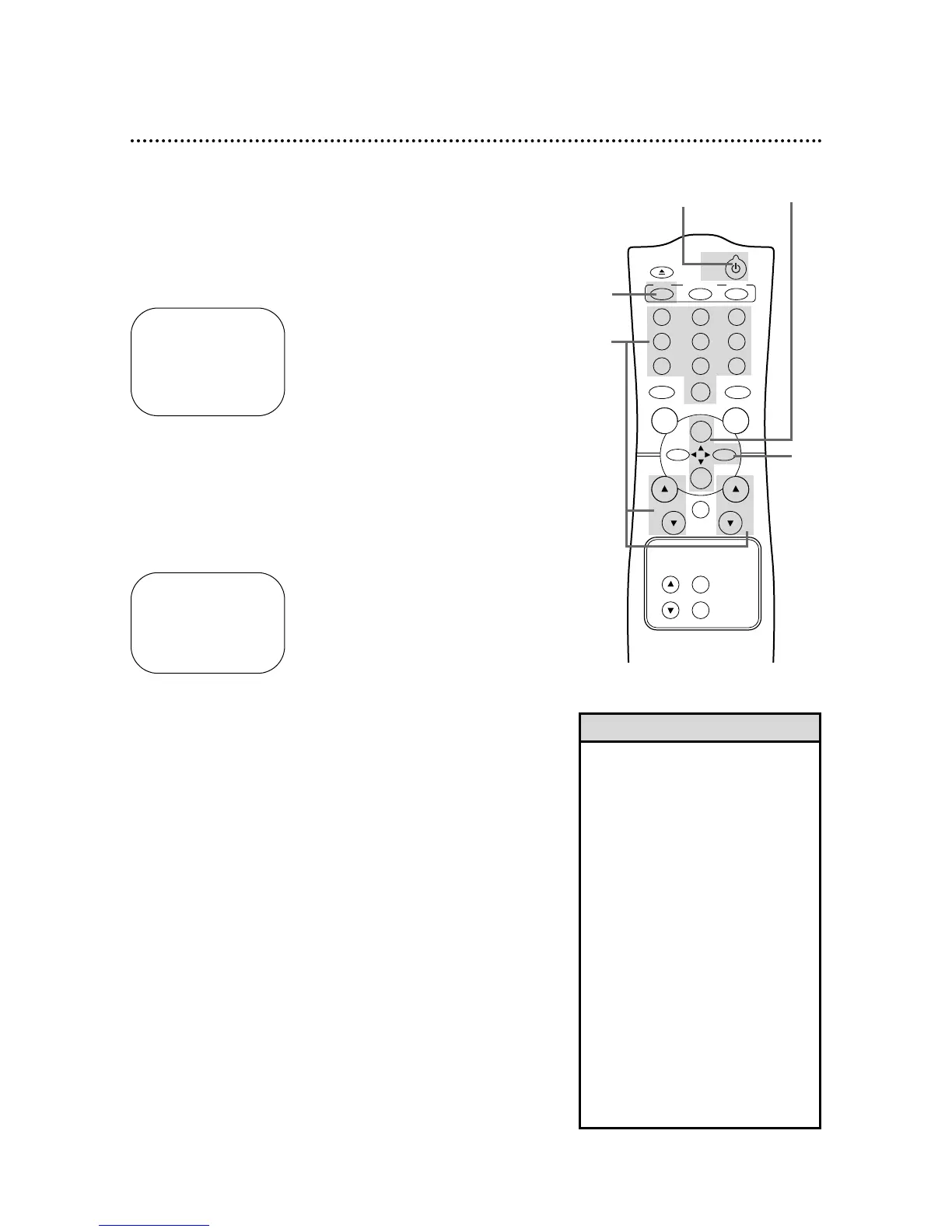
Press the POWER button. The TV/VCR will come on and the
screen shown below will appear.
2
Press the PLAY/K button or the STOP/L button to select
English or Spanish on-screen displays and menus.
3
Press the MENU button. The screen shown below will appear.
4
Press the F.FWD/B button to begin automatic channel
setup. The TV/VCR will memorize all available channels. When
channels are set, CHANNELS ARE SET will appear on the screen
briefly. Then the TV/VCR will go to the lowest available channel.
If you try to set up channels when there is no antenna or cable
connected to the TV/VCR, programming will appear to take place,
but eventually a NO TV SIGNALS ... message will appear on the
screen. Connect an antenna or cable to the ANT(enna) jack on
the TV/VCR, then press the F.FWD/B button again. You may
need to follow the steps on page 10 instead.
CONNECT ANTENNA OR CABLE
TO TVCR
THEN PRESS B
TO END PRESS EXIT
SELECT LANGUAGE
> ENGLISH ON
ESPAÑOL
SELECT KL OR
PRESS MENU TO CONTINUE
5
Use the CH(annel) o/p buttons or the Number buttons
on the remote control to select a TV/VCR channel. Use
the VOL(ume) o/p buttons to adjust the sound.
When you scan channels with the CH(annel) o/p buttons, only
the memorized channels will be available. Use the Number but-
tons to select non-memorized channels.
• If you do not see any on-screen dis-
plays when you turn on the TV/VCR,
check your hookups, then try again.
If you still do not see any on-screen
displays, follow the steps on pages
nine-10 to select a language and set
up channels.
• To skip step 2, press the MENU but-
ton. All on-screen displays will be in
English. To skip step 4, press the
STATUS/EXITbutton. Automatic
Channel Setup will not occur, and
CHANNELS NOT SET will appear on
the screen briefly.
• You cannot set up channels if you are
using a Cable Box.
• Line Input mode is channel 00.
When you select channel 00, A/V IN
will appear on the screen briefly.
Press the CH(annel) o/p buttons or
the Number buttons to select another
channel.
Helpful Hints
1
3
5
2
4




 To Next Page