18 EN
Buttons Functions
DVD
MENU/TOP
MENU
Press to access the DVD menu
or top menu of a DVD.
• To toggle through the menu
options, press
/ / / .
• To conrm an option, press
OK.
Browse recorded les
During playing recorded les, you can access
the le list and select les from the list.
1 Press , , or to access the list
of les or folders.
•
: Music les or folders
•
: Picture les or folders
•
: Video les or folders
» [MUSIC], [IMAGE], or [VIDEO] is
displayed.
2 Press / on the main unit or /
on the remote control to select a folder.
» The folder name is displayed.
3 Press on the main unit or OK to
access the list of les under the folder.
» The name of the rst le scrolls.
4 Press / on the main unit or /
on the remote control to select a le.
5 Press on the main unit or OK/
on the remote control to start play.
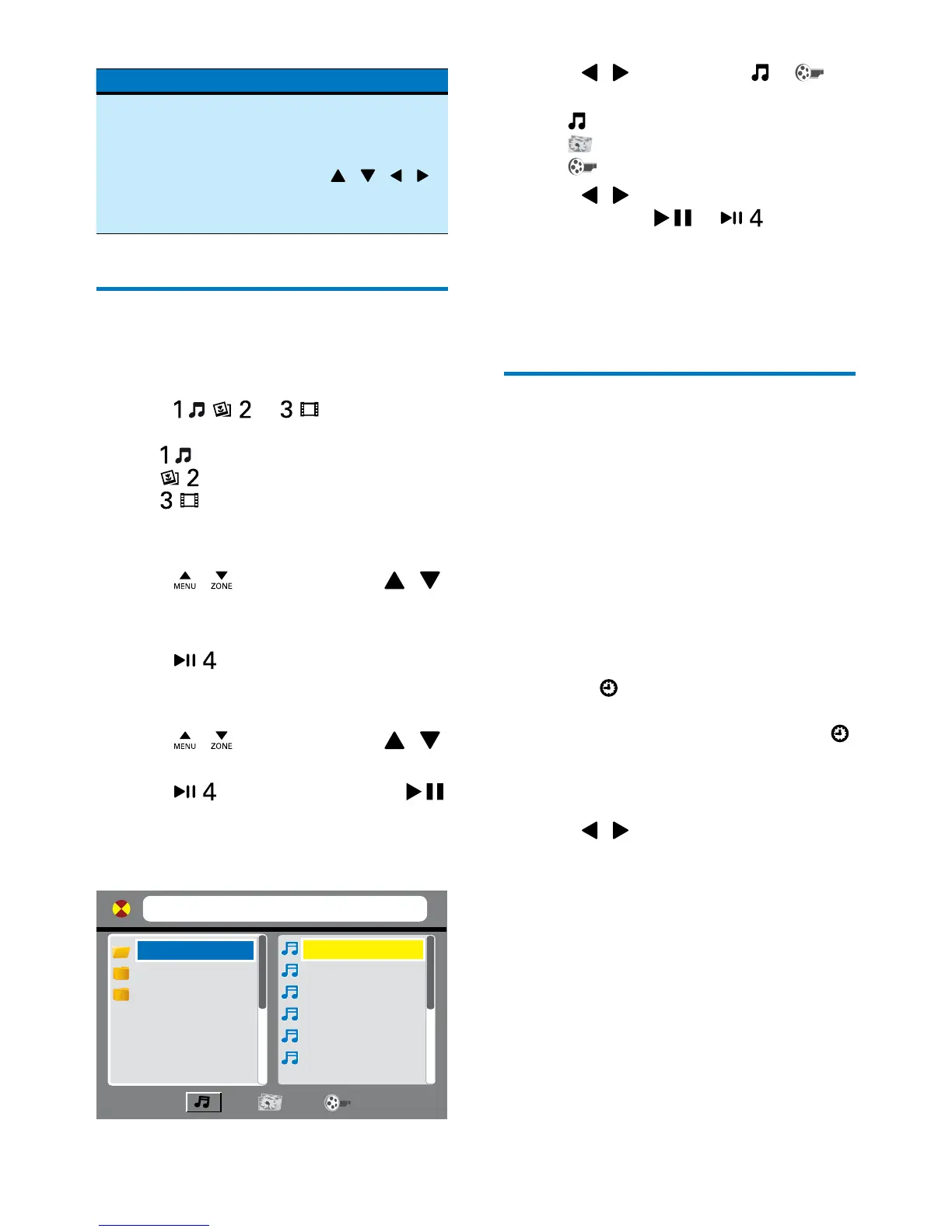
On the connected external screen, the
following interface is displayed.
[C:] 000001.MP3
01.C:
02.MP3
03.WMA
01.000001
02.000002
03.000003
04.000004
05.000005
06.000006
1 Press / repeatedly until or is
highlighted.
•
: For audio les
•
: For picture les
•
: For video les
2 Press / to select a category icon, and
then press OK,
, or .
» The folders that contain the les of this
category are listed.
3 Perform steps 2 to 5 as described above to
select and play a le.
Use the GOTO function
With the GOTO function, you can skip to a
chapter/title/track/le or a point of a video/
audio directly.
1 Press GOTO.
» [GOTO] is displayed on the LCD
screen of the main unit.
» Fields and numbers are displayed on
the top of the connected external
screen.
For a DVD, [TT] (title), [CH] (chapter)
and
(time) are displayed.
For a VCD, SVCD, audio CD, and
audio/video les, [TRK] (track) and
(time) are displayed.
For picture les, [TRK] (le) is
displayed.
2 Press / to select a eld, and then
enter the numbers with numeric buttons.
3 Press OK to conrm.


 To Next Page