19
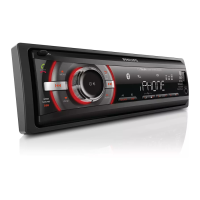
Touch • to clear the last entered
number.
Touch • [Clear] to clear all the entered
numbers.
4 Touch [Enter] to save.
The radio station is broadcast.»
Scan search
You can search for a station with intro search,
which broadcasts a 10-second preview of each
detected radio station.
1 Touch [Band] to select band.
2 Press INTRO.SCH on the main unit.
Select tuner sensitivity
Before you start to search for radio stations,
you can select tuner sensitivity.
• [Normal]: Only stations with strong
signals can be broadcast.
• [HiSens]: Stations with strong and weak
signals can be broadcast.
1 Touch [HiSens] to toggle tuner sensitivity
from normal to high sensitivity.
The display is changed.»
To change tuner sensitivity back to »
normal, touch [Normal].
Store radio stations in
memory
You can store up to 6 stations in each band.
Store stations automatically
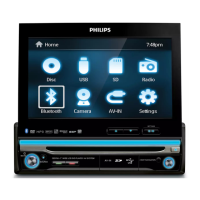
1 Touch to display the main menu.
2 Touch [Radio].
3 Touch [Band] repeatedly to select band.
4 Touch [Search].
Auto search starts. The six strongest »
stations of the selected band are saved
in preset channels 1-6 automatically.
4 Listen to radio
Tune to a radio station
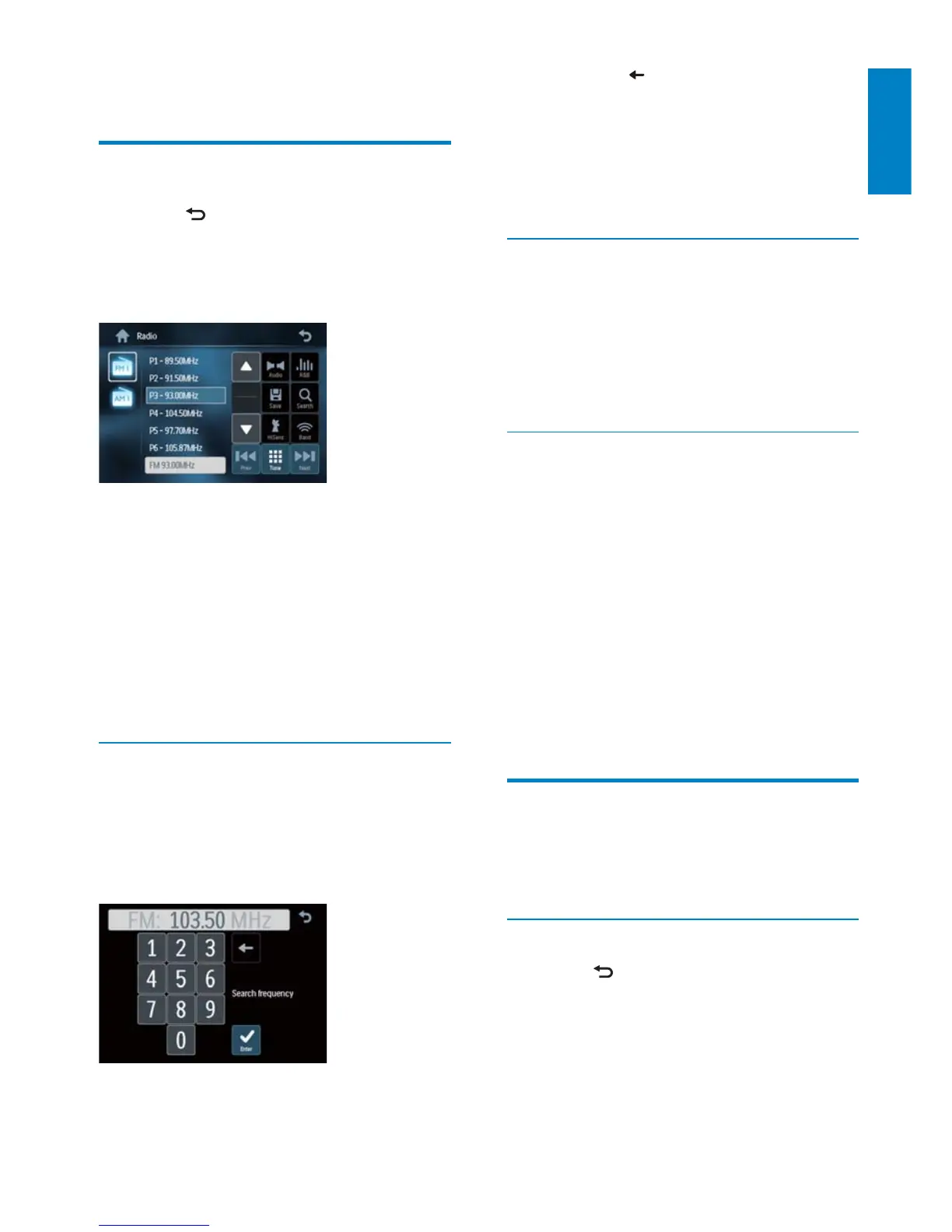
1 Touch to display the main menu.
2 Touch [Radio].
Band and frequency information is »
displayed.
3 Touch [Band] repeatedly to select:
FM band options: • [FM1], [FM2],
[FM3]
AM band options: • [AM1], [AM2]
4 Briefl y touch [Previous] or [Next] to
tune to a radio station by step.
Touch • [Previous] or [Next] for over
1 seconds to tune to a radio station
automatically.
Tune by frequency
1 Touch [Band] to select band.
2 Touch [Tune].
The manual tune menu is »
displayed.
3 Touch the numbers to enter frequency.
English
EN


 To Next Page