17
English
Discs information
DVD
● DVD video discs may have one or more
Titles, and each Title may have one or
more Chapters.
● Playback stops at the end of each Title.
Video CD
● Video CDs may have one or more Tracks, and
each Track may have one or more Indexes.
● To make easy and convenient access, you can
move between Tracks and Indexes.
● Some Video CDs have Play Back Control (PBC), which is
a predefined playback sequence stored on the disc (refer to
“Special VCD features”).
Audio CD
● Audio CDs contain only Tracks.
Basic playback
CAUTION!
– Do not move the disc player during playback, as
doing so might damage the DVD system.
– Do not push on the disc tray or put any objects
other than disc on the disc tray. Doing so may
cause the disc player malfunction.
1 Press POWER B to switch the
system on.
2 Adjust SOURCE (or press
DVD/CD on the remote control)
to select DVD/CD.
3 Press one of the
OPEN•CLOSE 0 to open the
desired disc tray.
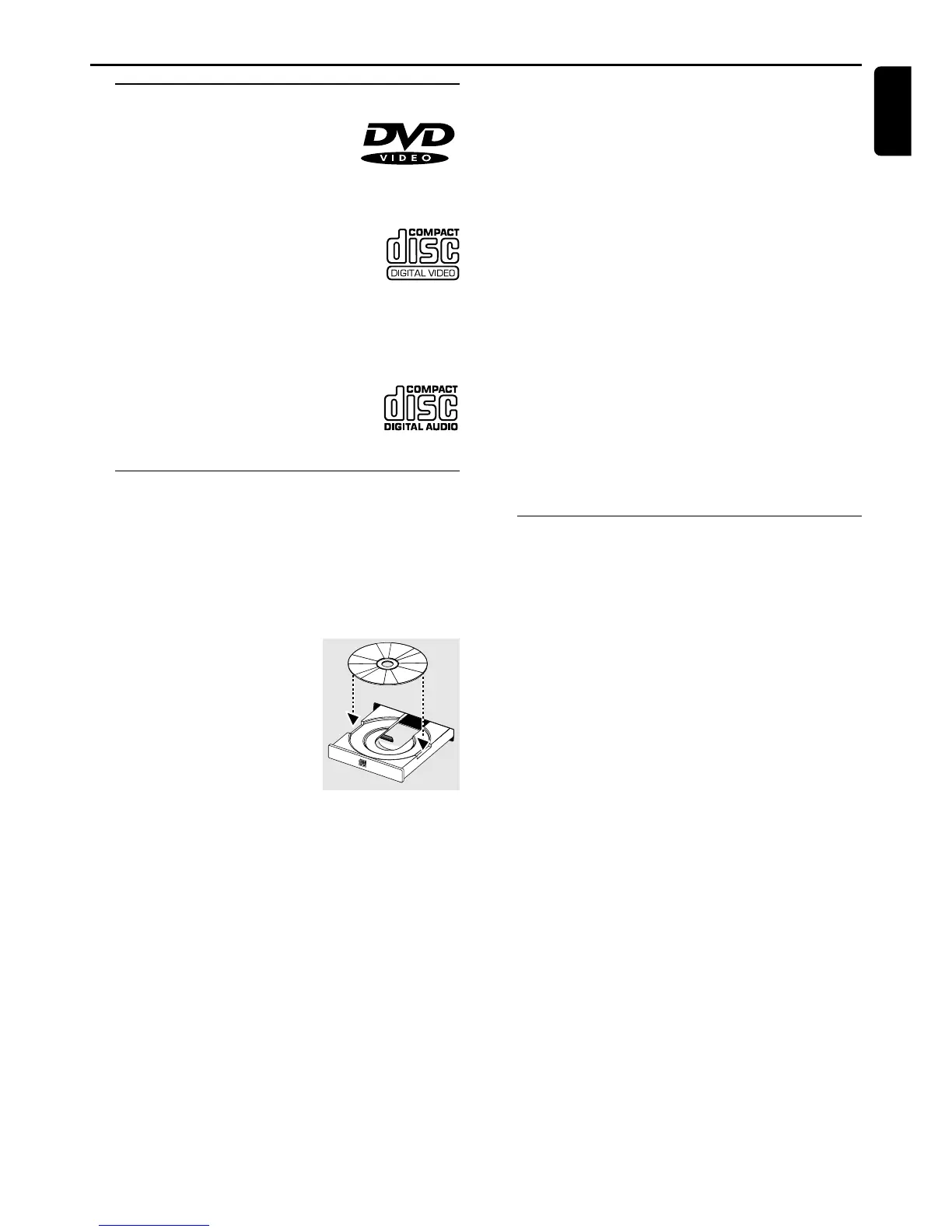
4 Load a disc with the label side facing up. For double-sided
discs, load the side you want to play facing up.
5 Press again the corresponding OPEN•CLOSE 0 button
to close the disc tray.
➜ There will be a short delay while the player identifies
the disc and reads the menu from the disc.
➜ The selected disc’s number begins to flash.
● Some discs will start playing automatically, while others will
display the Disc Contents Menu on the TV screen. If the
menu is presented, use 3 4 1 2 keys to highlight your
selection and press OK to confirm. To select a play option,
use the numeric keypad (0-9).
6 Press £ (ÉÅ ) to start playback.
Notes:
– If you leave the disc tray open for more than 8 minutes,
the disc tray automatically closes.
– Your player will not play discs that have a region code
different from the region code of your DVD system.
– When the inhibit icon (Ä) appears on the TV screen
when a button is pressed, it means the function is not
available on the disc you are playing.
To interrupt playback
● Press £ (ÉÅ ).
➜ The picture freezes and the sound will be muted.
● To resume playback, press £ (ÉÅ ) again.
To stop playback
● Press Ç.
To select a another disc
● Press DISC SKIP (or DVD/CD) until the desired disc
loads.
➜ The current selected disc’s number and “LOADING”
begin to flash.
➜ If a disc has loaded, it automatically plays.
Playing an MP3 disc
Playing an MP3 disc is only possible within an
album. For easy navigation of your MP3-CD,
please turn on your TV.
1 Load an MP3 disc.
➜ The MP3 menu is displayed on the TV screen.
2 Use 3 4 1 2 to select a desired album, then press OK.
➜ “FOLDER XX” is displayed on the front panel screen.
3 Use 3 4 1 2 to select a desired title.
➜ “FILE XXX” is displayed on the front panel screen.
● To return to the previous menu, press Ç, then 3 4 1 2
button.
4 Press £ (ÉÅ ) to start playback.
➜ The disc will stop playing after completing the playback
of all the titles in the selected album.
● To play the next or previous title during playback, press
S or T button.
● You can also select the desired album/title number directly
using the numeric keypad (0-9).
➜ In stop mode, numbers are used for album selection.
➜ In play mode, numbers are used for title selection.
Notes:
– When the system does not read a file, “?” will be displayed.
– It is not possible to create a programme with MP3 tracks
from multiple CDs, or combined with normal audio tracks.
Operations
OPERATIONS
P
O
W
E
R
O
N
/
O
F
F






 To Next Page