22 Playback
4
Press + / – to set the desired playback speed.
5
Press the record key g to confirm.
6.4 Quick search
You can scan backward or forward in the current file at a fast speed.
This allows to find a specific part of the recording.
1
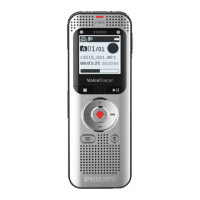
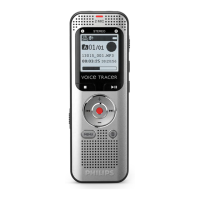
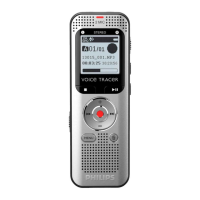
During playback press and hold one of the two navigation keys h
or b.
X The selected recording is searched for at high speed in either
forward or rewind mode.
2
Release the key
X to resume playback at the selected speed form the current
position.
6.5 Repeat a file / repeat a sequence
You can automatically repeat playback of a certain file, folder or
sequence (=loop).
1
In stop mode (start-up screen), press the menu key.
2
Press h / b to select the file menu Ò.
3
Press the record key g to confirm.
4
Press + / – to select the Repeat function.
5
Press the record key g to confirm.
6
Press + / – to repeat a certain recording/file or a folder
automatically.
X The symbol of the selected repeat mode is displayed on the
display:
–repeat a file
Á–repeat all files in a folder
Örepeat a selection/sequence
a Press the record key g to specify the sequence start point.
b Press the record key g a again to specify the sequence end
point.
Ä–Random playback
7
Press the record key g to confirm.
X Playback of the recording or folder starts.
Tip
• During playback, press the record key g to call the function
repeat selection/sequence directly. Press the record key g again
to specify the sequence start point. Press the record key g to
specify the sequence end point.
• Press the record key g one more time to end repeating of the
sequence.




 To Next Page