2-3
9
English
Preparations
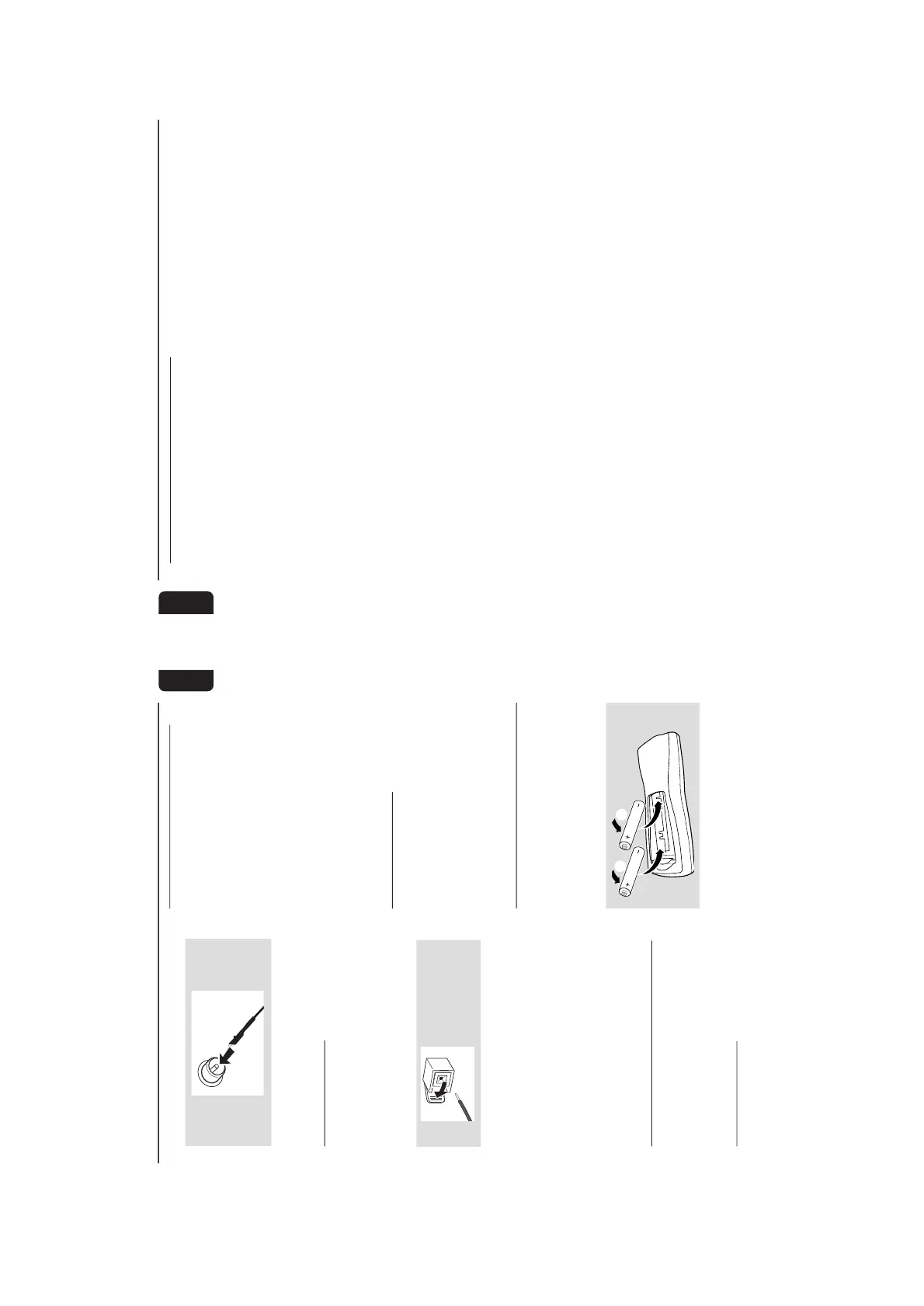
FM Antenna
¶ For better FM stereo reception, connect an
outdoor FM antenna to the FM ANTENNA
terminal.
C
Speakers Connection
Front Speakers
Connect the speaker wires to the SPEAKERS
(FRONT) terminals, right speaker to "R" and left
speaker to "L", coloured (marked) wire to "+"
and black (unmarked) wire to "-".
¶ Clip the stripped portion of the speaker wire as
shown.
Notes:
–For optimal sound performance, use the
supplied speakers.
– Do not connect more than one speaker to any
one pair of
+
/
-
speaker terminals.
– Do not connect speakers with an impedance
lower than the speakers supplied. Please refer to
the SPECIFICATIONS section of this manual.
Optional Connections
The optional equipment and connecting cords
are not supplied. Refer to the operating
instructions of the connected equipment for
details.
Line Out Connection
Connect this output to any analogue audio
equipment for playback or recording (CD
recorder, tape recorder or amplifier for example).
Use a cinch cable to connect the LINE OUT
terminals to the analogue audio in terminals of
the equipment.
Connecting other equipment to your
system
Connect the audio left and right OUT terminals
of a TV, VCR, Laser Disc player, DVD player or
CD Recorder to the AUX/CDR IN terminals.
Notes:
– Do not connect equipment to both the LINE
OUT and AUX/CDR IN terminals at the same time.
Otherwise, noise will be generated and malfunction
might occur.
– If you are connecting equipment with a mono
output (a single audio out terminal), connect it to
the AUX/CDR IN left terminal. Alternatively, you
can use a “single to double” cinch cable (still be
mono sound).
Digital Out Connection
Connect this digital output when recording on
any audio equipment with digital input (CD
Recorder, Digital Audio Tape [DAT] deck, Digital
to Analogue Converter and Digital Signal
Processor, for example). Use a cinch cable to
connect the DIGITAL OUT terminal to the
digital input terminal of the equipment.
Inserting batteries into the
Remote Control
Insert two batteries (Type R06 or AA) into the
remote control with the correct polarity as
indicated by the + and - symbols inside the
battery compartment.
CAUTION!
– Remove batteries if they are exhausted
or not to be used for a long time.
– Do not use old and new or different
types of batteries in combination.
– Batteries contain chemical substances, so
they should be disposed off properly.
10
English
Controls
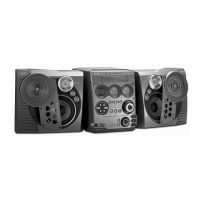
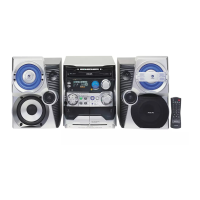
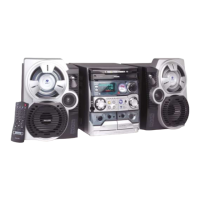
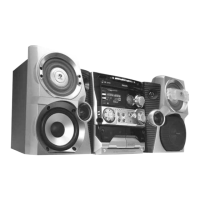
(main system’s illustration on page 3)
Controls on the system and
remote control
1
ECO POWER
– to switch the system on or to Eco Power
Standby mode.
2
STANDBY ON
yy
yy
y
– to switch the system on or to Standby mode.
3
DISPLAY SCREEN
– to view the current status of the system.
4
DISC TRAY
5
DISC CHANGE
– to change disc(s).
6
DISC 1 / DISC 2 / DISC 3 (CD DIRECT)
– to select a disc tray for playback.
7
OPEN•CLOSE
– to open or close the disc tray.
8
INTERACTIVE VU METER
– to show the VU (volume unit) meter in music or
volume mode depending on the display mode
selected.
9
VOLUME
– to increase or decrease the volume.
0
Tape Deck Operation
AUTO REPLAY (AUTO RE.)
– to select continuous playback in either AUTO
PLAY or ONCE mode only.
DUBBING
– to dub a tape.
REC
– to start recording on tape deck 2.
!
SOUND NAVIGATION
– to select the desired sound feature : DSC or
VAC.
@
JOG CONTROL
– to select the desired sound effect for the
selected sound feature.
DSC .................. DIGITAL, ROCK, POP, NEWAGE,
CLASSIC or ELECTRIC.
VAC .................. HALL, CONCERT, CINEMA,
DISCO, ARCADE or CYBER.
#
INCREDIBLE SURROUND (IS)
– to activate or deactivate the surround sound
effect.
$
wOOx ON•OFF
– to select enhanced or normal wOOx sound
effect.
wOOx LEVEL
– to select desired wOOx level : WOOX 1,
WOOX 2 or WOOX 3.
%
ç
– to open the tape deck door.
^
TAPE DECK 2
&
TAPE DECK 1
*
SOURCE – to select the following:
CD / (CD 1•2•3)
– to select disc tray 1, 2 or 3.
TUNER / (BAND)
– to select waveband : FM, MW or LW.
TAPE / (TAPE 1• 2)
– to select tape deck 1 or 2.
AUX / (CDR/DVD)
– to select a connected external source :
CDR/DVD or AUX (auxiliary) mode.
(
Mode Selection
PLAY PAUSE ÉÅ
for CD ................. to start or interrupt playback.
for TAPE .............. to start playback.
for PLUG & PLAY…(on the system only) to
initiate and start plug & play
mode.
SEARCH• TUNING 11 22
for CD ................. to search backward/forward.
for TUNER ......... to tune to a lower or higher radio
frequency.
for TAPE .............. to rewind or fast forward.
for CLOCK ....... (on the system only) to set the
hour.
DEMO STOP/CLEAR Ç
for CD ................. to stop playback or to clear a
programme.
for TUNER ........ to stop programming.
................................. to delete the preset radio
station.
for TAPE .............. to stop playback or recording.
................................. to reset tape counter number.
for DEMO ......... (on the system only) to activate/
deactivate the demonstration.
for CLOCK ....... (on the system only) to exit clock
setting or cancel timer.
for PLUG & PLAY…(on the system only) to exit
plug & play mode.
PREV / PRESET / NEXT íë
for CD ................. to skip to the beginning of the
current, previous, or next track.
for TUNER ........ to select a preset radio station.
for CLOCK ....... (on the system only) to set the
minute.
www.freeservicemanuals.info



 To Next Page