15
English
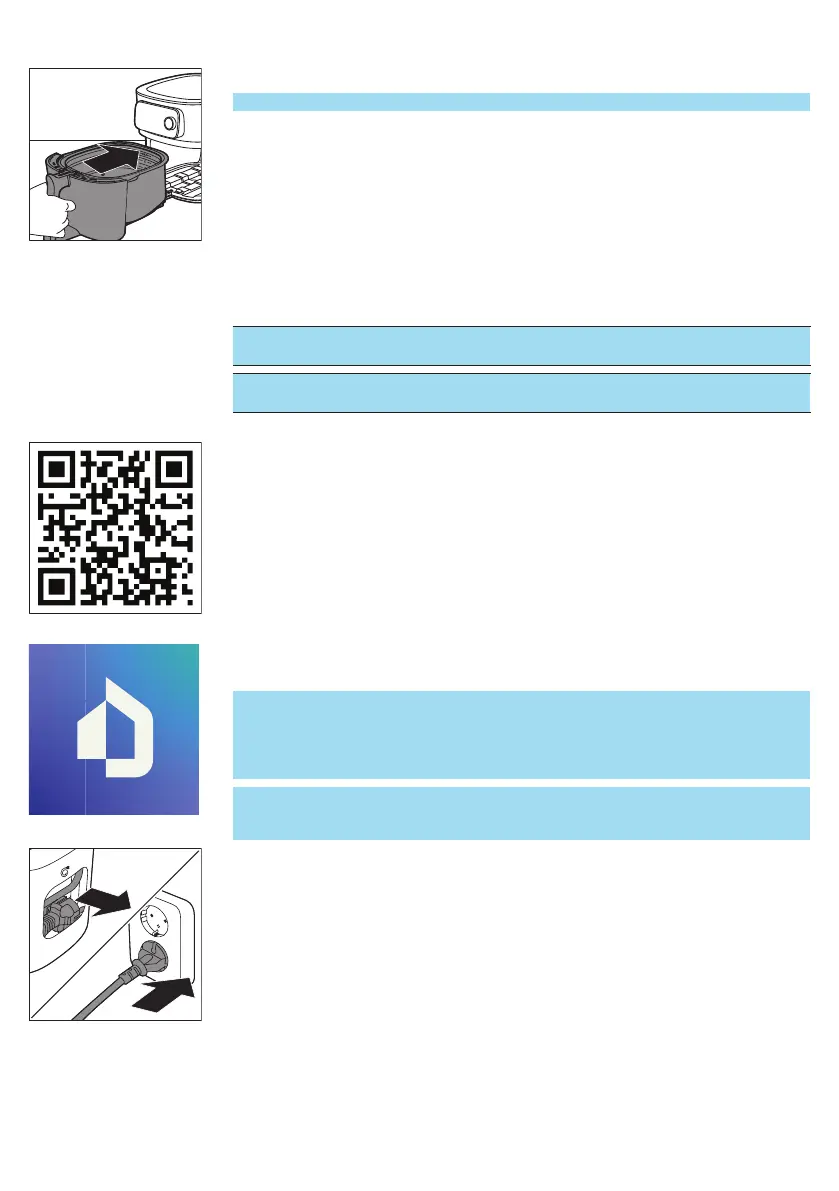
5 Slide the drawer back into the Airfryer by the handle.
Note: Never use the pan without the basket.
Connecting the Airfryer to the app
Important: Make sure that your smart phone is connected to your home
WiFi network before you start the WiFi set-up process.
Important: Make sure to connect your Airfryer to a 2.4 GHz 802.11 b/g/n
home WiFi network.
Pair your Airfryer with the app
1 Scan the QR code to download the app. You can also get the app from the
App Store or on the website www.philips.com/HomeID.
2 Start the app on your smart phone.
3 Follow the onscreen instructions until you reach the "Set up appliance" page.
Note: We recommend downloading the app and add your Airfryer to the app
as soon as you set up your appliance for the first time. This enables you to use
the Airfryer to its full extent, for example, to enjoy remote cooking (start
recipes or Auto-Cook programs from the app, get notifications when food is
done, etc.) and to get the latest firmware updates.
Note: To make use of connectivity features, you need an account. During the
onboarding process, you need to register a new account or log in with an
existing one.
4 Plug in the appliance.


 To Next Page