Service Modes, Error Codes, and Fault Finding
EN 15LC4.31E AA 5.
Then:
1. Press the SMART PICTURE button on the remote control
transmitter repeatedly (if necessary) to choose
PERSONAL picture mode.
2. Press the MENU button on the remote control transmitter.
This brings up the normal user menu.
3. In the normal user menu, use the MENU UP/DOWN keys
to select the PICTURE sub menu.
4. Press the MENU LEFT/RIGHT keys to enter the PICTURE
sub menu.
5. Use the MENU UP/DOWN keys (if necessary) to select
BRIGHTNESS.
6. Press the MENU LEFT/RIGHT keys to increase or
decrease the value of the selected parameter.
7. Use the MENU UP/DOWN keys to select STORE.
8. Press the MENU RIGHT key to store the new value.
9. Press the MENU key to exit the PERSONAL picture mode.
White Line around Picture Elements and Text
If:
The picture improves after you have pressed the SMART
PICTURE button on the remote control transmitter,
Then:
1. Press the SMART PICTURE button on the remote control
transmitter repeatedly (if necessary) to choose
PERSONAL picture mode.
2. Press the MENU button on the remote control transmitter.
This brings up the normal user menu.
3. In the normal user menu, use the MENU UP/DOWN keys
to select the PICTURE sub menu.
4. Press the MENU LEFT/RIGHT keys to enter the PICTURE
sub menu.
5. Use the MENU UP/DOWN keys (if necessary) to select
SHARPNESS.
6. Press the MENU LEFT/RIGHT keys to increase or
decrease the value of the selected parameter.
7. Use the MENU UP/DOWN keys to select STORE.
8. Press the MENU RIGHT key to store the new value.
9. Press the MENU key to exit the PERSONAL picture mode.
Snowy Picture
Check CSM line 6. If this line reads “Not Tuned”, check the
following:
• Antenna not connected. Connect the antenna.
• No antenna signal or bad antenna signal. Connect a proper
antenna signal.
• The tuner is faulty (in this case line 2, the Error Buffer line,
will contain error number 10). Check the tuner and
replace/repair the tuner if necessary.
Black and White Picture
If:
• The picture improves after you have pressed the SMART
PICTURE button on the remote control transmitter,
Then:
1. Press the SMART PICTURE button on the remote control
transmitter repeatedly (if necessary) to choose
PERSONAL picture mode.
2. Press the MENU button on the remote control transmitter.
This brings up the normal user menu.
3. In the normal user menu, use the MENU UP/DOWN keys
to select the PICTURE sub menu.
4. Press the MENU LEFT/RIGHT keys to enter the PICTURE
sub menu.
5. Use the MENU UP/DOWN keys (if necessary) to select
COLOUR.
6. Press the MENU LEFT/RIGHT keys to increase or
decrease the value of the selected parameter.
7. Use the MENU UP/DOWN keys to select STORE.
8. Press the MENU RIGHT key to store the new value.
9. Press the MENU key to exit the PERSONAL picture mode.
5.4 Service Tools
5.4.1 ComPair
Introduction
ComPair (Computer Aided Repair) is a Service tool for Philips
Consumer Electronics products. and offers the following:
1. ComPair helps you to quickly get an understanding on how
to repair the chassis in a short and effective way.
2. ComPair allows very detailed diagnostics and is therefore
capable of accurately indicating problem areas. You do not
have to know anything about I
2
C or UART commands
yourself, because ComPair takes care of this.
3. ComPair speeds up the repair time since it can
automatically communicate with the chassis (when the μP
is working) and all repair information is directly available.
4. ComPair features TV software upgrade possibilities.
Specifications
ComPair consists of a Windows based fault finding program
and an interface box between PC and the (defective) product.
The (new) ComPair II interface box is connected to the PC via
an USB cable. For the TV chassis, the ComPair interface box
and the TV communicate via a bi-directional cable via the
service connector(s).
How to Connect
This is described in the ComPair chassis fault finding database.
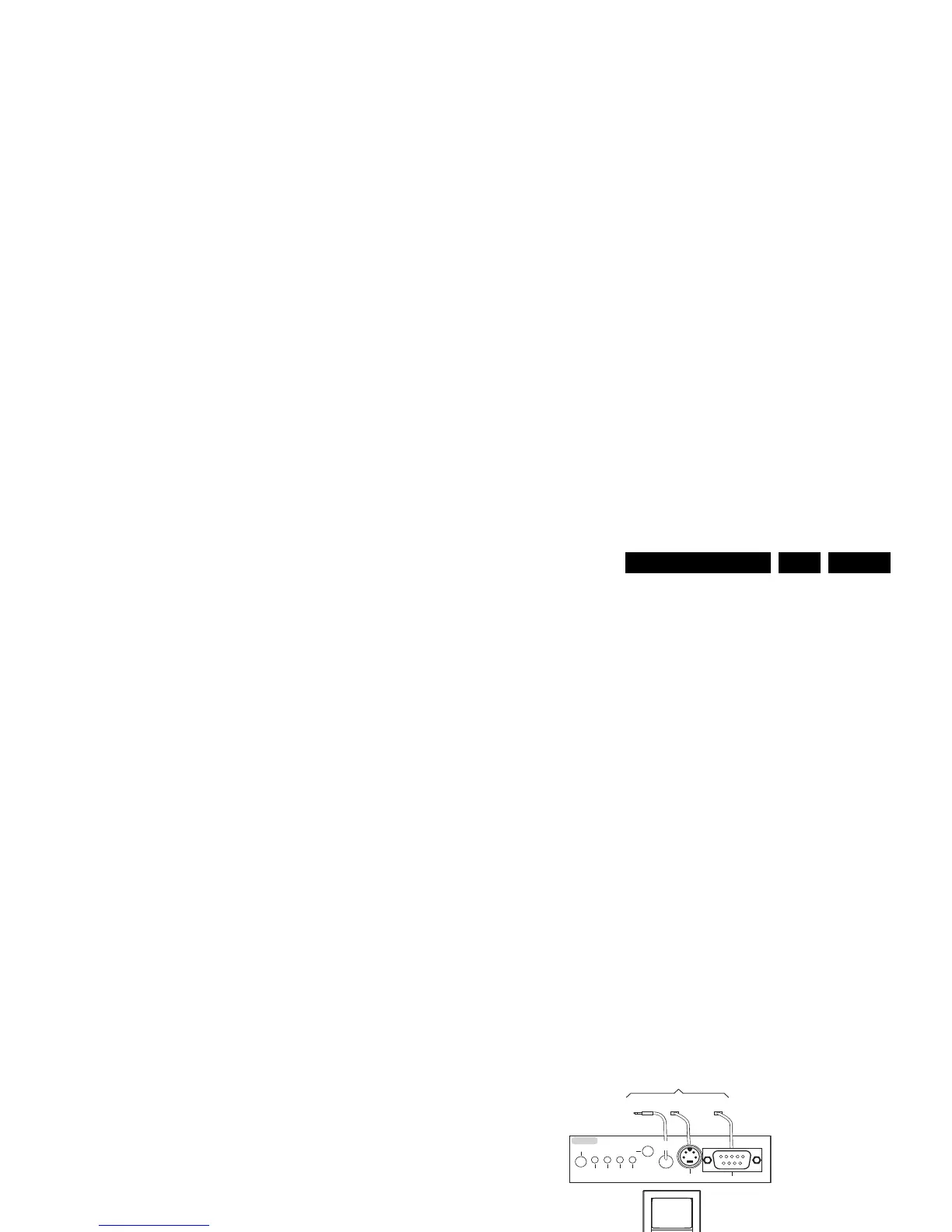
Figure 5-6 ComPair II interface connection
Caution: It is compulsory to connect the TV to the PC as
shown in the picture above (with the ComPair interface in
between), as the ComPair interface acts as a level shifter. If
one connects the TV directly to the PC (via UART), ICs will be
blown!
How to Order
ComPair II order codes:
• ComPair II interface: 3122 785 91020.
• The latest ComPair software can be found on the Philips
Service website.
•ComPair I
2
C interface cable: 3122 785 90004 (to be used
with chassis L01, A02, A10, EMx, TPM1.xA, etc ...).
•ComPair I
2
C interface extension cable: 3139 131 03791 (to
be used with chassis L01, A02, A10, L04, LC4, LC7.1,
LC7.2).
• ComPair UART interface cable: 3122 785 90630 (to be
used with chassis LC4, EJ3, BJ2, BL2, BP2, ...).
• ComPair RS232 cable: 3104 311 12742 (to be used with
chassis Q52x).



 To Next Page