3 - 2
CONNECTION AND CONTROLS
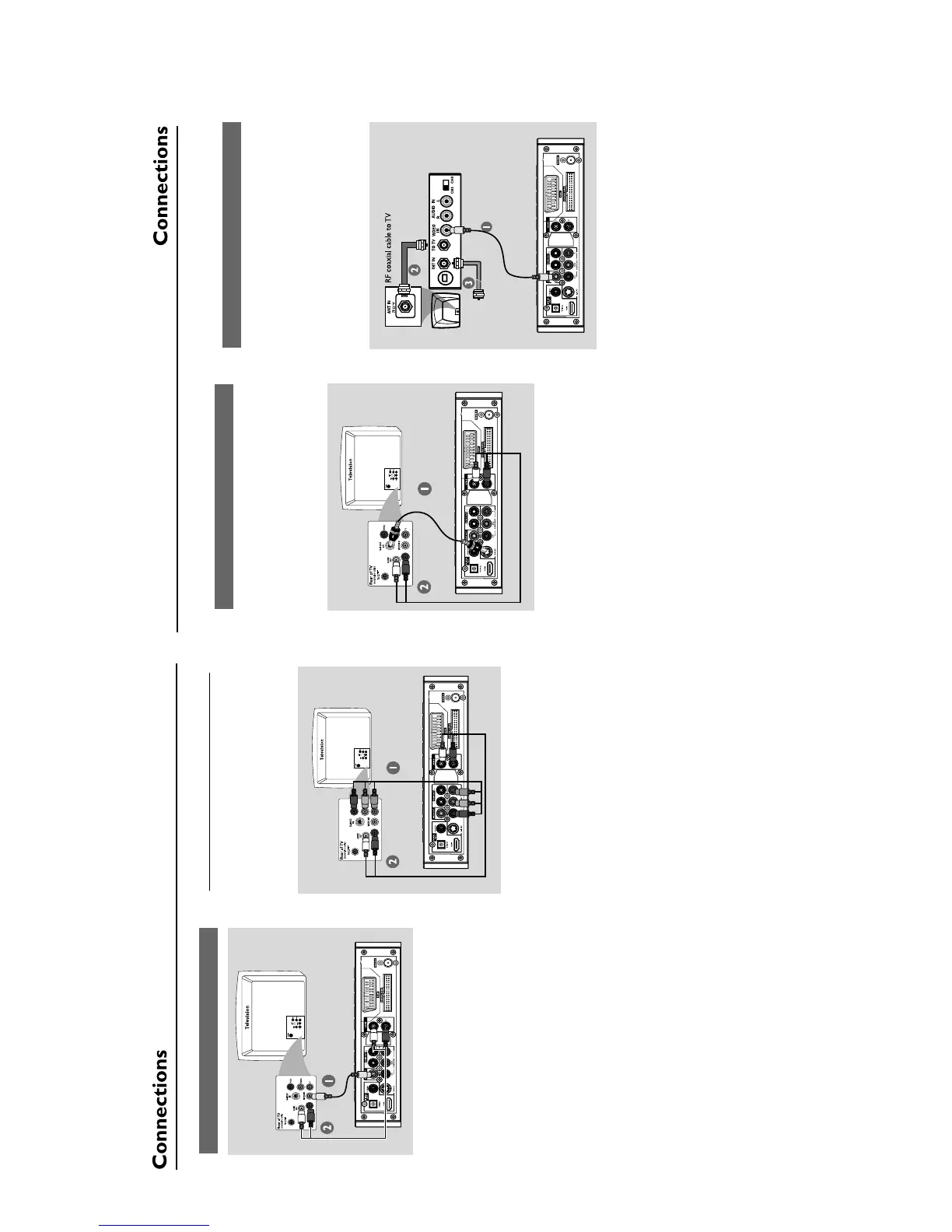
Using Composite Video jack
1
Use the composite video cable (yellow) to
connect the system's VIDEO jack to the video
input jack (or labelled as A/V In, Video In,
Composite or Baseband) on the TV set.
2 To listen to the TV channels through this DVD
system, use the audio cables (white/red-not
supplied) to connect AUX IN L/R jacks to the
corresponding AUDIO OUT jacks on the TV.
Using Component Video jacks (Y Pb Pr)
IMPORTANT!
–
The progressive scan video quality is
only possible when using Y Pb Pr, and a
progressive scan TV is required.
1
Use component video cables (red/blue/green -
not supplied) to connect the DVD system's
COMPONENT (Pr/Cr Pb/Cb Y)
jacks to
the corresponding Component video input jacks
(or labeled as Y Pb/Cb Pr/Cr or YUV) on the TV.
2
To listen to the TV channels through this DVD
system, use the audio cables (white/red-not
supplied) to connect
AUX IN L/R
jacks to the
corresponding AUDIO OUT jacks on the TV.
3 If you are using a Progressive Scan TV (TV must
indicate Progressive Scan or ProScan capability),
to activate TV Progressive Scan, please refer to
your TV user manual. For DVD system
Progressive Scan function, see “Getting Started-
Setting up Progressive Scan feature”.
Note:
– If your TV does not support Progressive Scan,
you will not be able to view the picture.
Press SYSTEM MENU on the remote to exit the
system menu and then DISC and “1” to exit
progressive scan.
Using S-Video jack
IMPORTANT!
– If S-Video is used for DVD playback
connection, the system’s VIDEO OUT
setting will need to be changed
accordingly.
1
Use an S-Video cable (not supplied) to connect
the DVD system’s S-VIDEO jack to the S-
Video input jack (or labeled as Y/C or S-VHS) on
the TV.
2 To listen to the TV channels through this DVD
system, use the audio cables (white/red-not
supplied) to connect AUX IN L/R jacks to the
corresponding AUDIO OUT jacks on the TV.
Using an accessory RF modulator
IMPORTANT!
– If your TV only has a single Antenna In
jack (labeled as 75 ohm or RF In), you
will need an RF modulator in order to
view DVD playback on the TV. See your
electronics retailer or contact Philips for
details on RF modulator availability and
operations.
1
Use the composite video cable (yellow) to
connect the DVD system’s VIDEO jack to the
video input jack on the RF modulator.
2
Use an RF coaxial cable (not supplied) to
connect ANTENNA OUT or TO TV jack on the
RF modulator to the Antenna IN jack on the TV.
3
Connect the Antenna or Cable TV service signal
to the ANTENNA IN or RF IN jack on the RF
modulator. (It may have been connected to your
TV previously. Disconnect it from the TV.)


 To Next Page