19
English
Getting Started
Step 3: Setting the TV
IMPORTANT!
Make sure you have completed all
the necessary connections. (See
page 12 “Connecting TV”).
1 Adjust SOURCE control until “DISC X”
appears on the display panel (or press
DISC / MEDIA on the remote).
2 Turn on the TV and set to the correct
video-in channel. You should see the blue
Philips DVD background screen on the TV.
➜ Usually this channel is between the
lowest and highest channels and may be
called FRONT, A/V IN, or VIDEO. See
your TV manual for more details.
➜ Or, you may go to channel 1 on your
TV, then press the Channel down button
repeatedly until you see the Video In
channel.
➜ Or, the TV remote control may have a
button or switch that chooses different
video modes.
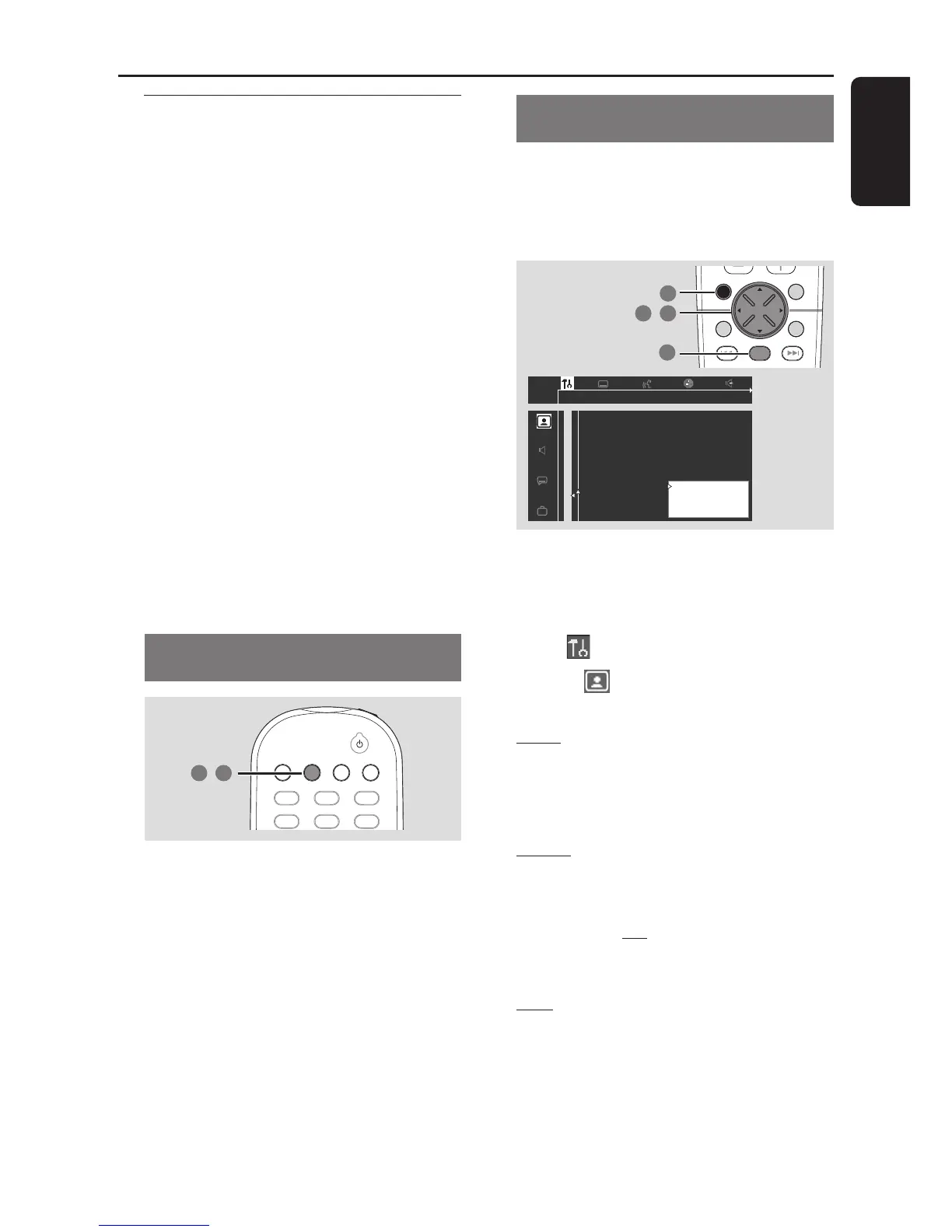
Changing the NTSC/PAL setting via
the remote control
TV/AV
DISC/
MEDIA
TUNER
AUX/DI
456
123
1 2
,
1 Press DISC /MEDIA on the remote to
enter disc mode.
➜ Make sure no MP3 disc is in disc tray 1.
➜ Wait until the system finishes reading
the discs before proceeding to next step.
If playback begins, press Ç to stop
playback.
2 Press and hold DISC / MEDIA on the
remote until “PAL” or “NTSC” appears
on the display panel.
➜ To change the setting, repeat step 2.
Selecting the colour system that
corresponds to your TV
This DVD system is compatible with both
NTSC and PAL. In order for a DVD to
play on this DVD system, the colour
system of the DVD, the TV and the DVD
system should match.
1 In disc mode, stop playback and press
SYSTEM MENU.
2 Use the joystick (1 2 3 4) on the
remote to navigate in the menu.
3 Select icon and press 4.
Move to and press 2.
Move to {TV System} and press 2.
Auto – Select this if the connected TV is
compatible with both NTSC and PAL
(multi-system). The output format will be
in accordance with the video signal of the
disc.
NTSC – Select this if the connected TV
is NTSC system. It will change the video
signal of a PAL disc (VCD only) and
output to NTSC format. Set the {Black
level shift} to ‘
On’ in order to improve
the colour contrast and picture when you
play an NTSC-compatible DVD.
PAL – Select this if the connected TV is
PAL system. It will change the video signal
of an NTSC disc and output to PAL
format.
4 Select an item and press OK.
To remove the menu
Press SYSTEM MENU.



 To Next Page