8 EN
4 Basics
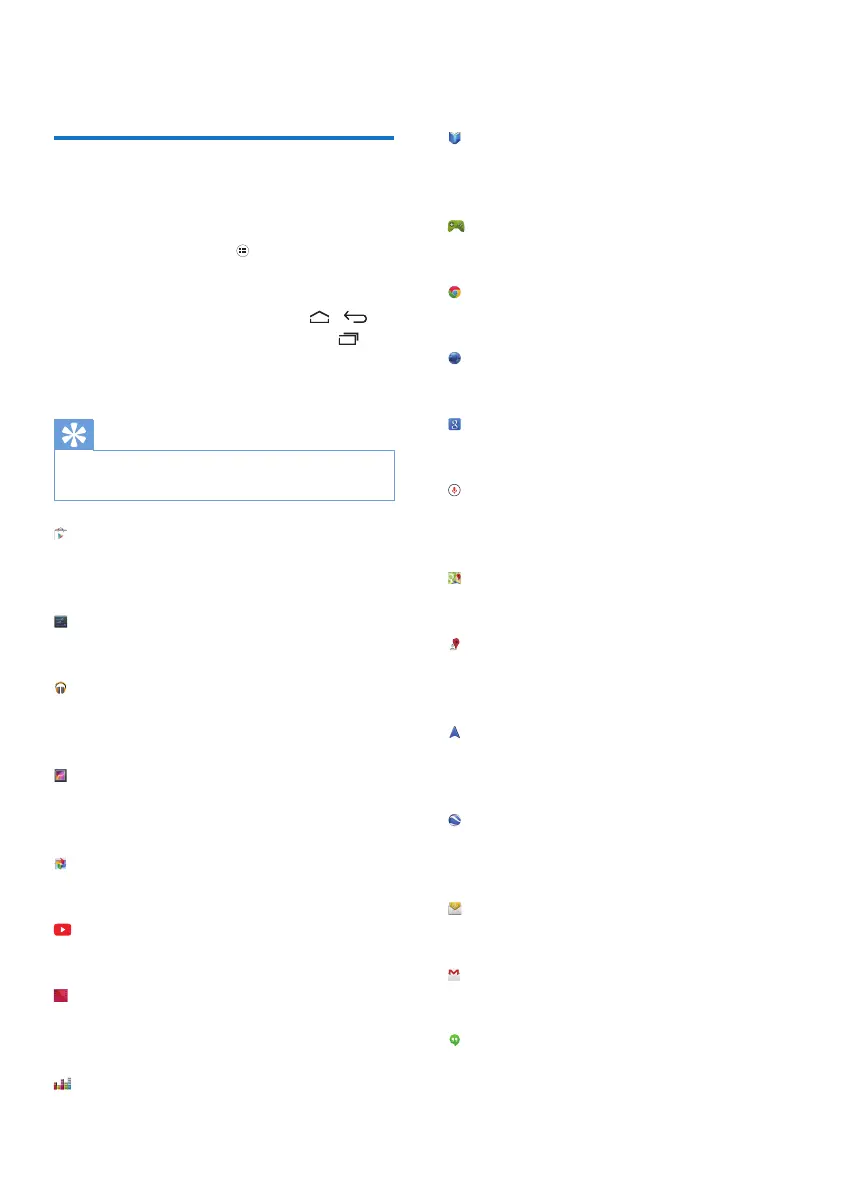
Find apps
Navigate on the Home screen to nd an app:
• Swipe left/ right to select a page;
• Alternatively, tap to open the list of
apps. Swipe left/ right to scroll through
the list;
• Use the navigation buttons /
to switch between screens. Tap to
go to the apps that you have accessed
recently.
Tip
• On PI3910, you can install apps from the Play Store or
other sources.
Play Store:
• Download different apps, games, and
others.
Settings:
• Customize the settings of PI3910.
Play Music:
• Play music that you store on PI3910.
• Online music service of Google
Gallery:
• View pictures and videos that you
store or make on PI3910.
Photos:
• Photo-sharing service of Google
YouTube:
• Online video service of Google
Play Movies & TV:
• Online movie & TV service of Google
(available in some countries)
Deezer:
• Online music service (available in some
countries)
Play Books:
• Online book service of Google
(available in some countries)
Play Games:
• Online games service of Google
Chrome:
• Web browser of Google
Browser:
• Browse Web pages.
Google Search:
• Search on PI3910 or the Web.
Voice Search
• Voice search and voice action services
of Google
Maps:
• Maps service of Google
Local:
• Quick access to the place search
function in Google Maps
Navigation:
• Quick access to the navigation function
in Google Maps
Earth:
• Satellite view of maps (available in
some countries)
• Email:Set up your email account on
PI3910.
Gmail:
• Mail service of Google
Hangouts:
• Chat service of Google



 To Next Page