EN
14
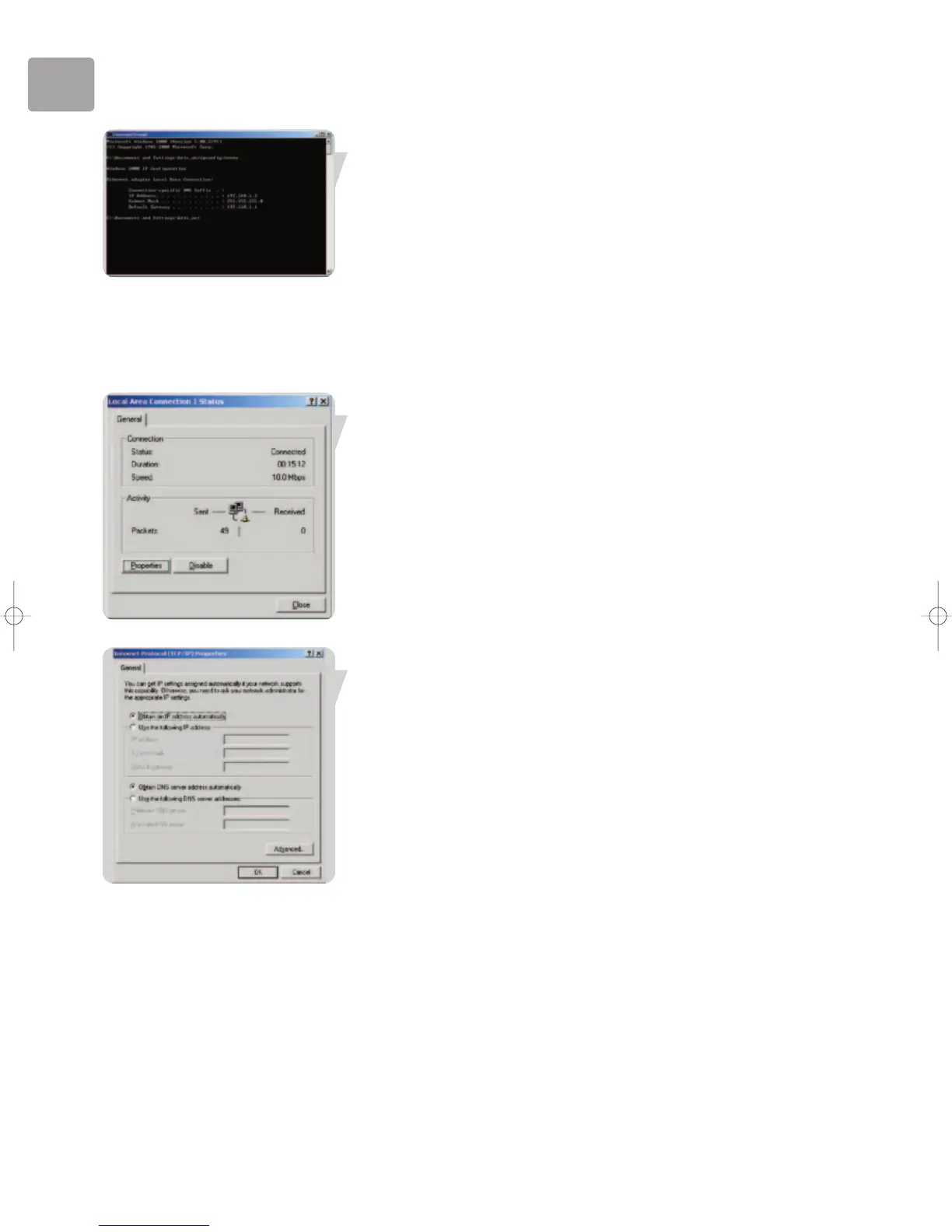
4 Type ‘EXIT’ and press the ENTER key to close the Command Prompt window.
Your computer is now configured to connect to the ADSL Wireless Base Station.
Windows 2000
1 On the Windows desktop, click Start/Settings/Network and Dial-Up Connections.
2 Click the icon that corresponds to the connection to your ADSL Wireless Base
Station.
3 The connection status screen will open. Click Properties.
4 Double-click Internet Protocol (TCP/IP).
5 If ‘Obtain an IP address automatically’ and ‘Obtain DNS server address
automatically’ are already selected, your computer is already configured for
DHCP. If not, select this option.
Disable HTTP Proxy
You need to verify that the ‘HTTP Proxy’ feature of your web browser is disabled.
This is so that your browser can view the ADSL Wireless Base Station's HTML
configuration pages (refer to ‘Internet Explorer’ on page 10).
Obtain IP Settings from Your ADSL Wireless Base Station
Now that you have configured your computer to connect to your ADSL Wireless
Base Station, it needs to obtain new network settings. By releasing old DHCP IP
settings and renewing them with settings from your ADSL Wireless Base Station, you
can verify that you have configured your computer correctly.


 To Next Page