7
1 Insert a cassette or switch the video recorder on with the
P q
button.
2 Use the
P r
or
P q
button or the
0-9
buttons to
select the programme number from which you wish to
record, e.g. ’P 01’ .
BBC1
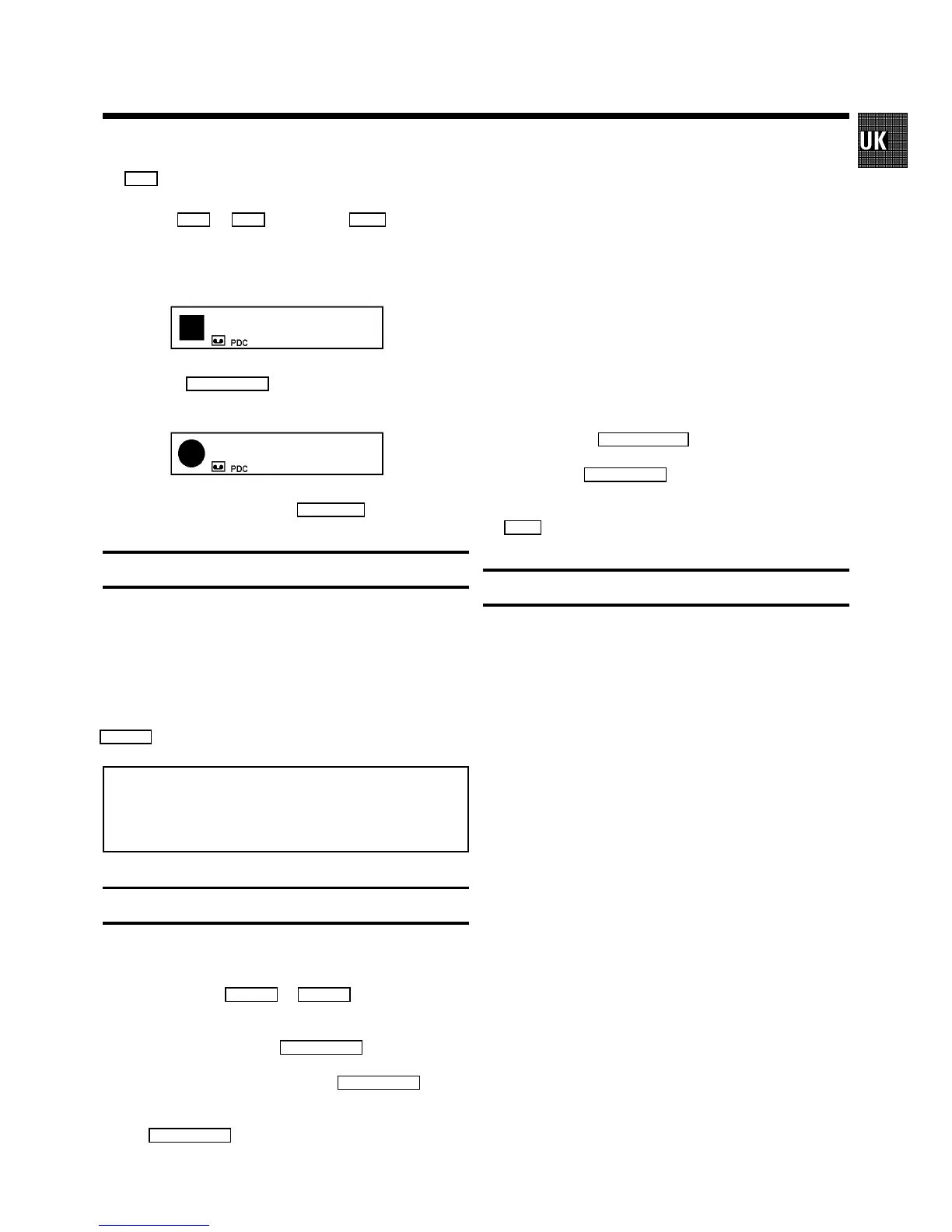
3 Press the
RECORD 5
button.
0:00
4 To stop recording, press the
STOP h
button.
Long play function
You can reduce the recording speed by half. This makes it
possible to record, for example, 8 hours instead of 4 hours on
an ’E240’ cassette.
Before recording, with the video recorder switched on, select
the ’LP’ (=LongPlay) recording speed by pressing the
SP/LP
button. ’LP’ will appear in the display.
Note: During picture scanning, still picture and slow
motion colour playback may be poor.
* You will obtain the best picture quality when recording
at standard speed (’SP’).
Some general notes for recording
• Recording from external sources: Programme numbers
’E1’ and ’E2’ are provided for recording from external
sources (via the
EXT.1
or
EXT.2
scart socket).
• OTR - recording: If you do not want to record to the end
of the cassette, press the
RECORD 5
button again.
The display shows at what time the recording will stop.
With each subsequent press of the
RECORD 5
button
you can add 30 minutes to this time.
You can return to the normal recording status by pressing
the
CLEAR (CL)
button.
• Stereo reception: This video recorder can record stereo
transmissions. The playback of HiFi recordings has HiFi
quality.
• Erase protection: So that you don’t accidentally delete an
important recording, you can remove the special tab
(erase protection) on the narrow side of the cassette with
a screwdriver or slide the special tab to the left.
Later, if you no longer want the cassette to be erase
protected, you can seal the gap again with adhesive tape
or slide the special tab to the right.
• Auto-assembling: You can use the auto-assembling func-
tion to join individual recordings without any major
picture disturbance between the recordings. During
playback, search for the correct position on the tape and
then press the
hSTOP/JEJECT
button. 9 will appear in
the display. Now you can start recording as usual by
pressing the
RECORD 5
button.
During Stop h or Pause 9 you can switch between the
display for TV-channel name and tape position, using the
OK
button.
How to programme a recording
The video recorder needs the following information for every
programmed recording:
* the date on which the recording is to be made
* the programme number for the TV channel
* the start and stop time of the recording
* ’PDC’ on or off
The set stores all the information mentioned above in what is
known as a TIMER block. You can programme up to 6 TIMER
blocks, one month in advance.
With ’PDC’ (Programme Delivery Control), the TV station
controls the beginning and the length of the programmed
recording. This means that the video recorder switches itself
on and off at the right time even if a TV programme you have
programmed begins earlier or finishes later than expected.
Usually the start time is the same as the PDC time code.
If, however, in the TV guide, in addition to a TV programme’s
start time, a different PDC time is given, e.g.: ’20.15
(PDC 20.14)’, you have to enter ’20.14’ as the start time
exactly to the minute.
If you want to enter a time that differs from the PDC time, you
have to switch off ’PDC’.
3. RECORDING


 To Next Page