Page 21 of 28
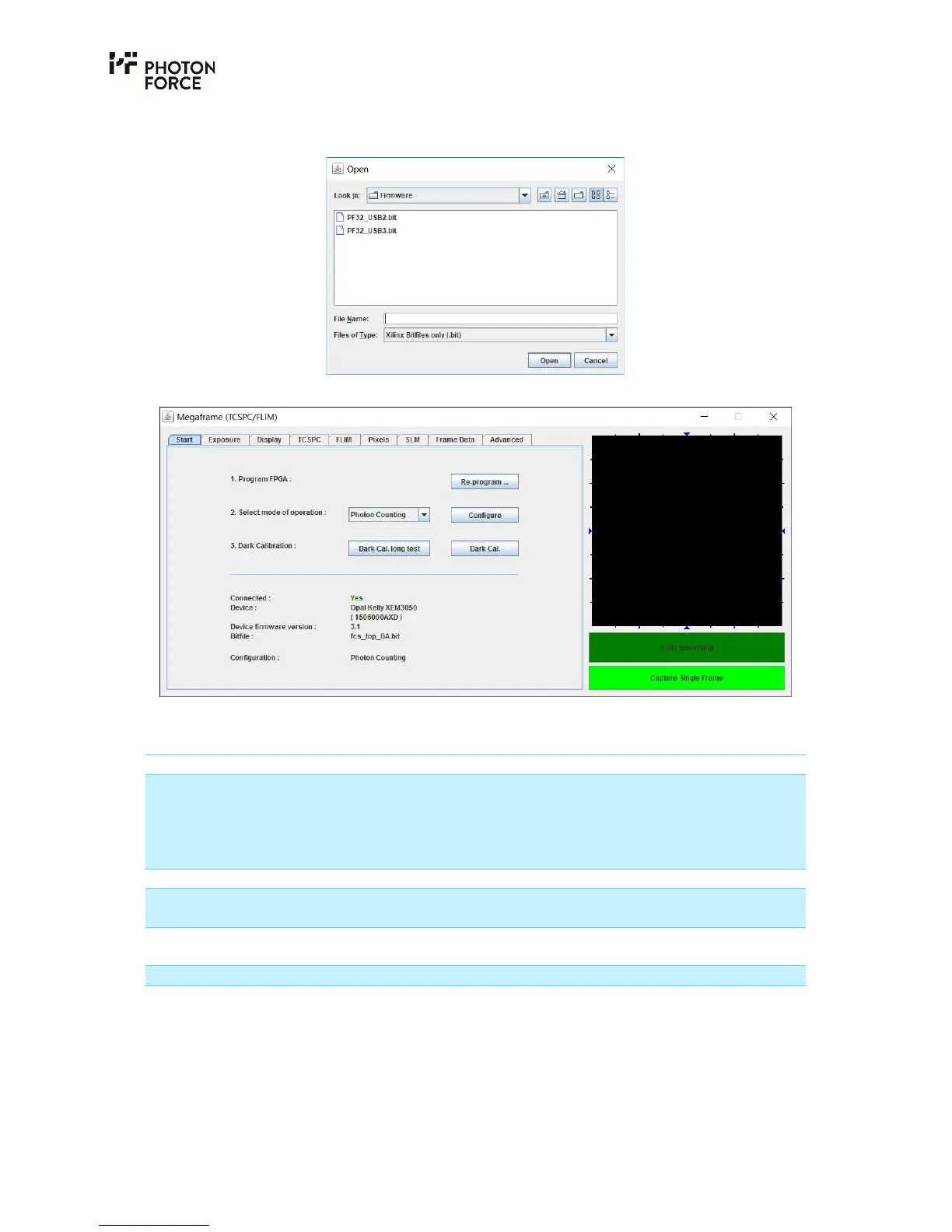
button, and select the appropriate firmware bit file for your PF32 camera (either USB2 or USB3)
from the dialog as shown below.
The start tab should then update as follows:
PF32 Java application Start tab, with a camera connected and configured.
The following status information is provided in the start tab:
Item Description
Connected: Indicates PF32 connection status. This will display either:
NO – PF32 camera is either not connected, or firmware has not
yet been loaded.
YES – PF32 camera is connected, and firmware has been
loaded.
Device: Displays the camera’s internal serial number.
Device firmware version: Displays the version number of the camera’s internal USB
firmware.
Bitfile: Displays the filename of the firmware bit file which has been
loaded.
Configuration: Provides confirmation of the camera’s mode of operation.
The camera’s operating mode may be quickly set by choosing the desired setting from the “Select
mode of operation” drop down box, and pressing the “Configure” button. If successful, the new
configuration will be indicated on the “Configuration” display mentioned above. The following
camera modes are available:



 To Next Page