57
NOTE: Even if the 2020PROPlus has been calibrated with a specific compound, its
response is not specific and the presence of another ionizable impurity may render
the numerical result invalid.
It is often impractical to carry a range of different standards into the field.
Approximate results can be obtained by calibrating the 2020PRO
Plus with the
recommended span gas and entering the appropriate response factor. The response
factor is based on the ratio of the response of the specific compound to the response
of the span gas. The response factor multiplies the 2020PROPlus’s reading, then
displays and records it.
The list of response factors is available directly from Photovac’s web site at:
www.photovac.com
. This list should be used only for concentrations up to 500 ppm
of the specific compound, as response factors change with concentration.
WARNING
The 2020PRO
Plus is a total VOC instrument and will ALWAYS
respond to all ionizable compounds present in a sample. The
2020PRO
Plus will NEVER respond only to a specific compound if an
RF is programmed. It is the responsibility of the user to be aware of the
limitations of PID instruments.
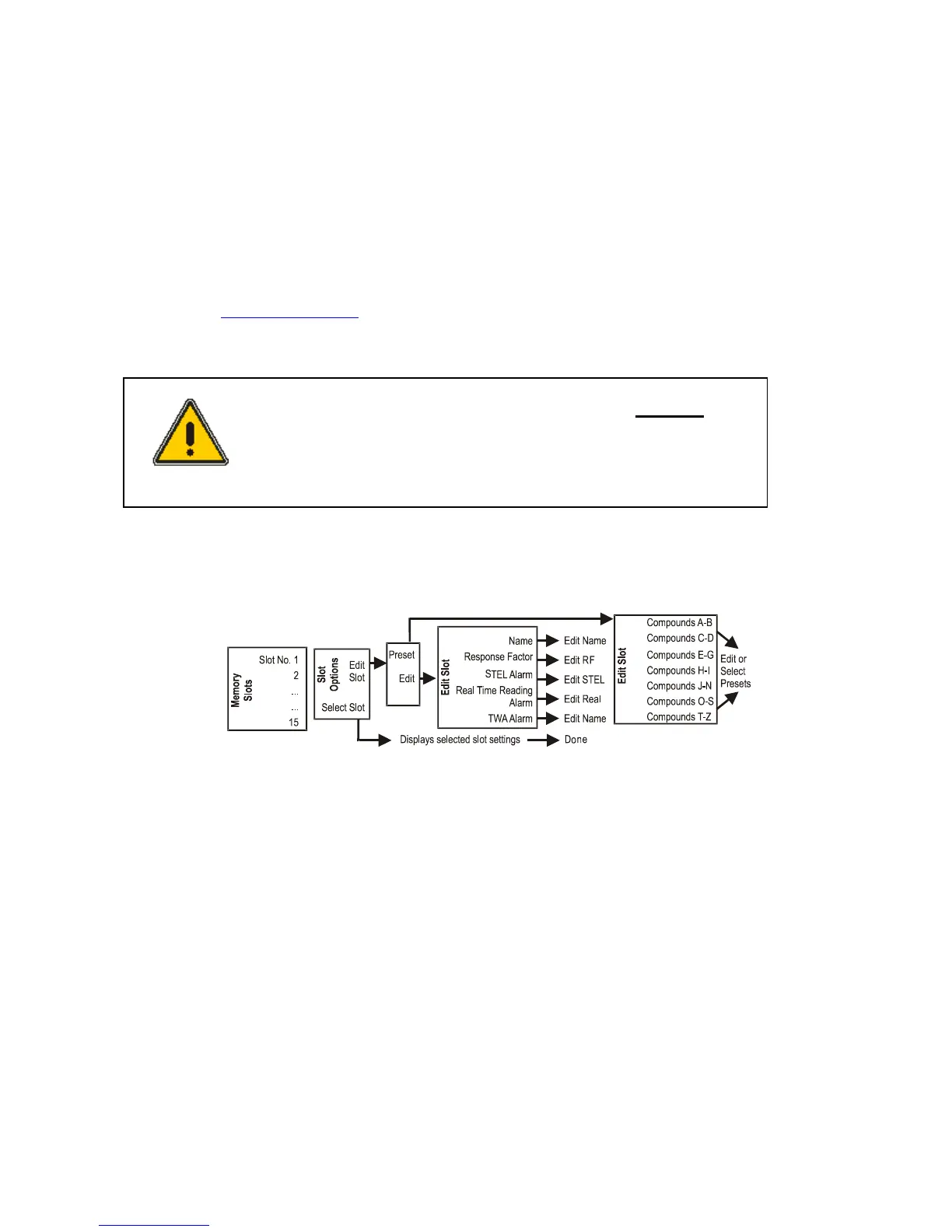
Response Factors and Memory Slots
Figure 16. Response Factor and Memory Slots
Response factors built into the 2020PRO
Plus are used to correct for the response of
the PID to a specific compound. These correction factors are often called response
factors (RF). The 2020PRO
Plus has 15 memory slots. Each memory slot can store
one preset RF. Library/RF selections simplify Memory Slot programming and
provide standard response factors for approximately 100 compounds. CHOOSE
FROM PRESETS allows you to select an entry from a pre-programmed Library.
The name, response factor and three alarm levels are all set from the library.
To select a preset to program the selected Memory Slot:
1. Press MENU, choose “Memory Slots”, and then use the DOWN ARROW
soft key to highlight “Memory Slots”, then press the SELECT soft key.
To select a memory slot:


 To Next Page