EasyManua.ls Logo

Pioneer Elite PRO-1000HD - User Manual

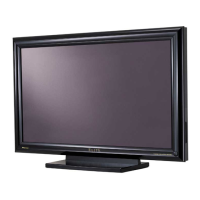
Pioneer Elite PRO-1000HD
44 pages
Print Icon
To Next Page IconTo Next Page
Loading...
Operating Instructions
PLASMA DISPLAY
PRO-1000HD
PRO-800HD

Questions and Answers

  • J
    Jessica HernandezAug 18, 2025
    Why does my Pioneer Elite PRO-1000HD Monitor power suddenly turn off?
    • S
      Samuel PearsonAug 18, 2025
      Your Pioneer Monitor might be turning off due to a few reasons: the unit's internal temperature may have increased, so remove any objects blocking the vent or clean it. Also, check if the POWER MANAGEMENT or AUTO POWER OFF function is set to ON. Finally, condensation may have formed on internal parts; if so, allow it to dry thoroughly before using.
  • F
    fsilvaAug 20, 2025
    What to do if my Pioneer Elite PRO-1000HD has no picture?
    • D
      David GuerreroAug 20, 2025
      If there is no picture on your Pioneer Monitor, verify that the connection to other components is correct and that setup was done correctly after connection. Ensure the correct input is selected and that a compatible signal is being input. Finally, check that the picture adjustment is correct.
  • A
    Alexander GlassAug 23, 2025
    What to do if my Pioneer Monitor displays 'WARNING FAN FAILURE'?
    • M
      Margaret HarrisAug 23, 2025
      If your Pioneer Monitor displays 'WARNING FAN FAILURE', immediately turn off the power and remove the power plug from its outlet because the cooling fan has malfunctioned.
  • A
    aaronmillerAug 26, 2025
    What to do if my Pioneer Monitor remote control does not operate?
    • E
      Elijah WhiteAug 26, 2025
      If the remote control for your Pioneer Monitor isn't working, check if the batteries are inserted correctly, aligning with the + and – polarities. If they are, the batteries may be worn out, so replace them with new ones. Also, verify if a plug is connected to the CONTROL IN connector, as this could disable the remote control signal receiver.
  • E
    Erin JonesAug 28, 2025
    What to do if my Pioneer Monitor displays 'WARNING THERMAL ALERT'?
    • E
      Edward BenjaminAug 28, 2025
      If your Pioneer Monitor is displaying a 'WARNING THERMAL ALERT', immediately turn off the main power. Also, check for and remove any objects blocking the cooling vents on the plasma display.
  • B
    Brianna WrightAug 30, 2025
    Why Pioneer Monitor unit cannot be operated?
    • A
      Austin WhiteAug 30, 2025
      External factors like lightning or static electricity might cause your Pioneer Monitor to operate improperly. Try turning the main power switch on and off, or unplug the power cord and plug it back in after 1 to 2 minutes.
  • M
    Michael RobbinsSep 2, 2025
    Why does my Pioneer Elite PRO-1000HD picture look cut off?
    • E
      Emily MurilloSep 2, 2025
      If the picture on your Pioneer Monitor is cut off, make sure the selected screen size is correct; try switching to another screen size. Also, check if SCREEN mode adjustments, like picture size, are set correctly, and ensure the Point Zoom function isn't in use.
  • T
    Tiffany HudsonSep 4, 2025
    Why is the color strange on my Pioneer Elite PRO-1000HD Monitor?
    • M
      Mary LeeSep 5, 2025
      If you're experiencing strange, light, dark, or misaligned colors on your Pioneer Monitor, try adjusting the picture tone. The room might also be too bright, making the picture appear dark. Also, check if the CLAMP POSITION setup is correct.
  • E
    Emily HayesSep 7, 2025
    What to do if my Pioneer Monitor displays 'ERROR INVALID KEY ENTRY'?
    • J
      James ParksSep 7, 2025
      If your Pioneer Monitor displays 'ERROR INVALID KEY ENTRY', check the input signals, connections, and other settings.
  • K
    Kevin AcevedoSep 9, 2025
    What to do if my Pioneer Monitor INPUT is not changed?
    • D
      David StewartSep 10, 2025
      If the INPUT on your Pioneer Monitor isn't changing, check if the Auto function is being used.

Summary

Safety Precautions

Important Notice

Key information regarding the serial number and security of the equipment.

Positioning Equipment Safely

Safety advice for placing the equipment to ensure accessibility of the power plug.

User Information and Compliance

Notes for users, including FCC and Canadian compliance statements.

Important Safety Instructions

Grounding or Polarization

Instructions for safe electrical grounding and polarization of the unit.

Power Cord and Electrical Safety

Precautions regarding power cords, lightning, and electrical hazards.

Servicing and Replacement Parts

Guidelines for servicing, handling damage, and using replacement parts.

Heat and Mounting Precautions

Precautions regarding heat dissipation and secure mounting of the unit.

FCC Declaration of Conformity

Manual Navigation Guide

Screen Display Examples

Visual illustrations of screen displays for different models to aid understanding.

Checking Supplied Accessories

Main Unit Identification

Main Unit Control Panel

Details of the buttons and indicators on the main unit's operation panel.

Remote Control Unit Functions

Remote Control Battery Installation

Instructions on how to properly insert batteries into the remote control unit.

Remote Control Operation Range

Connection Panel Overview

Description of the various input and output terminals on the unit's connection panel.

Input and Output Terminal Details

Unit Installation Procedures

Wall-Mount Installation Guidelines

Specific precautions and steps for securely mounting the unit on a wall.

Input Connector Compatibility

Connecting AV Components

Instructions for connecting various AV components to the display's inputs.

RGB Signal Connection Guide

Input 2 Impedance Selector

Explanation of the impedance selector switch for INPUT2 and its function.

Personal Computer Connection

External Video Output

How to use the OUTPUT (INPUT1) terminal to send video to external monitors.

Computer RGB Signal Configuration

Input 2 Impedance Settings

Information on setting the impedance switch for INPUT2 based on signal characteristics.

Connecting Other AV Sources

DTV Set Top Box Compatibility

Chart showing compatible DTV set-top box output signals and connection terminals.

Audio Connection Guide

Speaker Connection Instructions

Instructions for connecting external speakers, including polarity and impedance.

Audio Input Configuration

Control Cord Connection

Instructions for connecting control cords for system integration and remote operation.

Power Cord Connection

Cable Management and Routing

Initial System Setup

Screen Mode and Input Signal Format

Setting the display mode and input signal format for optimal picture quality.

Screen Mode and Clamp Position Setup

Screen Mode Adjustment

Adjusting display mode based on signal refresh rates and input types for optimal viewing.

Clamp Position Setup

Adjusting clamp position for analog RGB signals to correct color casts and improve signal integrity.

Selecting Input Source

Power On;Off and Standby Modes

Procedures for turning the unit on, off, and placing it in standby mode.

Audio Control Operations

Confirming Display Settings

How to view current input, screen size, and refresh rate information on the display.

Screen Size Adjustment Options

Screen Position Adjustment

Manually adjusting the screen position upward or downward for optimal centering.

Partial Image Enlargement (Point Zoom)

Resetting Screen Mode Settings

Restoring screen mode settings to their factory default values.

Automatic Power Management Features

Picture Quality Adjustment

Resetting Picture Settings

How to reset picture mode settings back to their factory default values.

Screen Position and Clock Adjustment

Automatic Screen Adjustment

Using the AUTO SET UP feature for optimal screen position and clock.

Manual Screen Adjustment

Resetting Screen Mode Settings

Restoring screen mode settings to their factory default values.

Input Label Customization

Color Temperature and Noise Reduction

Color Temperature Adjustment

Modifying the color temperature settings for video input signals.

Advanced Picture Modes Setup

PureCinema Mode Setup

Configuring the PureCinema mode for 24-frame-per-second video signals.

Picture Enhancement and Power Control

High Contrast Adjustment

Enabling HIGH CONTRAST mode for improved visibility in bright viewing conditions.

Automatic Functionality and Audio Output

Auto Function Setup

Enabling automatic switching to INPUT 1 or 4 when a signal is detected.

Cleaning and Maintenance Procedures

Troubleshooting Common Issues

Identifying and resolving common operational and connection problems.

General Problem Solving Guide

Plasma Panel Protection Features

Preventing Image Retention and Lag

Causes and prevention of after-image lagging and panel sticking.

Product Specifications

PC Signal Compatibility (PRO-1000 HD)

PC Signal Compatibility (PRO-800 HD)

Video Signal Compatibility and Input Assignments

Explanation of Technical Terms

Definitions of key technical terms used throughout the manual.

Pioneer Elite PRO-1000HD Specifications

General IconGeneral
BrandPioneer
ModelElite PRO-1000HD
CategoryMonitor
LanguageEnglish

Related product manuals