EasyManua.ls Logo

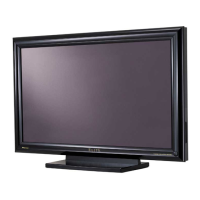
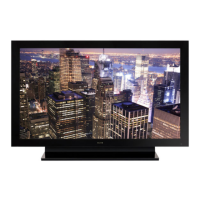
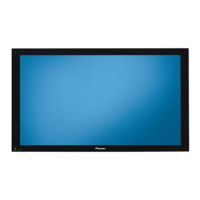
Pioneer Elite PRO-1140HD - User Manual

Pioneer Elite PRO-1140HD
120 pages
Print Icon
To Next Page IconTo Next Page
Loading...
Register Your Product on
www.pioneerelectronics.com (US)
www.pioneerelectronics.ca (Canada)
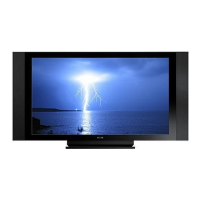
PLASMA DISPLAY SYSTEM
PRO-1540HD
PRO-1140HD
PRO-940HD
Operating Instructions
PDP_PRO1540HD.book Page 1 Wednesday, August 2, 2006 6:01 PM

Table of Contents

Questions and Answers

  • M
    Megan WilliamsSep 9, 2025
    How to fix unavailable TV-Guide data on Pioneer Elite PRO-1140HD Monitor?
    • L
      lunamelissaSep 9, 2025
      If TV-Guide data is unavailable on your Pioneer Monitor and ANT.A is selected for cable connection, select ANT.B for over the air. In addition, perform the TV-Guide setup again.
  • T
    timothybirdAug 23, 2025
    Why is there sound but no picture on my Pioneer Elite PRO-1140HD Monitor?
    • A
      Andrew MaynardAug 23, 2025
      If your Pioneer Monitor displays sound but no picture, check if the energy-saving “Picture Off” option is selected. If it is, the screen is deactivated, and only audio is output. To restore the screen display, press any button other than VOL +/– and MUTING.
  • A
    Anthony WhiteAug 25, 2025
    How to troubleshoot a Pioneer Elite PRO-1140HD that has no power?
    • N
      Natalie WileyAug 25, 2025
      If there is no power to your Pioneer Monitor, check if the power cord is disconnected. Also, ensure that POWER has been turned on. Verify that you have pressed TV on the remote control; if the indicator on the system lights up red, press TV.
  • T
    tannerallenAug 26, 2025
    Why is there no picture on my Pioneer Elite PRO-1140HD Monitor?
    • B
      Brenda HunterAug 26, 2025
      If you're getting no picture on your Pioneer Monitor, verify that the connection to other components is correct. Also, check if a non-compatible PC signal is being input and ensure that the picture adjustment settings are correct.
  • C
    Cynthia HudsonAug 27, 2025
    Why is my Pioneer Elite PRO-1140HD remote control not working?
    • C
      Carmen CamposAug 27, 2025
      If the Pioneer Monitor remote control isn't working, first ensure that POWER is not Off; the button will only activate when the POWER ON and STANDBY indicators are Off. Then, verify that the Mode switch is set to the TV position. Check the batteries are correctly inserted (+, –) and not low (replace if necessary). Finally, make sure you are pointing the remote directly at the panel’s remote control sensor.
  • R
    Rebecca TaylorAug 29, 2025
    How to fix blinking POWER ON indicator on Pioneer Elite PRO-1140HD?
    • C
      Cynthia JonesAug 29, 2025
      If the POWER ON or STANDBY indicator is blinking on your Pioneer Monitor, it's possible that the unit’s internal protective circuits have been activated. Try unplugging the panel’s power cord from the power outlet, waiting one to two minutes, and then plugging it back in.
  • J
    Judy WatsonSep 18, 2025
    Why are no servers found on my Pioneer Elite PRO-1140HD Monitor?
    • H
      Heather SimmonsSep 18, 2025
      If no servers are found on your Pioneer Monitor, ensure that the PC is On and not in Standby or Sleep. When the PC has started with “Wake On LAN” (WOL), check if the PC complies with WOL or if the WOL setup has been properly done on the device manager for BIOS or Windows. Also, check the physical connections (hub, 100BASE-TX/10BASE-T, or crossed cable and other cable quality when cabled directly to a PC). It is strongly recommended to use 100BASE-TX for playback quality and display speed.
  • S
    Savannah WalkerSep 18, 2025
    Why can't I navigate a selected server on my Pioneer Elite PRO-1140HD Monitor?
    • J
      Jennifer TranSep 19, 2025
      If an available server is selected but cannot be navigated on your Pioneer Monitor, check if the server is correctly set up for file sharing, if the target folder has been deleted, or if one or more folders have been corrupted on the server. Also, check if there are too many files in each folder.
  • K
    kyletaylorSep 7, 2025
    Why do the colors appear strange on my Pioneer Monitor?
    • A
      Aaron YoungSep 8, 2025
      If the colors on your Pioneer Monitor appear too dark/light or strange, adjust the picture tone. Also, the picture may appear dim in a room that is too bright.
  • A
    Amy LiuSep 4, 2025
    Why are image and sound absent on my Pioneer Elite PRO-1140HD?
    • D
      dianerobinsonSep 4, 2025
      If the image and sound are absent on your Pioneer Monitor, verify that the input source is a TV channel rather than from a PC or a DVD player. Also, check the Parental Control function and the cable connection with the antenna and the source device.

Summary

Important User Guidance Information

Safety Precautions

Installation Precautions

General safety guidelines for installing the plasma display, including mounting.

Preparation

Installing the Plasma Display

Guidance on location, ventilation, and safe installation procedures.

Moving the Plasma Display

Instructions for safely moving the heavy plasma display panel.

Preventing the Plasma Display from Falling Over

Methods for stabilizing the display on a table or wall to prevent tipping.

Preparing the remote control unit

Instructions for inserting batteries and handling the remote control.

Basic Operations

Turning on the power

Steps to turn the plasma display on from standby mode.

Turning off the power

Steps to turn the plasma display off into standby mode.

Watching TV channels

Instructions on how to tune and select TV channels.

Changing the volume and sound

How to adjust volume, mute sound, and use MTS/SAP settings.

Using the multiscreen functions

Instructions for using split-screen and picture-in-picture modes.

Splitting the screen

Procedures for selecting and managing 2-screen or picture-in-picture display.

TV Guide On Screen System Setup

About the TV Guide On Screen system

Overview of the interactive program guide features and services.

Setting up the TV Guide On Screen system

Step-by-step guide to configure the TV Guide On Screen system.

System Setup Steps

Sequence of screens for initial system configuration like country and cable.

VCR Setup Steps

Steps for configuring VCR connection and testing for TV Guide On Screen integration.

Menu Setup

Menu Configuration

Overview of available menu options for AV and PC modes.

Tuner Setup

Setting up TV channels

Guide to searching and setting up available TV channels.

Checking signal strength

How to check and optimize signal strength for antenna reception.

Parental Control

Features for blocking programs based on rating systems.

Changing the password

Procedure for changing the Parental Control password.

Clearing the password

Steps to reset the Parental Control password to the factory default.

Activating the Parental Control

How to enable and set up the Parental Control system.

Setting the TV Parental Guidelines (TV Guidelines)

Adjusting settings for TV rating systems for content filtering.

Setting Canadian English ratings

Configuring content blocking based on Canadian English ratings.

Setting new ratings

Adjusting Parental Control for new digital broadcast ratings.

Deleting new ratings

Procedure to remove new rating settings and clear all blocks.

Temporarily deactivating the Parental Control

Method to temporarily disable Parental Control for specific input sources.

Setting up closed captions

Enabling and configuring closed caption display.

Selecting digital closed captions

Choosing digital closed caption services and parameters.

Clock Setting

Setting the system time automatically or manually.

TV Guide On Screen System Operation

Using the TV Guide On Screen system

Introduction to the interactive program guide and its features.

Recording programs

Procedure for setting up program recordings with various options.

Setting program reminders

How to set reminders for programs to avoid missing them.

Scheduling recordings and reminders

Reviewing, editing, or deleting scheduled recordings and reminders.

Adjustments and Settings

Basic picture adjustments

Adjusting core picture parameters like contrast, brightness, and color.

Using External Equipment

Using HDMI Input

Connecting and configuring HDMI devices for digital video and audio.

Enjoying the Home Media Gallery

Accessing and enjoying digital content like movies, music, and photos.

Setup

Configuring network, auto-connection, default settings, and software updates.

Useful Remote Control Features

Learning function of the remote control unit

How to teach the remote control to operate other devices.

Presetting manufacturer codes to control other devices

Entering codes to program the remote for various brands and devices.

Appendix

Troubleshooting

Solutions for common problems related to power, system operation, and picture/sound.

Specifications

Pioneer Elite PRO-1140HD Specifications

General IconGeneral
Screen Size50 inches
Display TypePlasma
Aspect Ratio16:9
HDMI Inputs2
Component Video Inputs2
Composite Video Inputs1
S-Video Inputs1
Audio OutputYes
InputsHDMI, Component, Composite, S-Video
SpeakersYes
Viewing Angle160 degrees

Related product manuals