En
31
03
Connecting your equipment
LAN terminal specifications
! LAN terminal : Ethernet jack
(10BASE-T/100BASE-TX)
Note
! Refer to the operation manual of the
equipment you have as the connected
equipment and connection method may differ
depending on your Internet environment.
! When using a broadband Internet connection,
a contract with an Internet service provider
is required. For more details, contact your
nearest Internet service provider.
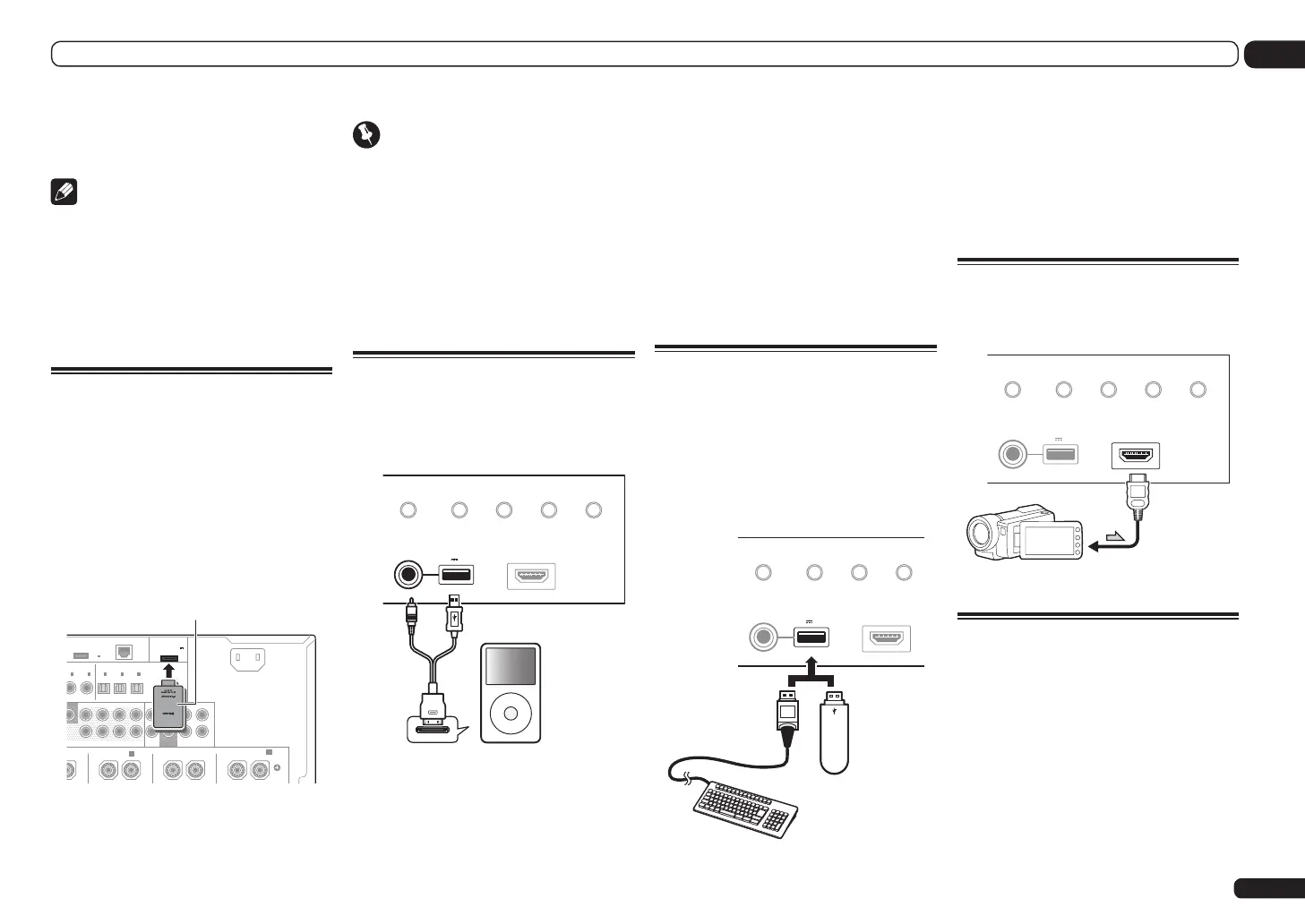
Connecting optional Bluetooth
ADAPTER
When the Bluetooth
®
ADAPTER (AS-BT100 or
AS-BT200) is connected to this receiver, a prod-
uct equipped with Bluetooth wireless technol-
ogy (portable cell phone, digital music player,
etc.) can be used to listen to music wirelessly.
! The Bluetooth wireless technology enabled
device must support A2DP profiles.
! Pioneer does not guarantee proper connection
and operation of this unit with all Bluetooth
wireless technology enabled devices.
R
2
SURROUND SURR BACK F HEIGHT F WIDE
L
R
CENTERFRONTSURROUNDSURR BACK
(
CD
)
N
1
IN
2
(
DVR/BDR
)(
TV/SAT
)
OPTICAL
ASSIGNABLE
IN
1
IN
2
IN
3
OUT
(
VIDEO
)
(
OUTPUT 5
V
0.1 A MAX
)
ADAPTER PORT
DC OUTPUT
for WIRELESS LAN
(
10/100
)
LAN
(
OUTPUT
5 V
0.6 A MAX
)
SURROUND
SURROUND BACK
LR LR LR L
(
Single
)
(
Single
)
FRONT WIDE /
B
A
AC IN
SUBWOOFER
Bluetooth® ADAPTER
Important
! Do not move the receiver with the Bluetooth
ADAPTER connected. Doing so could cause
damage or faulty contact.
% Switch the receiver into standby
and connect Bluetooth ADAPTER to the
ADAPTER PORT.
! For instructions on playing the Bluetooth
wireless technology device, see Pairing the
Bluetooth ADAPTER and Bluetooth wireless
technology device on page 43.
Connecting an iPod
This receiver has a dedicated iPod terminal
that will allow you to control playback of audio
content from your iPod using the controls of
this receiver.
USB
HDMI 3 INPUT
iPod iPhone iPad
AUTO SURR/ALC/
STREAM DIRECT HOME THX
STANDARD
SURROUND
ADVANCED
SURROUND
iPod iPhone iPad
DIRECT CONTROL
5V 2.1
A
MENU
iPod
iPod cable
(supplied)
% Switch the receiver into standby then
use the supplied iPod cable to connect
your iPod to the iPod iPhone iPad USB
terminal on the front panel of this
receiver.
! It is also possible to connect using the cable
included with the iPod, but in this case it is not
possible to view pictures via the receiver.
! For the cable connection, also refer to the
operating instructions for your iPod.
! For instructions on playing the iPod, see
Playing an iPod on page 38.
Connecting a USB device
It is possible to play audio and photo files by
connecting USB devices to this receiver. It
is also possible to connect a USB keyboard
(US-international layout) to the receiver to enter
text in the following GUI screens.
! Change the input name in the Input Setup
menu (page 36).
! Add names to radio station presets (page 42).
USB
HDMI 3 INPUT
iPod iPhone iPad
AUTO SURR/ALC/
STREAM DIRECT
STANDARD
SURROUND
ADVANCED
SURROUND
iPod iPhone iPad
DIRECT CONTROL
5V 2.1
A
USB mass
storage device
USB keyboard
% Switch the receiver into standby
then connect your USB device to the
USB terminal on the front panel of this
receiver.
! This receiver does not support a USB hub.
! For instructions on playing the USB device,
see Playing a USB device on page 39.
Connecting an HDMI-equipped
component to the front panel
input
Video camera (etc.)
USB
HDMI 3 INPUT
iPod iPhone iPad
AUTO SURR/ALC/
STREAM DIRECT HOME THX
STANDARD
SURROUND
ADVANCED
SURROUND
iPod iPhone iPad
DIRECT CONTROL
5V 2.1
A
Connecting to a wireless LAN
Wireless connection to the network is possible
through a wireless LAN connection. Use the
AS-WL300 for connection.
! Use only the furnished accessory connecting
cable.
! For instructions on setting the wireless LAN
converter, see Network Setup menu on page
89.



 To Next Page
 Loading...