Downloading and Installing the Printer Driver
1. Visit pitneybowes.com/uk/support/products/network-sendkit-
sp100
2. Select the PB-SP100 Printer Driver for Network installation -
Software_Label_Windows_Driver_V2020.1.2.exe. from the
Downloads section.
3. Select Run or Open dependent on your browser.
4. Accept the licence agreement and follow the on screen prompts to
install.
5. Select PB-SP100
6. Follow the on-screen prompts and click Finish / Close.
Note- You may need to check your downloads folder to install Printer
Drivers.
7. Select Network and Next.
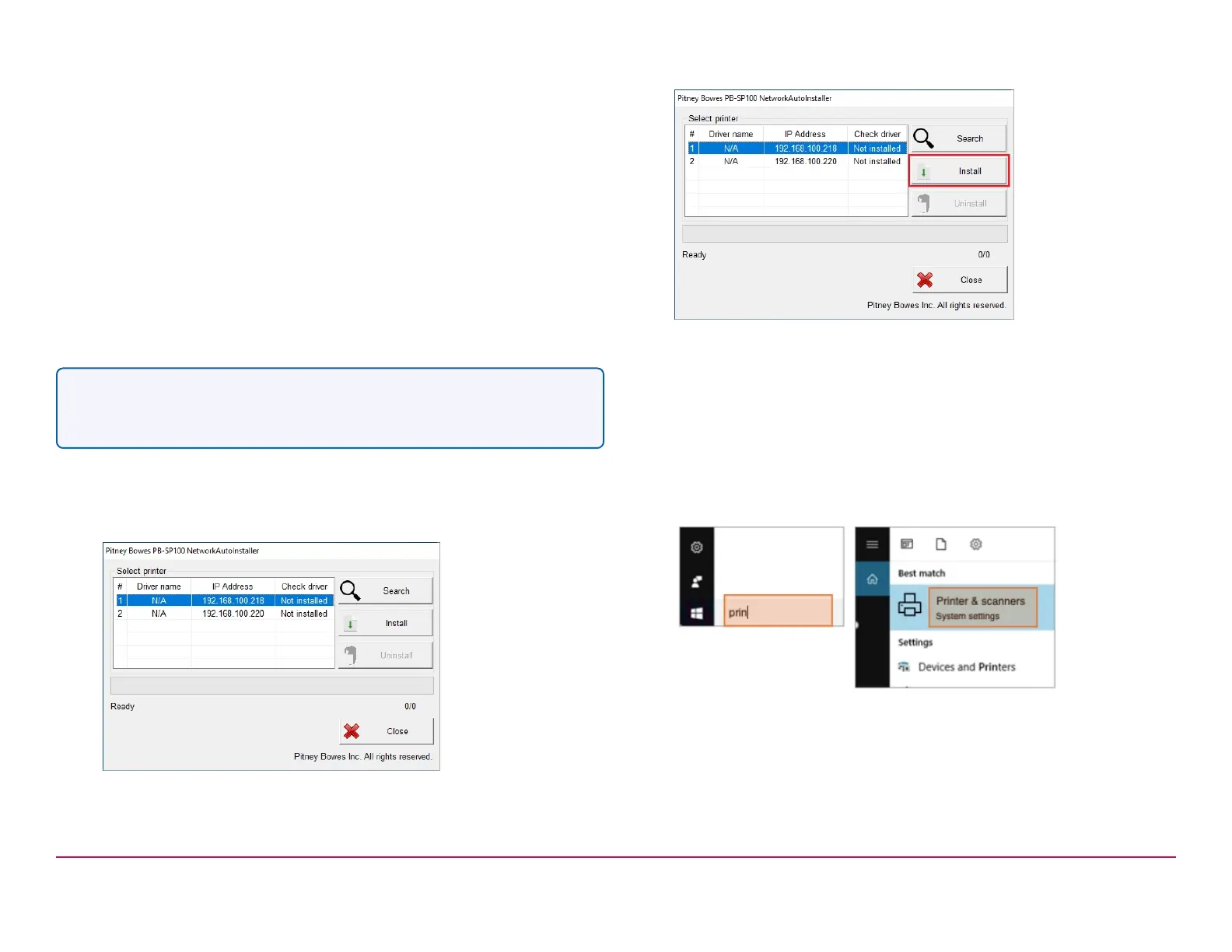
8. Select the PB-SP100.
9. Click Install.
If the driver is installed successfully, Installation was successful is
displayed and the driver name is updated from N/A to PB-SP100.
Set up the Printer
1. On a PC, use the Windows Search Box to search for Printers &
scanners and click to view the settings.
2. Select Pitney Bowes PB-SP100 and select Manage
Pitney Bowes Installation Instruction November,2020 Page 10 of 17


 To Next Page