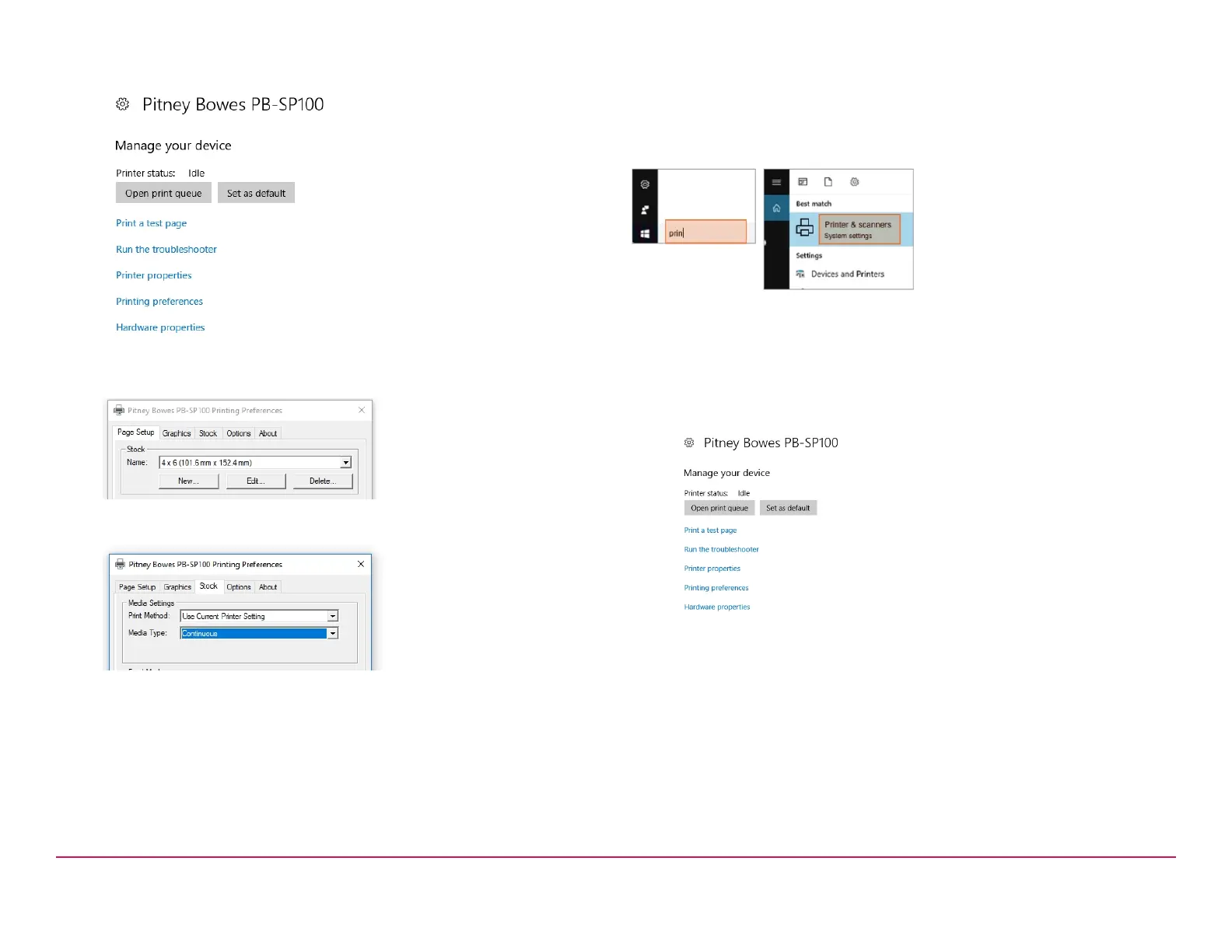
3. Select Printing preferences.
4. Select Stock.
5. On the media type drop down menu select Continuous.
6. Select Apply and OK.
Test Print
Again, use the Windows Search Box to search and open the Printers &
scanners settings.
1. Select Pitney Bowes PB-SP100.
2. Select Manage.
3. Select Printing preferences.
4. Select Print a test page.
Check that your label has printed correctly. If you have any issues with the
print refer to Troubleshooting later in this document.
If you are installing a SendKit go to the SL-397-D Scale Installation
section of this guide.
Pitney Bowes Installation Instruction November,2020 Page 11 of 17


 To Next Page