EasyManua.ls Logo

Planmeca Chairside PlanMill 40 - User Manual

Planmeca Chairside PlanMill 40
180 pages
Print Icon
To Next Page IconTo Next Page
Loading...
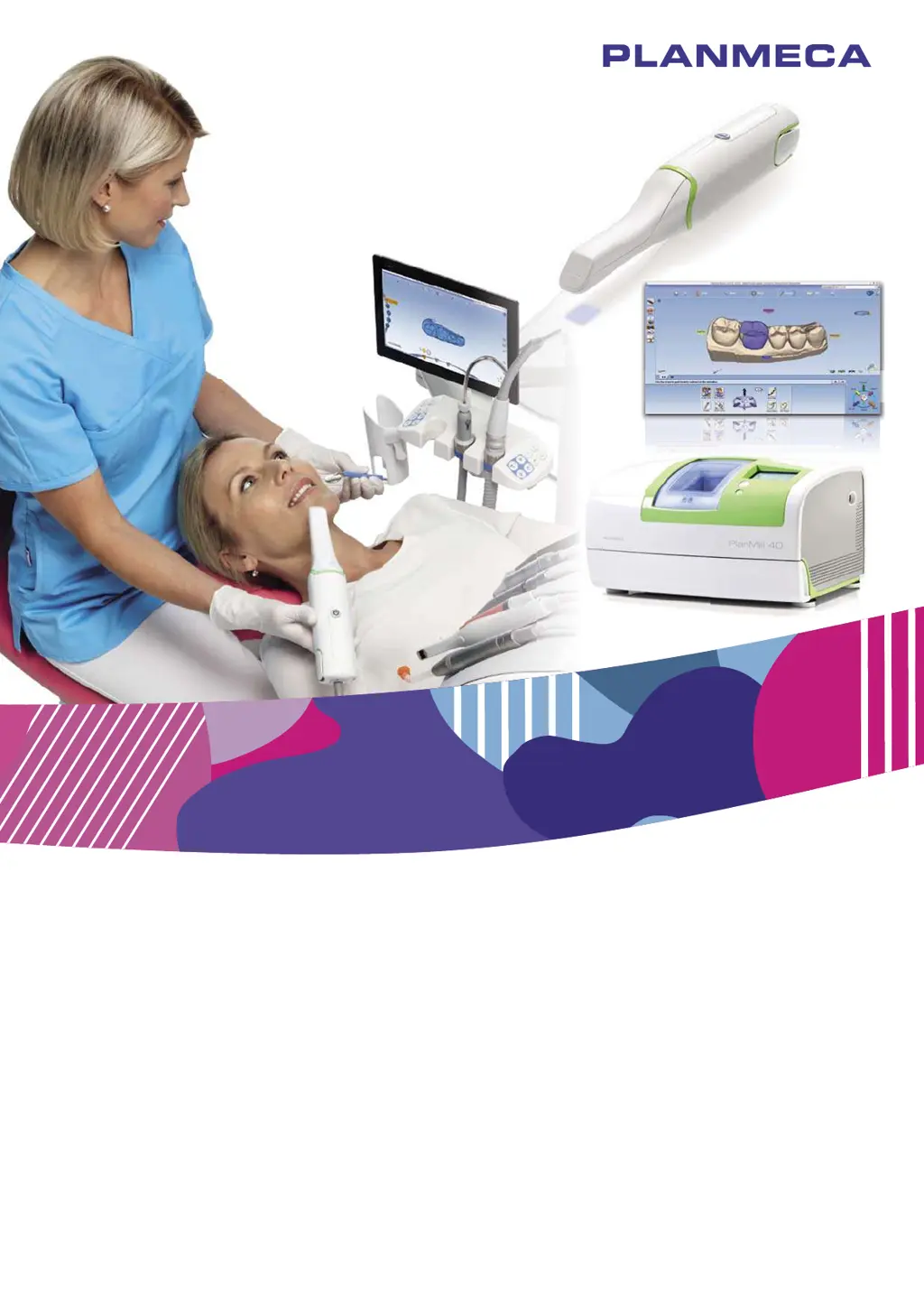
Planmeca Chairside
CAD/CAM solution
Planmeca PlanScan
®
& Planmeca PlanCAD
®
Easy & Planmeca PlanMill
®
40
EN
10033946_6
user's manual

Table of Contents

Questions and Answers

  • M
    Matthew LeonAug 19, 2025
    What to do if Planmeca Chairside PlanMill 40 Dental equipment milling unit does not turn on?
    • R
      Robert YorkAug 19, 2025
      If the milling unit of your Planmeca Dental equipment doesn't turn on, consider these possible solutions: * Check that the power cable is correctly plugged into a live AC outlet. * Make sure the power supply rocker switch at the rear of the mill is set to the “ON” position.
  • N
    Nathaniel GonzalezAug 21, 2025
    What to do if Planmeca Chairside PlanMill 40 Dental equipment job server does not respond?
    • H
      Heather ReedAug 21, 2025
      If the job server of your Planmeca Dental equipment is not responding, try the following: * Ensure the power cable is plugged into a live AC outlet. * Restart the job server. * Make sure the job server is turned ON.
  • N
    Nicholas LoganAug 25, 2025
    What to do if Planmeca Chairside PlanMill 40 Dental equipment mouse is not responding?
    • B
      Bernard TurnerAug 25, 2025
      If the mouse for your Planmeca Dental equipment isn't responding, try these solutions: * Replace the batteries. * Ensure the mouse dongle is securely plugged into the USB port.
  • A
    alexis13Aug 26, 2025
    What to do if Planmeca Chairside PlanMill 40 Dental equipment shows air failure message?
    • E
      Erika CunninghamAug 26, 2025
      If your Planmeca Dental equipment displays an air failure message (the button turns red), check the following: * Ensure there is power to the office compressor. * Secure the air line from the compressor to the mill.
  • H
    hannahnolanAug 28, 2025
    What to do if Planmeca Dental equipment skyball is not responding?
    • P
      phallAug 28, 2025
      If the skyball on your Planmeca Dental equipment is not responding, try these steps: * Plug in the USB cable. * Open the 3D Connexion program and check the settings.
  • D
    Daniel RoyAug 30, 2025
    What to do if Planmeca Chairside PlanMill 40 Dental equipment shows fluid level low message?
    • S
      Stephen ZhangAug 30, 2025
      If your Planmeca Dental equipment is showing a 'Fluid Level Low' message, here’s what to check: * Fill the tank with water.
  • M
    michael39Sep 1, 2025
    How to fix Planmeca Dental equipment when there is no power?
    • W
      William MartinSep 2, 2025
      If your Planmeca Dental equipment has no power, check these potential causes: * Ensure the power cable is properly plugged into a live AC outlet. * Verify the outer power supply switch at the rear of the unit is in the “ON” position. * Confirm the inner power supply switch is also in the “ON” position.
  • N
    Nathan BowmanSep 3, 2025
    What to do if Planmeca Dental equipment tool stuck in collet?
    • C
      christine71Sep 3, 2025
      If a tool is stuck in the collet of your Planmeca Dental equipment, here are some steps you can take: * Remove the tools manually. This can be done in the maintenance/command screen on the mill. * Verify the supply air pressure is at 50 psig. * Ensure the pressure multiplier is maxed out by turning the adjustment knob fully clockwise to double the pressure to 100 psig.
  • W
    wilsondorothySep 5, 2025
    What to do if Planmeca Chairside PlanMill 40 drawer won’t close?
    • A
      Alison LawsonSep 5, 2025
      If the drawer of your Planmeca Dental equipment won’t close, here’s what you can do: * If the pump assembly is lowered because the drawer was not closed properly, press Maintenance, then on the Mill Options screen, press Unlock Drawer. This will raise the pump assembly and allow the drawer to close. * If the drawer was closed and reopened before it could lock, or if it is left open when the mill is shut down, press the Stop button until the current process is stopped if the Maintenance button is not showing.
  • E
    Erica JensenSep 7, 2025
    Why is Planmeca Chairside PlanMill 40 software application freezing?
    • F
      Frederick WhiteSep 7, 2025
      The software application on your Planmeca Dental equipment might be freezing due to low memory. Try restarting the application or restarting the system.

Summary

Safety Precautions for System Operation

General Safety Warnings

Lists general safety warnings for product usage, maintenance, and unauthorized modifications.

Planmeca Scanner and CAD;CAM Safety

Covers safety aspects of the scanner, including cable, laser, and electrical shock prevention.

Milling Unit Safety Precautions

Details safety measures for the milling unit, including grounding, power cord, and cooling vents.

System Requirements and Setup

Getting Started: Software and License

Guides on starting the software and activating the Planmeca Romexis license.

Logging In and Patient Management

Patient Record Management

Covers searching, sorting, editing, adding, and inactivating patient records.

Planmeca Romexis CAD;CAM Module Operations

Module Introduction and Access

Introduces the CAD/CAM module and guides on accessing it.

Scan and Design Workflow

Covers starting new scans, importing/exporting models, and working with cases.

Setup for Scanning and Restoration

Initial Setup and Restoration Selection

Covers pre-scanning setup, tooth numbering, site selection, and restoration properties.

Scanner Operation and Scanning Procedures

Scanner Connection and Positioning

Guides on connecting, disconnecting, indicator lights, and positioning the scanner.

Scan Tab Interface and Tools

Introduces the Scan tab interface, usage counters, and editing/view tools.

Scanning Workflow and Techniques

Covers scanning overview, techniques for different areas, and model alignment.

Model Orientation and Margin Definition

Orientation Principles and Importance

Explains orientation's role in design/milling and intraoral scanning examples.

Model and Impression Orientation

Covers viewing, rotating, and aligning models/impressions for correct orientation.

Margin Drawing and Editing Tools

Details margin tools like Paint, Trace, and Lasso for drawing and editing.

Margin Editing and Selection Area Tools

Covers adding segments, moving margins, and defining selection areas.

Pre-op Editing and Margin Aids

Guides on pre-op editing and using margin aids like ICE view.

Restoration Design Tools and Features

Design Tools Overview and Usage

Introduces design tools for customizing proposals, including libraries and refinement.

Using Tooth Libraries for Restoration Design

Guides on selecting, resizing, and moving library teeth for accurate proposals.

Model Visualization and Thickness Analysis

Covers hiding models and visualizing material thickness for design optimization.

Adjusting Restorations Incrementally

Details incremental tools for rotating, moving, and expanding restorations.

Unrestricted Restoration Modification

Covers freeform tools like Rubber Tooth and Dropper for modifying restorations.

Autogenesis and Contact Settings

Covers configuring Autogenesis settings and default contact strengths.

Manipulating Multiple Proposals

Explains designing multiple restorations simultaneously on different tabs.

Milling Operations and Setup

Bridge Design and Scanning Procedures

Covers bridge design basics, tooth preparation, designation, and scanning.

Designing a Bridge

Details the workflow for designing a bridge, including abutments and pontics.

Mill Tab Operations and Preparation

Lists mill tab capabilities and outlines preparation steps before milling.

Simulation and Evaluation Process

Guides on performing mill simulation and evaluating results for issues.

Configuring Mill Tab Settings

Covers network, material/shade, margin thickness, milling, and simulation settings.

System Settings and Case Management

Selecting Milling Parameters (Standard;Undermill)

Details the Standard and Undermill milling settings.

Setting Point of Interest for Milling Path

Explains Auto POI and Occlusal POI settings for milling path.

Case Data Management Overview

Explains automatic data storage and organization into cases.

Exporting Scans and Restorations

Covers exporting data via 3D model, Cloud, and iRomexis.

Cleaning and Preventive Maintenance

Scanner Tip Cleaning and Disinfection

Provides instructions for cleaning and chemically disinfecting the scanner tip.

EMC Information and Troubleshooting

Electromagnetic Emission and Immunity Guidance

Provides guidance on electromagnetic emission and immunity levels.

Troubleshooting Power and System Issues

Addresses issues with power, fan, software, mouse, laser, and connections.

Troubleshooting Milling Unit Operation

Covers issues like unit not turning on, block orientation, pump, fluid, tool, path, and drawer.

Planmeca Chairside PlanMill 40 Specifications

General IconGeneral
BrandPlanmeca
ModelChairside PlanMill 40
CategoryDental equipment
LanguageEnglish

Related product manuals