1
OVERVIEW
Thank you for choosing us as your scanner supplier.
Like all of our products, your new scanner is thoroughly tested and backed by our
reputation for unsurpassed dependability and customer satisfaction. We hope you will
continue to turn to us for additional quality products as your computing needs and
interests grow.
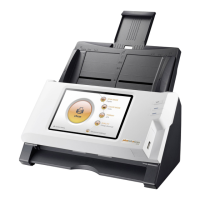
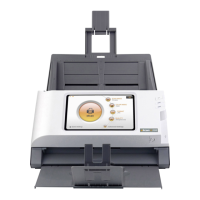
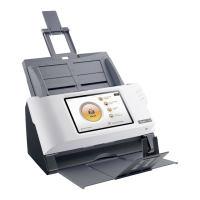
This manual explains the basic operations and handling of the scanner. This standalone
network document scanner requires no PC to operate. All operations and configurations
can be done directly on the device. It is the simplest one-touch scan operation to
streamline documents, files, and data to a wide range of destination.
What is eScan Square9 GlobalSearch
®
Network Document Scanner?
eScan Square9 GlobalSearch
®
network document scanner is optimized for users to
insert index data straight to its respective Square9 GlobalSearch
®
database during the
scanning process. The devices can store multiple accounts and choose to scan to
respective database based on each individual user’s preference, coup with password
protection to increase user authentication and protection.
Through Single Touch Button:
Scan documents directly into Square9 GlobalSearch
®
Scan documents directly into USB disk drive
Scan documents directly into Network drive via SMB 2.0 and SMB 3.0 Protocol
eScan Square9 GlobalSearch
®
Network Document Scanner provides administrator
control to:
Account Management- Control user’s accessibility to configurations, system
setting, and account usability.
Job Button Management- Control each button’s configuration and profiles with
password protected function for each and every button individually.
HOW TO USE THIS GUIDE
This User’s Guide provides instructions and illustrations on how to install and operate
your scanner.
Before you start installing your scanner, check the box contents to make sure all parts
are included. If any items are damaged or missing, please contact the vendor where you
purchased your scanner or our customer service directly.





 To Next Page