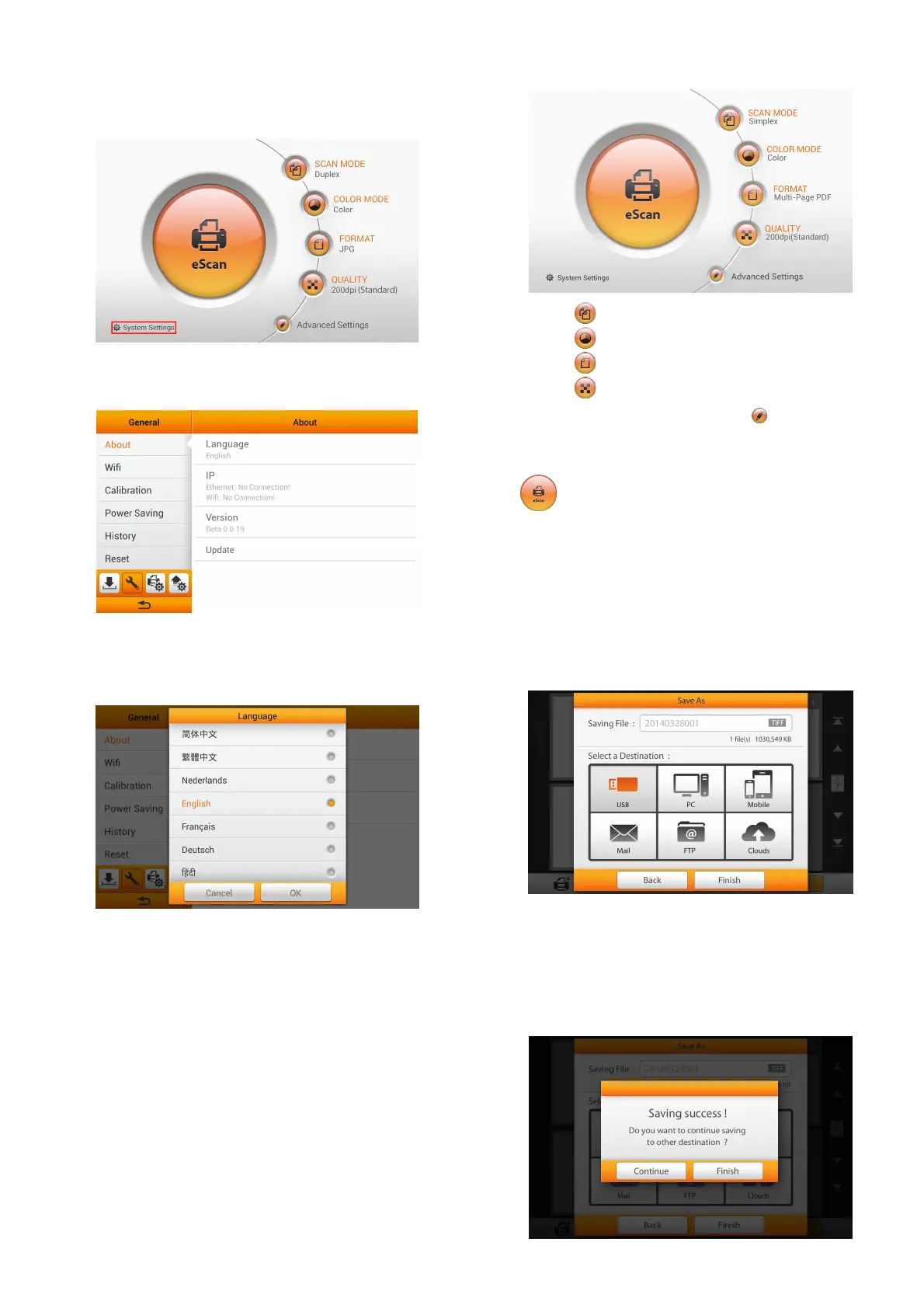
Configuring the System Language
After powering on the system, you can tap on System Settings
to enter the System Setting interface.
Tap on General at the lower-left corner, you can set the system
language on About page.
Tap on Language to open the Language setting dialog, select
the desired language and then tap the OK button to confirm the
setting.
For detailed configurations of System Settings, please refer to
the User’s Guide.
Scanning Documents
1. Tap the button to toggle the SCAN MODE.
2. Tap the
button to toggle the COLOR MODE.
3. Tap the button to toggle the FORMAT.
4. Tap the button to toggle the QUALITY.
5. If necessary, you may tap the button to adjust
Advanced Settings.
6. When you are satisfied with all the scan settings, tap the
button to scan the desired document.
7. If you are satisfied with the scanned images, tap on Save to
save the scanned image. For detailed image editting
information, please refer to the User’s Guide.
Saving to USB
Tap on the USB button to save the scanned document to the
USB flash drive.
If you see the following dialog, the scanned document is
successfully saved to the USB flash drive. You may tap the
Continue button to save the scanned document to another
destination, or tap the Finish button to complete the scanning
procedure.







 To Previous Page