9
Attention
Alternatively you may also use any plain
white sheet of paper sized in Letter/A4
instead; however, the calibration effect may
be less good than the special calibration
sheet.
Save the Setup/Application DVD in case you
need to reinstall the driver and software in
the future.
Save the Calibration Sheet in case you need
to calibrate the scanner in the future.
Step 3. Testing the Scanner
The following test procedure checks to see if the scanner is properly functioning
with your computer and the scanning software. Before testing your scanner, double
check to make sure that all connections are securely fastened.
To properly test your scanner, please perform the following steps:
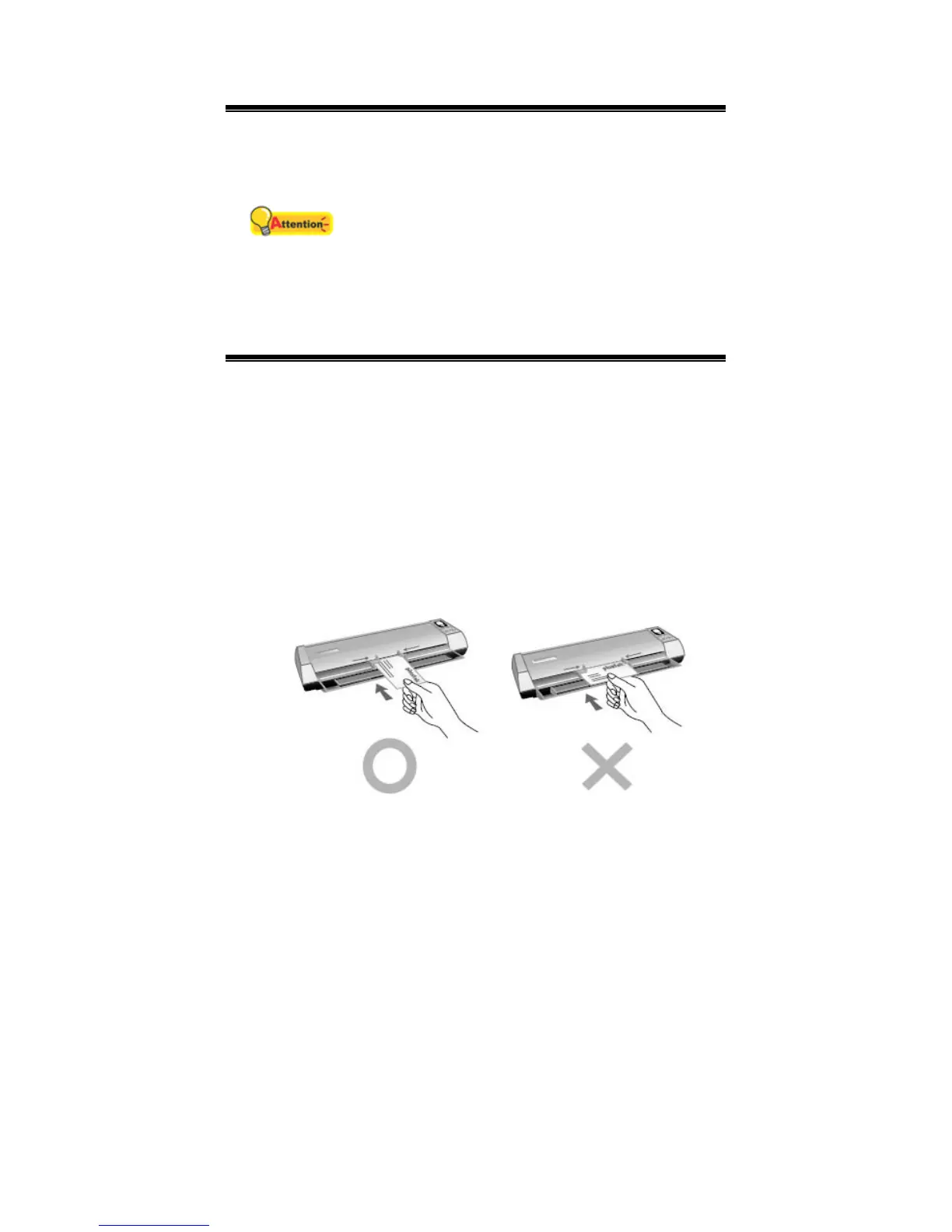
1. Vertically load the business cards, insert the card toward the center of the
scanner until the card being grabbed by the scanner.
2. Click the Windows Start button to launch Presto! BizCard. (For Windows 8.1
users: Point your mouse cursor to the upper or lower right corner of your screen
to open the Charm bar. Click on the Start charm, then click on the downwards
arrow button in the lower left corner of the screen. The Apps screen will be
shown. Move your cursor to the right edge of the screen to scroll right until you
find Presto! BizCard, and then click on Presto! BizCard.)
3. (If you have only one scanner connected with your computer, please skip to
Step 4.)
From the File menu, click Select Scanner. In the window that opens, choose
this scanner and then click the OK button to set this scanner as the default
scanning source.
4. Within Presto! BizCard, click File > Scan with TWAIN user interface.
5. Select Sheet Feeder (Front Side) as the Scan Type within the TWAIN window.




 To Next Page