1009
Using a temporary mobile hotspot
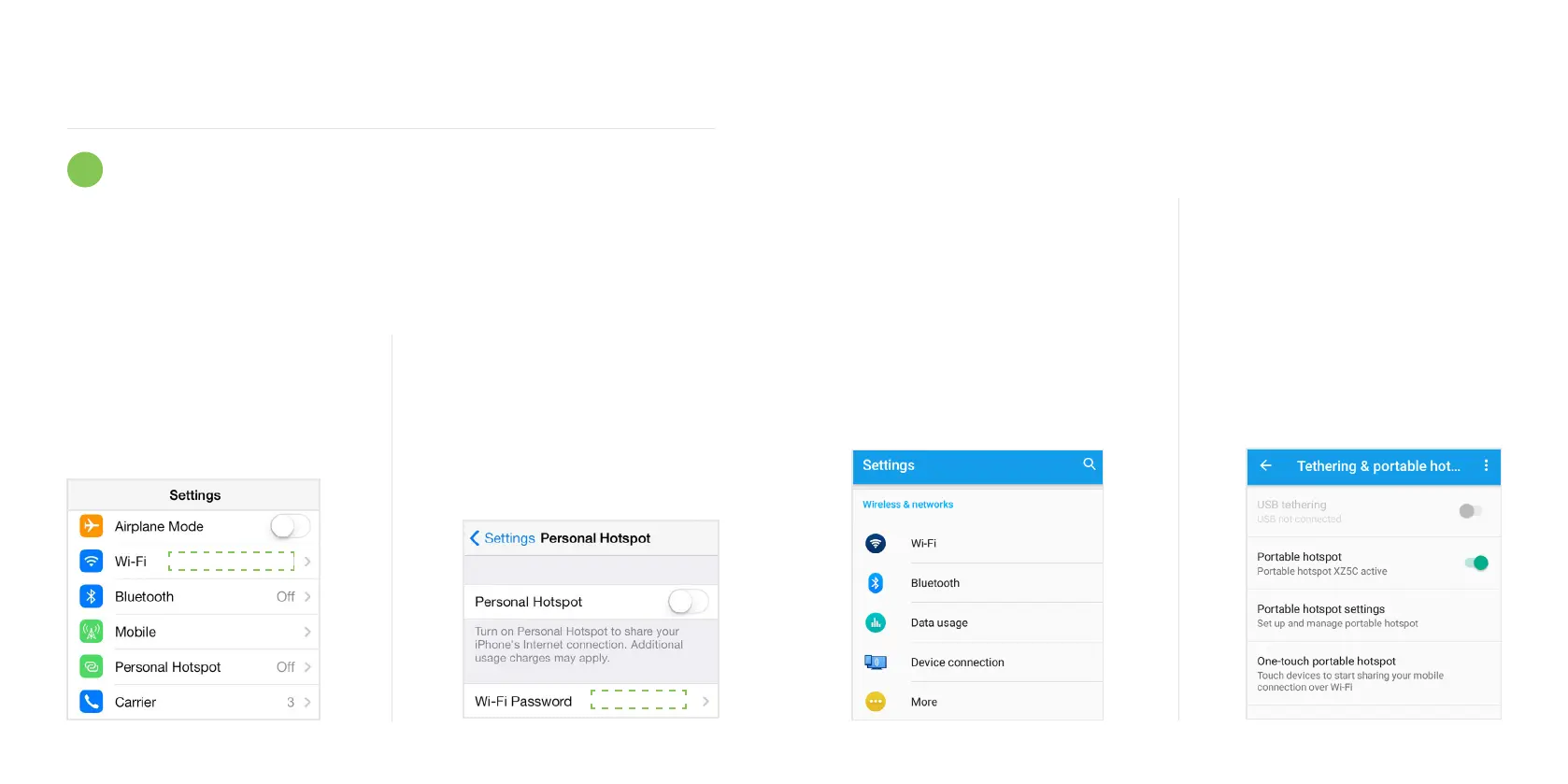
Setup a hotspot on your smart device
Open the main settings menu
on your phone.
Press Personal Hotspot.
Note: Some phone networks don’t allow
hotspotting on pay-as-you-go taris.
Toggle the switch next to
Personal Hotspot to the
ON position.
On that same screen, you also
have the option to edit the
password for your hotspot.
Open the main settings
menu on your phone.
Press More in the Wireless
and Network section or press
Network & Internet option,
depending on your phone.
Then press the Hotspot &
Tethering option.
Toggle the switch next to
Wi-Fi hotspot or Portable
hotspot to ON .
Press Setup Wi-Fi hotspot or
Portable hotspot settings to
manage name and password
settings for your hotspot.
1
iOS hotspot setup
Android OS hotspot setup
Note: Your smart device must be in close proximity of the Solo to maintain connection. Using
a hotspot is only a temporary solution for remote troubleshooting and cannot be used for
Wi-Fi enabled features like Charge Scheduling.



 To Next Page