51
Enable to turn on backlight when a button is pressed or the screen is tapped
9.4.3. Keyboard backlight Tab
Enable Keyboard backlight when button is pressed
By default this is turned off.
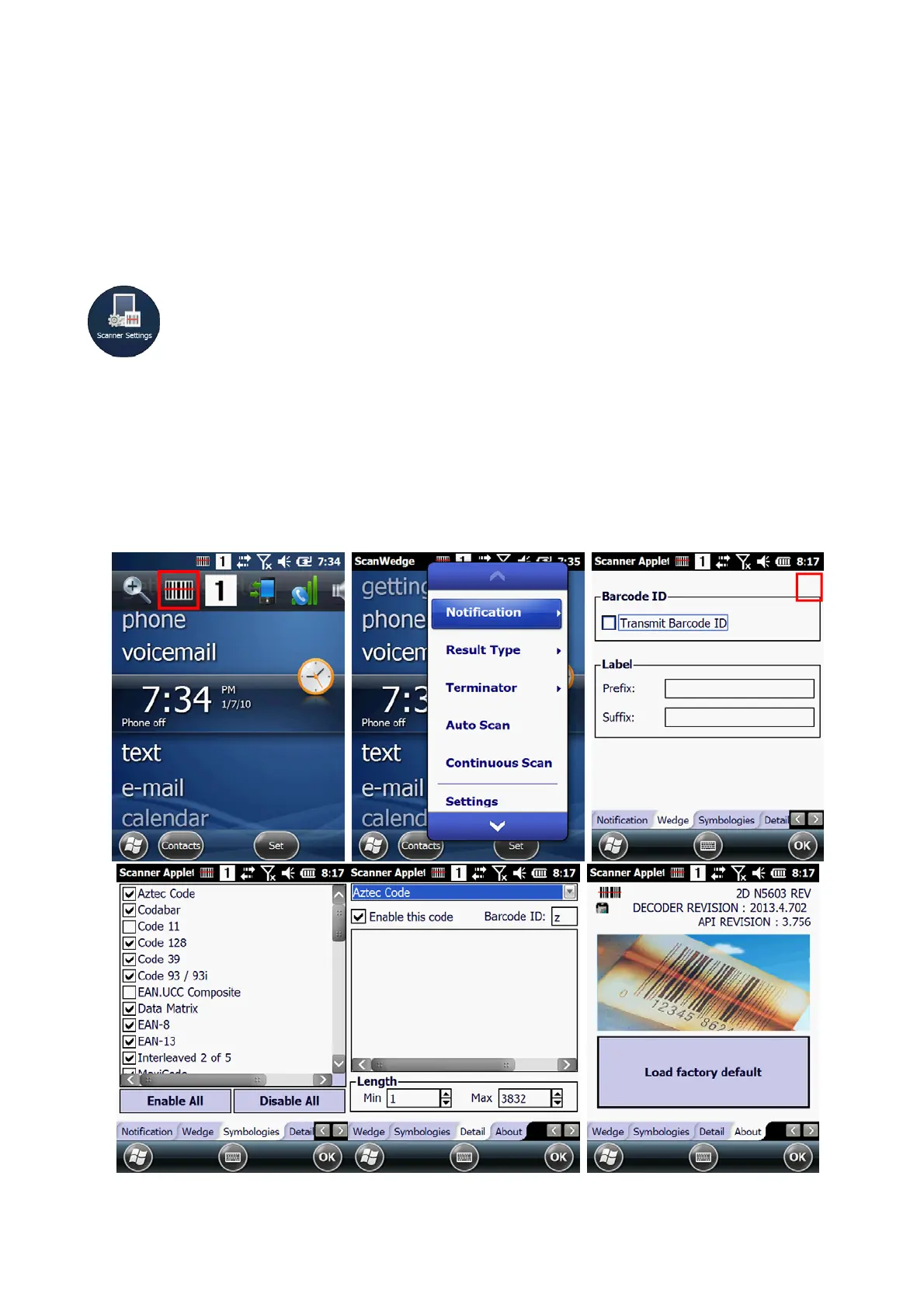
9.5. Scanner Settings
To change the Scanner configuration parameter as follows:
Tap the Scanwedge icon in the System Tray to open the menu shown in image on the right and select
Settings to open the Scanner Settings applet or Start > Settings > System > Scanner Settings



 To Next Page