Need help?
Do you have a question about the Poly DA75 and is the answer not in the manual?
Details the standard LED indicators and their functions for the Poly DA audio processor.
Explains LED indicators for the Microsoft Teams version of the audio processor.
Lists the Poly/Plantronics headsets compatible with the DA audio processor.
Instructions for downloading and using Poly Lens Desktop App for device customization.
Guide to keeping the device firmware and software up-to-date for improved performance.
How to answer, make, and end calls using the DA audio processor and softphone.
Instructions for adjusting listening volume and headset microphone volume.
How to mute and unmute the headset during calls, including mute reminder feature.
Using the Teams button to launch the desktop app and view notifications.
Resolving problems with audio not working, echo, distortion, or no sound.
Troubleshooting issues with unresponsive buttons or Teams button functionality.
Information on using the headset with different softphone applications.
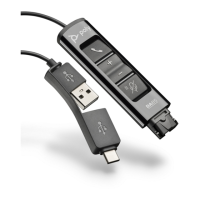
The Poly DA Series USB Audio Processor is a versatile device designed to enhance the audio experience for users of Poly/Plantronics headsets, particularly in professional communication environments. This user guide covers the DA75, DA85, and DA85-M models, with specific features and functionalities varying slightly across the range. The DA Series acts as an inline controller, connecting a Quick Disconnect (QD) headset to a computer via a combined USB-A and USB-C cable, thereby offering broad compatibility and ease of use.
The primary function of the Poly DA Series is to provide seamless call control and superior audio quality for softphone applications. It serves as an intermediary between a Poly/Plantronics QD headset and a computer, enabling users to manage calls, adjust volume, and mute their microphone directly from the inline controller. For Microsoft Teams-certified models (DA85-M), it integrates additional functionalities specifically tailored for the Teams platform, such as launching the Teams application and receiving notifications.
The device supports standard call functions including answering, ending, and making calls. Users can initiate or terminate calls by tapping the Call button on the inline controller or by using their softphone interface. For making calls, dialing is performed through the softphone application. The hold function is activated by pressing and holding the Mute/Hold button for 2 seconds, indicated by a flashing red LED.
Audio control is intuitive, with dedicated Volume up (+) and Volume down (-) buttons to adjust the listening volume. Microphone volume adjustment is typically managed through the softphone application during a test call. The Mute/Hold button also serves to mute or unmute the headset microphone during an active call, with a solid red LED indicating a muted state. A configurable mute reminder feature, customizable via the Poly Lens Desktop App, provides an audible alert when the microphone is muted and the user speaks, preventing accidental muted conversations.
For Teams-enabled models, the Call button doubles as a Microsoft Teams button. When not on a call, tapping this button launches the Microsoft Teams desktop app on the computer. The Teams button pulses purple to indicate a meeting or notification, and tapping it allows users to view these alerts. It's important to note that Teams functionality requires the desktop application and is not supported with the mobile application.
The DA Series connects to a computer via a combined USB-A and USB-C cable, offering flexibility in connectivity. It is compatible with any Poly/Plantronics EncorePro 300/500/700 Series or Legacy Quick Disconnect (QD) headset. For full Teams compatibility with DA85-M models, it is recommended to connect an EncorePro HW510 or HW520 headset.
The inline controller features LED indicators that provide visual feedback on the device's status. For standard models, a flashing green LED on the Call button indicates an incoming call, while a solid green LED signifies an active call. The Mute/Hold button displays a solid red LED when the headset is muted and flashes red when a call is on hold.
Teams-specific LEDs on the DA85-M model include a solid purple LED on the Call/Microsoft Teams button when the headset is connected and Microsoft Teams is connected. A flashing blue LED indicates an incoming call, and a solid blue LED denotes an active call. A pulsing purple LED on the Teams button signals a Microsoft Teams notification.
The DA Series is designed for daily use in professional settings, providing robust call control and audio management.
Maintaining the Poly DA Series involves keeping its firmware and software up-to-date to ensure optimal performance and access to new features.
The Poly DA Series USB Audio Processor is a reliable and feature-rich solution for professionals seeking high-quality audio and efficient call management with their Poly/Plantronics headsets, especially those integrated with Microsoft Teams.


 To Next Page
 General