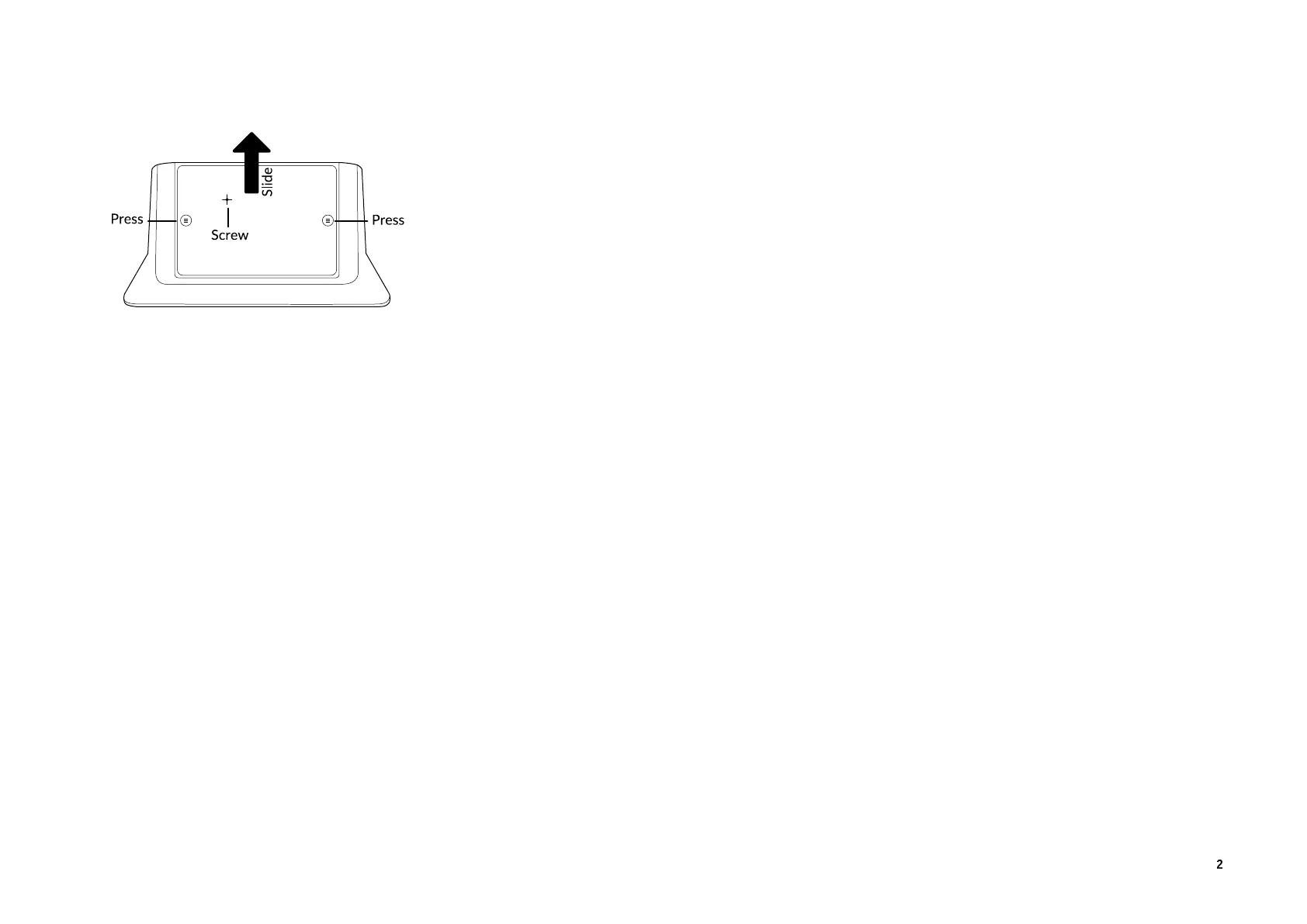
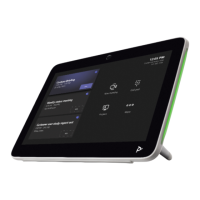
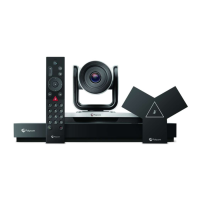
1. Remove the boom panel from the Poly GC8: loosen the screw with a Phillips #1
screwdriver, turn the GC8 faceup, press the rubber circles on each side, and slide the
panel o.
2. Remove the cable guard from the Poly GC8 using a athead screwdriver.
3. Using the supplied USB-A to USB-C cable, connect the HP PC (USB-A) to the Poly
GC8 (USB-C). See the cabling diagram on page 3.
4. (Oponal) Connect an addional PC/laptop for content sharing to the Poly GC8
(using an HDMI/HDMI Mini cable).
5. Replace the cable guard in the Poly GC8 and replace the boom panel and ghten
the screw.
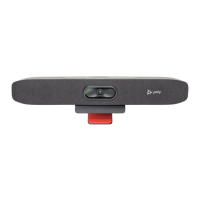
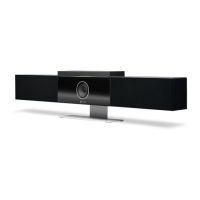
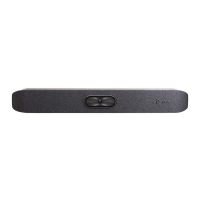
6. Connect the Poly Studio R30 (USB-C) to the HP PC (USB-A).
7. Connect a monitor to the HP PC using an HDMI cable (not supplied) and connect to
power.
NOTE: In some situaons, with 4K monitors, the meeng room controls screen may
appear on the front of room monitor and not on the Poly GC8 controller. When
this happens, the Poly GC8 displays a blank screen. Poly recommends connecng
a 1080P limited EDID Emulator to the HDMI out port of the Conferencing PC
and connecng the HDMI cable from the emulator to your monitor. For addional
installaon and conguraon guidance, refer to the manufacturer’s instrucons.
8. (Oponal) Connect an addional monitor to the HP PC using the supplied display
port to HDMI adapter and HDMI cable (not supplied). Connect the monitor to
power.
9. Connect the HP PC to Ethernet.
10. Connect a keyboard and mouse (not supplied) to the HP PC.
11. Plug in and power on the Poly GC8 and then plug in and power on the other
components.
The HP PC may reboot more than once. Do not shut down the HP PC during this
process.
12. Follow the prompts to connue conguring the system. Refer to the Poly Room Kits
for Microso Teams Soluon Guide for more informaon.
Accessibility Features
The Poly GC8 provides a 3.5 mm audio out jack so that people who are hard of hearing
can use third-party assisve technology peripherals.
Oponal Accessories
Refer to the Poly Room Kits Accessories Setup Sheet for informaon about the oponal
accessories you can use with the Poly Room Kits.



 To Next Page