Need help?
Do you have a question about the Poly Studio R30 and is the answer not in the manual?
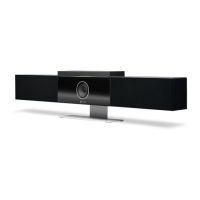
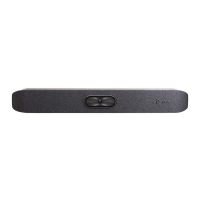
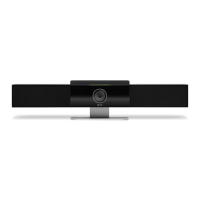
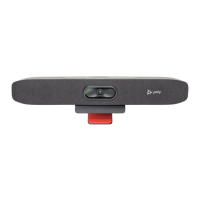
Details the hardware components of the Poly Studio R30, including front view and port descriptions.
Explains the function of each port on the Poly Studio R30 device.
Describes how to power the Poly Studio R30 on and off, noting the absence of a power button.
Lists and explains the meaning of the LED indicator colors and patterns on the device.
Outlines the necessary operating systems and USB cable requirements for using the Poly Studio R30.
Guides users on configuring the device as the default audio/video source in conferencing applications.
Introduces the Poly Lens Desktop app for accessing configuration options.
Provides steps to download and install the Poly Lens Desktop application.
Explains how to use the setup wizard for initial device configuration or after a reset.
Guides on connecting the Poly Studio R30 to mobile devices or computers via Bluetooth for audio.
Describes different tracking modes like group framing, speaker tracking, and conversation modes.
Details the hardware components of the Poly Studio R30, including front view and port descriptions.
Explains the function of each port on the Poly Studio R30 device.
Describes how to power the Poly Studio R30 on and off, noting the absence of a power button.
Lists and explains the meaning of the LED indicator colors and patterns on the device.
Outlines the necessary operating systems and USB cable requirements for using the Poly Studio R30.
Guides users on configuring the device as the default audio/video source in conferencing applications.
Introduces the Poly Lens Desktop app for accessing configuration options.
Provides steps to download and install the Poly Lens Desktop application.
Explains how to use the setup wizard for initial device configuration or after a reset.
Guides on connecting the Poly Studio R30 to mobile devices or computers via Bluetooth for audio.
Describes different tracking modes like group framing, speaker tracking, and conversation modes.
The Poly Studio R30 is an all-in-one USB video bar designed for high-quality video and audio experiences in huddle spaces and small room collaboration environments. It offers a plug-and-play solution, making it easy to set up and use for various conferencing needs.
The Poly Studio R30 serves as a comprehensive audio and video accessory for computers, laptops, and tablets, enhancing the conferencing experience. It features an ultra-wide 120-degree field of view camera with up to 4K resolution and 5x digital zoom (4x when tracking is active, 5x when tracking is off). This wide view ensures that all participants in a huddle space are captured, promoting inclusive meetings. The device also incorporates a high-fidelity audio system, powered by a three-mic array and a mono speaker with a passive radiator, designed to deliver clear sound for both transmitting and receiving audio.
Key audio technologies include Poly NoiseBlockAI, which eliminates unwanted noises from transmitted and received audio, and Acoustic Fence with Beam Shaping, which focuses on voices within a defined area, preventing distractions from outside the meeting space. For intelligent camera control, the Poly Studio R30 utilizes Poly DirectorAI, offering automatic speaker tracking and group framing. This means the camera can automatically adjust to frame all participants or focus on the active speaker, providing a dynamic and engaging video feed without manual intervention. Additional modes like presenter mode and conversation mode cater to specific meeting dynamics. Presenter mode frames and follows a single main speaker, while conversation mode frames two speakers separately in a split view during continuous, well-balanced dialogue.
The device supports network-based device management and integrates with Poly Lens, allowing for centralized configuration and monitoring. It is designed to be compatible with various software clients and conferencing platforms that support 4K video, provided the computer and monitor also meet 4K requirements and a USB 3.0 cable is used. The Poly Studio R30 can connect to a computer via a USB-C port and also supports Bluetooth connectivity for use with mobile phones, computers, or tablets as a speaker and microphone.
To begin using the Poly Studio R30, simply plug in the power cord, as the device does not have a power button. It automatically powers on when connected to a power source. For optimal performance, it is recommended to set the Poly Studio R30 as the default audio and video device in your conferencing application. Using the device for both audio and video ensures that features like Audio Echo Cancellation (AEC) and speaker tracking function correctly, and the LED indicator accurately reflects the audio mute status. When connecting via both USB and Bluetooth, it is crucial to use the USB option for both audio input and output in your meeting application for better audio quality.
The Poly Studio R30 provides visual feedback through an LED indicator located above the camera. This LED changes color and pattern to communicate various device statuses, such as being powered on and ready (solid white), boot initialization (pulsing white), firmware updates (pulsing amber), Bluetooth discovery (alternating blue and white), Bluetooth paired (solid blue), microphone in use or camera active (solid green), muted video (green blinking twice), speaker outside Acoustic Fence range (solid dim green), muted microphone (solid red), and muted audio with speaking voice detected (red blinking three times). These indicators help users quickly understand the device's current state.
For configuration and advanced settings, users can download and install the Poly Lens Desktop App. This application allows for initial device setup through a wizard, including setting the device name, password, Wi-Fi network, and provisioning server. It also enables pairing the Poly Studio R30 with Bluetooth devices, which is essential for using the device as a speaker and microphone for mobile phones or other Bluetooth-enabled devices. The Poly Lens Desktop App is also the primary tool for managing tracking modes, allowing users to switch between group framing, speaker tracking, presenter mode, and conversation mode based on meeting requirements.
An optional low-energy Poly Bluetooth remote control is available to manage the Poly Studio R30. This remote control provides tactile buttons for adjusting speaker volume, camera zoom (when tracking is off), camera direction (when tracking is off), muting/unmuting the microphone, answering/hanging up calls, and enabling/disabling tracking mode. It also features preset buttons (1 and 2) that allow users to save and load their favorite camera angles (pan, tilt, and zoom) when tracking mode is off, offering quick adjustments for specific views. The remote control enters a sleep mode after 30 seconds of inactivity and can be woken up by pressing any key or moving it.
Maintaining the Poly Studio R30 primarily involves firmware updates and device resets. Firmware updates are crucial for ensuring the device operates with the latest features, improvements, and security patches. These updates can be automatically downloaded through Microsoft Windows updates or Chromebook updates. For macOS users, or for manual updates, the Poly Lens Desktop App is used to manage firmware updates. The Poly Lens Desktop App will notify users when a new firmware update is available, guiding them through the process.
In cases where the device experiences issues or becomes unresponsive, users can perform a device reset. A soft reset can be done by selecting "Settings > Admin > Restart Device" within the Poly Lens Desktop App or by simply unplugging and replugging the power cable. This action restarts the device and clears temporary issues.
For more persistent problems or to return the device to its original factory state, a factory restore can be performed. This process completely erases the system's flash memory and restores the device to its factory software version. To perform a factory restore, the user must unplug the power, insert a straightened paper clip into the reset pinhole on the bottom of the device, hold the reset button, reconnect the power supply, and continue holding the reset button for 3 seconds. The device's LED will pulse amber until the factory restore is complete. It is important to note that a factory restore will require re-pairing any optional Bluetooth remote control and reconfiguring all settings.
The Poly Studio R30 also incorporates accessibility features to accommodate users with disabilities. Visual and audio notifications, provided by the LED indicators and accompanying audio tones, inform users of status changes and enabled features. The integrated speaker and microphone allow for hands-free communication. Powerful sound detection ensures the microphones pick up sound effectively within a 3.66 m (12 ft) range. The 120-degree field of view and automatic speaker tracking minimize the need for manual camera adjustments, making it easier for users with limited mobility. Tactile buttons on the remote control and device, along with visual contrast, aid in system control and task performance. Adjustable volume through the remote control further enhances usability.
 General
| Brand | Poly |
|---|---|
| Model | Studio R30 |
| Category | Conference System |
| Language | English |

 To Next Page