3
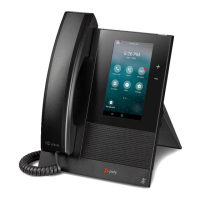
Polycom® CCX 400® Business Phones
DESK PHONE FEATURE DES
CRIPTIONS
Displays menu options for settings and device information for all Polycom CCX 400 Series
Phones
• Touch screen—select items and navigate menus on the touch-sensitive screen.
• Volume keys—adjusts the volume of the handset, headset, speaker, or the ringer.
• Headset indicator—displays when the phone is powered on. The icon glows green or
blue when a headset is connected and activated.
• Speakerphone indicator—displays when the phone is powered on. The icon glows
green when activated.
• Mute key—mute or unmute the microphone during an active call.
PLACING A CALL
You can only have one active call in progress on your phone.
To place a call:
• Pick up the handset, enter the phone number, and the phone will automatically dial.
• Press or , then enter the phone number, and the phone will automatically
dial.
• Enter the phone number, press Dial, and pick up the handset.
• Enter the phone number and press or
• Press the line key (bottom left corner), enter the phone number, and the phone will
automatically dial.
• Select Place Call, enter the phone number, and press green call button.
ANSWERING A CALL
You can answer a call using the handset, speakerphone, or a headset.
To answer a call, do one of the following:
o To answer with the speakerphone, press or press the Answer softkey.
o To answer with the handset, pick up the handset.
o To answer with a headset, press




 To Next Page