5
HOLDING CALLS
From Lines, Calls, or Active Call view, tap Hold. If you’re in Calls view, remember to highlight
the call rst. To resume a held call, tap Resume.
PLACING CONFERENCE CALLS
• While in an active call, press Add.
• Dial the second party and it will automatically call out.
• When the contact answers, press Merge to combine the calls.
• Tap Hang Up to remove yourself from the call, but keep the other participants
connected.
• Tap to highlight an individual name or number to manage each participant.
CONTACT DIRECTORY
• To view your Directory—Tap from the Home view and tap Contacts followed by
Contact Directory.
• To add a contact—Navigate to your Contact Directory and tap the Add button . Type
the contact’s information, and tap Save. To make a contact a Favorite, enter a Favorite
Index number.
• To update contact information—Navigate to your Contact Directory and tap the contact.
Tap the Information icon, select the Edit pencil icon, update the contact’s information, and
tap Save
• To delete a contact—Navigate to your Contact Directory and tap the contact. Tap Delete
and tap Delete again to conrm.
• To search for a contact—Navigate to your Contact Directory and tap Search. Enter
search criteria and tap Search.
• To dial a contact from your Directory—Navigate to your Contact Directory and highlight
the contact, tap Information. From the contact’s information screen, tap Dial.
ADD A SPEED DIAL
You can add speed dials to any empty line key.
To add a speed dial:
• Navigate to your Contact Directory and do one of the following:
o Select Search and enter a name in the Name eld. Tap the information icon
followed by the edit icon. Assign a Favorite Index number.
o Select Add . From the Add New Contact menu, enter contact information
and assign a Favorite Index number.
LISTENING TO A VOICEMAIL
• Press the Messages icon located on the home screen.
• Follow the prompts to access your messages.
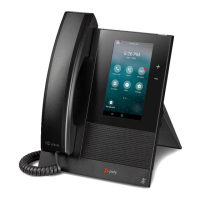
Polycom® CCX 400® Business Phones






 To Next Page