Car
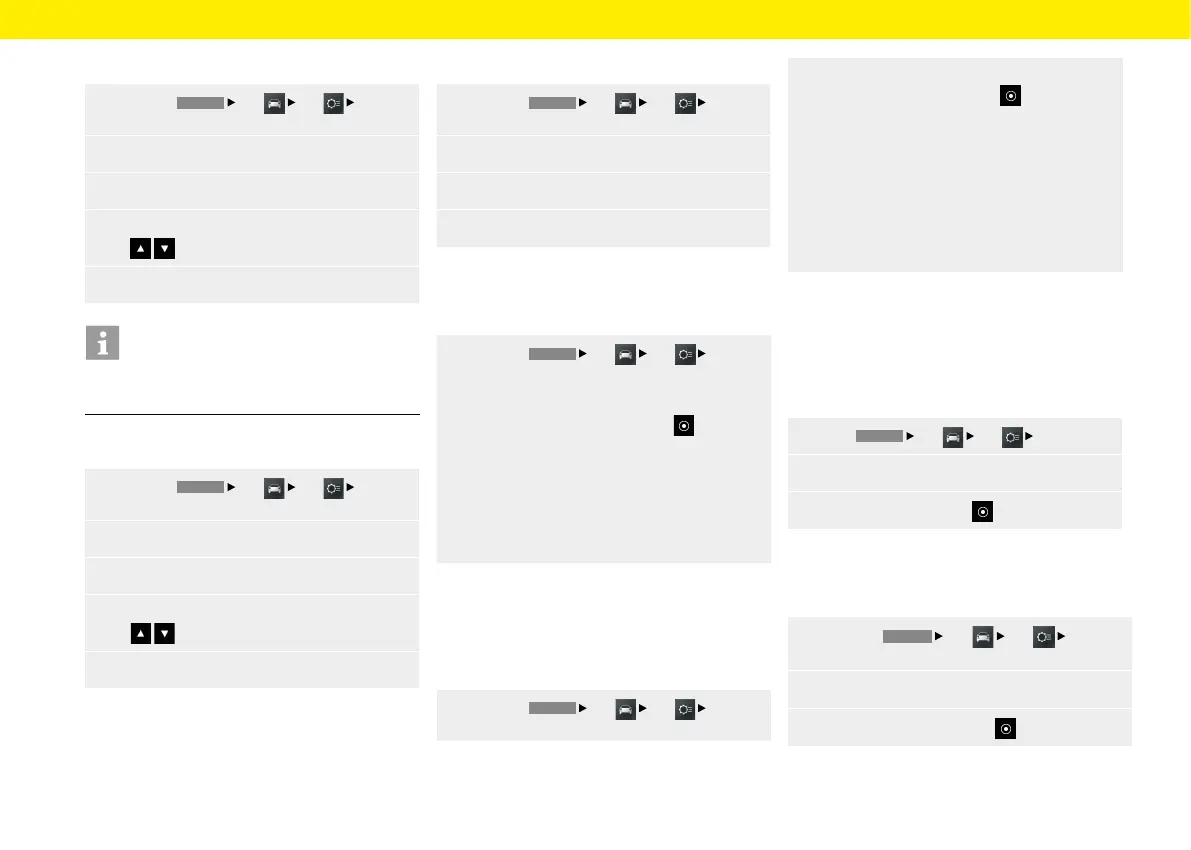
Setting the time
1.
Press the
HOME
Car
Set
System
button.
2.
Select the Date/time menu option.
3.
Select the Setting time menu option.
4.
Set the required time using the screen keypad
or
.
5.
Select OK.
Information
The time settings can also be reached directly
bypressing the time.
Setting the date
1.
Press the
HOME
Car
Set
System
button.
2.
Select the Date/time menu option.
3.
Select the Setting date menu option.
4.
Set the required date using the screen keypad
or
.
5.
Select OK.
Setting the time format
1.
Press the
HOME
Car
Set
System
button.
2.
Select the Date/time menu option.
3.
Select the Time format menu option.
4.
Set the required time format, 12h or 24h.
Synchronising the time
The Time synhronising menu option allows you to
set the signal that determines the time.
1.
Press the
HOME
Car
Set
System
button.
2.
Select the Time synhronising menu option
andchoose between the options :
– RDS,
– or –
– GPS,
– or –
– Manually.
Setting the Standby time
The Standby time menu option allows you to keep
the device in active mode for a set period aer you
have le the vehicle, thereby avoiding a restart of the
system when you return to the vehicle.
1.
Press the
HOME
Car
Set
System
button.
2. Select the Standby time menu option and
choose between the options :
– 5 minutes,
– or –
– 15 minutes,
– or –
– 30 minutes,
– or –
– O.
Enabling automatic day/night mode
Select menu option Day/night mode to adjust the
display brightness in day and night mode. The light
sensor in the front face of the device adjusts the
brightness automatically if the automatic switch-
over is enabled.
1.
Press
HOME
Car
Set
System.
2.
Select the Day/night mode menu option.
3.
Enable option eld Auto .
Customising day/night mode
Select the Custom menu option to adjust the display
brightness for day and night mode.
1.
Press the
HOME
Car
Set
System
button.
2.
Select the Day/night mode menu option.
3.
Select option eld Custom
option.
32


 To Next Page