33
Determines if a software update is available for your Gage. If an
update is available, a prompt will appear allowing the user to
choose to perform the update at this time or not.
To perform an update the Gage must be connected to an internet
connected PC with PosiSoft Desktop Manager (pg. 24), or WiFi
network (pg. 30).
Updates
Ensure that stored measurements are backed up to a PC
or PosiSoft.net. The Gage may perform a Hard Reset (pg. 14)
after completion of the update and ALL datasets in memory would
be erased.
NOTE:
2 / 3
DO NOT unplug the Gage during the update operation.
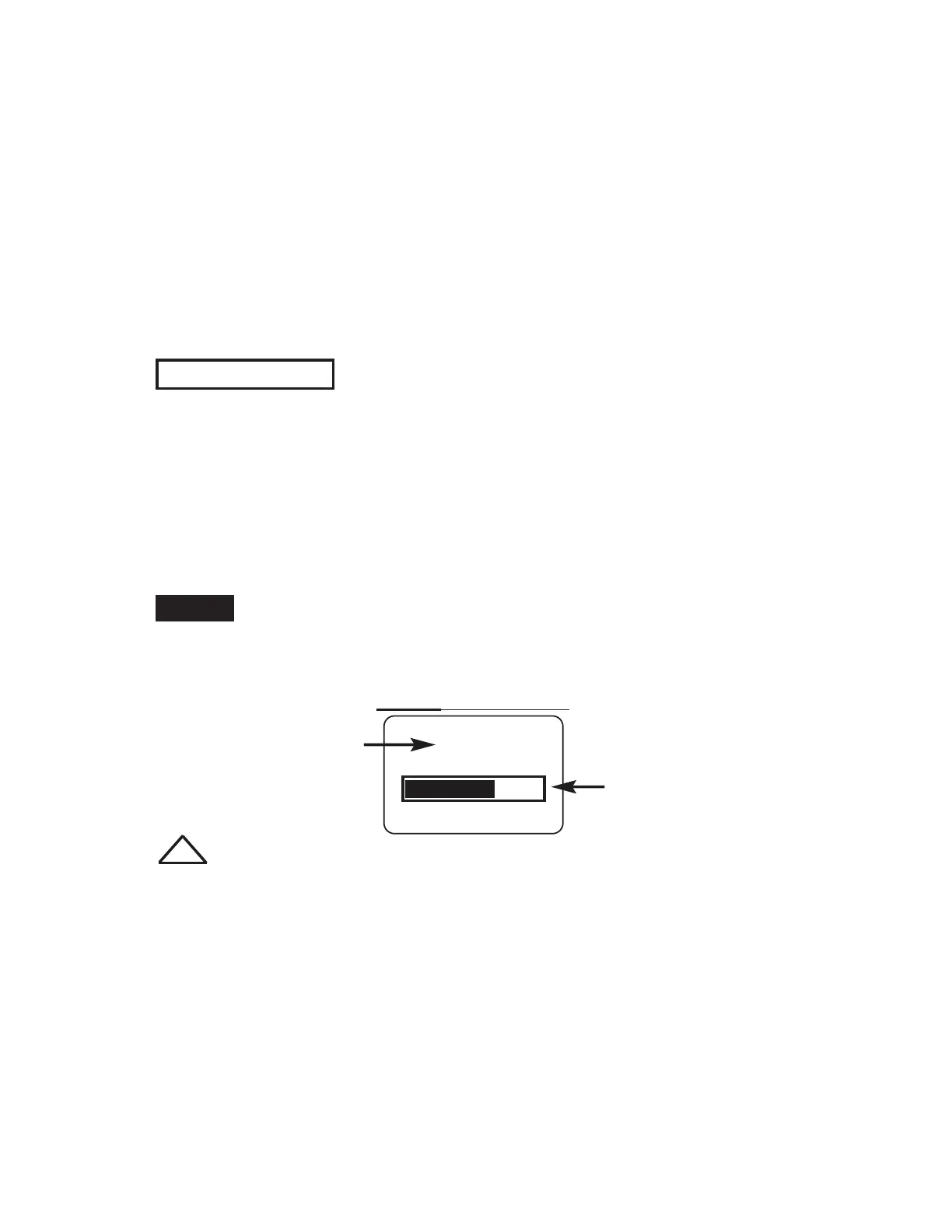
Currently installing
update 2 of 3 total
Progress bar
Updates - Sample Screen
!
Setup: Allows user to setup a WiFi connection
IP Settings: enter the IP information as follows...•
IP Type (DHCP or Static), IP Address, Gateway, Netmask,
DNS1, DNS2.
Server Enable: enables a connection between the network•
and the Gage.
Gage Name: enter a name for the Gage •
(up to 14 Characters).
WiFi Reset: erases all WiFi settings.•


 To Next Page