27 28
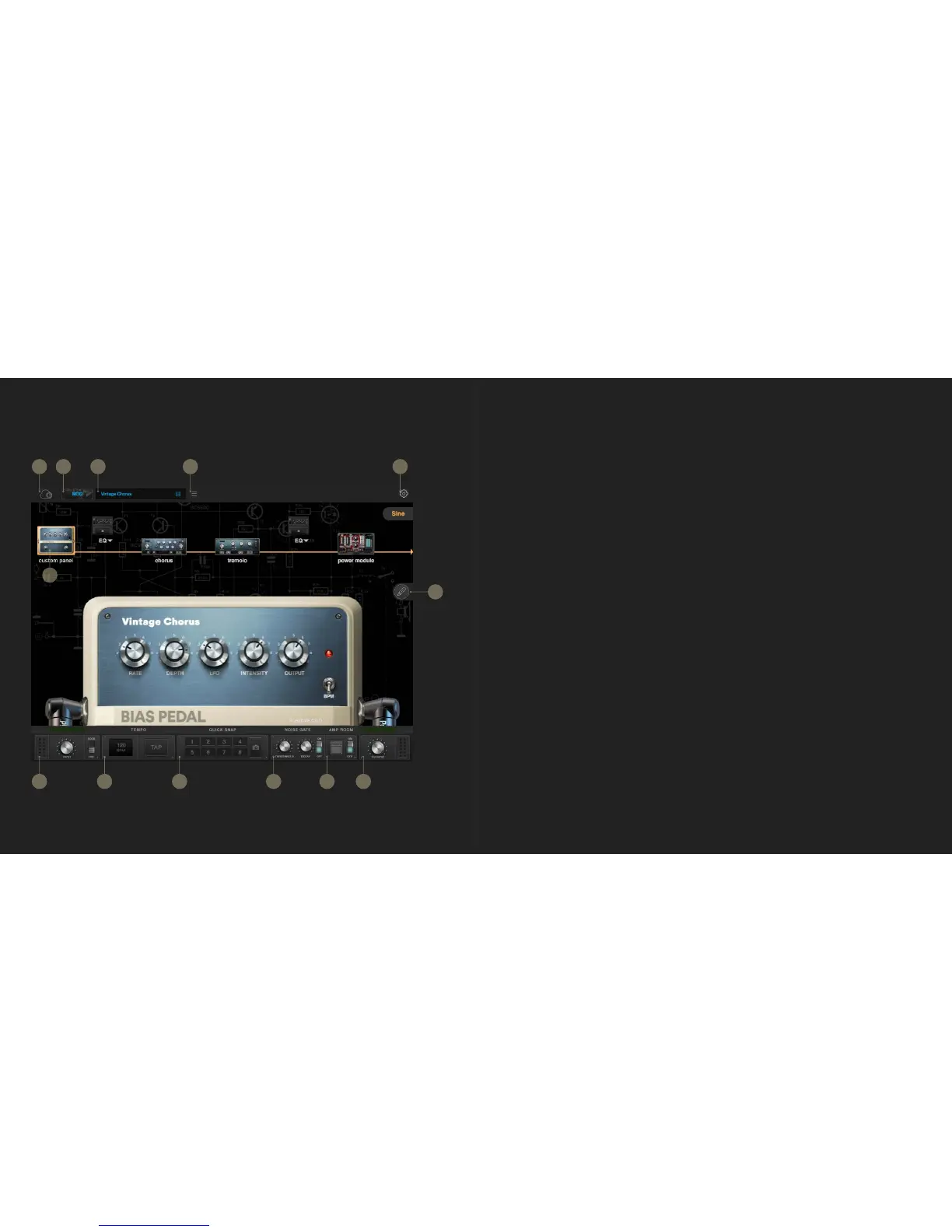
1. ToneCloud - Enters the ToneCloud page.
2. Effects page - Switches among installed software packs. Available software packs include
Distortion Pack, Delay Pack and Modulation Pack.
3. Preset menu - Shows the current preset. Click to open the preset menu.
4. Save button - See the Save Preset section of this manual for more information.
5. Setting Menu - See the Settings section of this manual for more information.
6. Signal Path - See the Signal Path section of this manual for more information.
7. Input volume - Controls the input volume. To prevent feedback, the input volume will be
muted at startup when using a built-in microphone and speaker as the chosen audio
input/output device.
8. Tempo - Shows the current BPM (beats-per-minute) value. You can set the BPM by entering
the desired value or by using the built-in tap tempo feature. The BPM range goes from 40 to
400.
9. Quick Snap - Provides 8 slots to save and instantly recall different parameter setups for
instant comparison of different settings.
10. Noise Gate - See the Noise Gate section of this manual for more information.
11. Amp Room - See the Amp Room section of this manual for more information.
12. Output volume - Controls the output volume.
13. Design button - Customize the look of your pedal. See the Custom Panel section of this
manual for more information.
BIAS PEDAL USER INTERFACE
Desktop Version
1
7 8 9 10 11 12
6
2
3 4 5
13


 To Next Page