47 48
Mobile
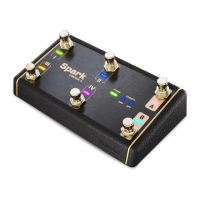
・ Connect - Connects with BIAS Modulation or another compatible device.
・ Input Channel - Selects the input channel, which depends on the routing setup for your audio
device.
・ Output Selector - Chooses the output device.
・ Knob Gesture - Chooses how to control the knobs with gestures on the touch screen.
・ Run in Background - Allows BIAS Pedal to run and process sound in the background.
・ Latency - Chooses between Low and Normal latency settings. Low latency setting requires
more CPU usage. Set the latency setting to Normal if you hear clicking or popping noises.
・ Feedback - Send us your feedback. You can write your feedback or issue a report.
・ App Information - Executes a factory reset or shows the app version, DSP engine, and What’s
New page.
・ Positive Grid on Facebook - Links to Positive Grid’s Facebook page.
・ Positive Grid on Twitter - Links to Positive Grid’s Twitter page.
・ Help Center - Links to our Help Center for guides and FAQs or to write to our support agent.
SETTINGS
Desktop
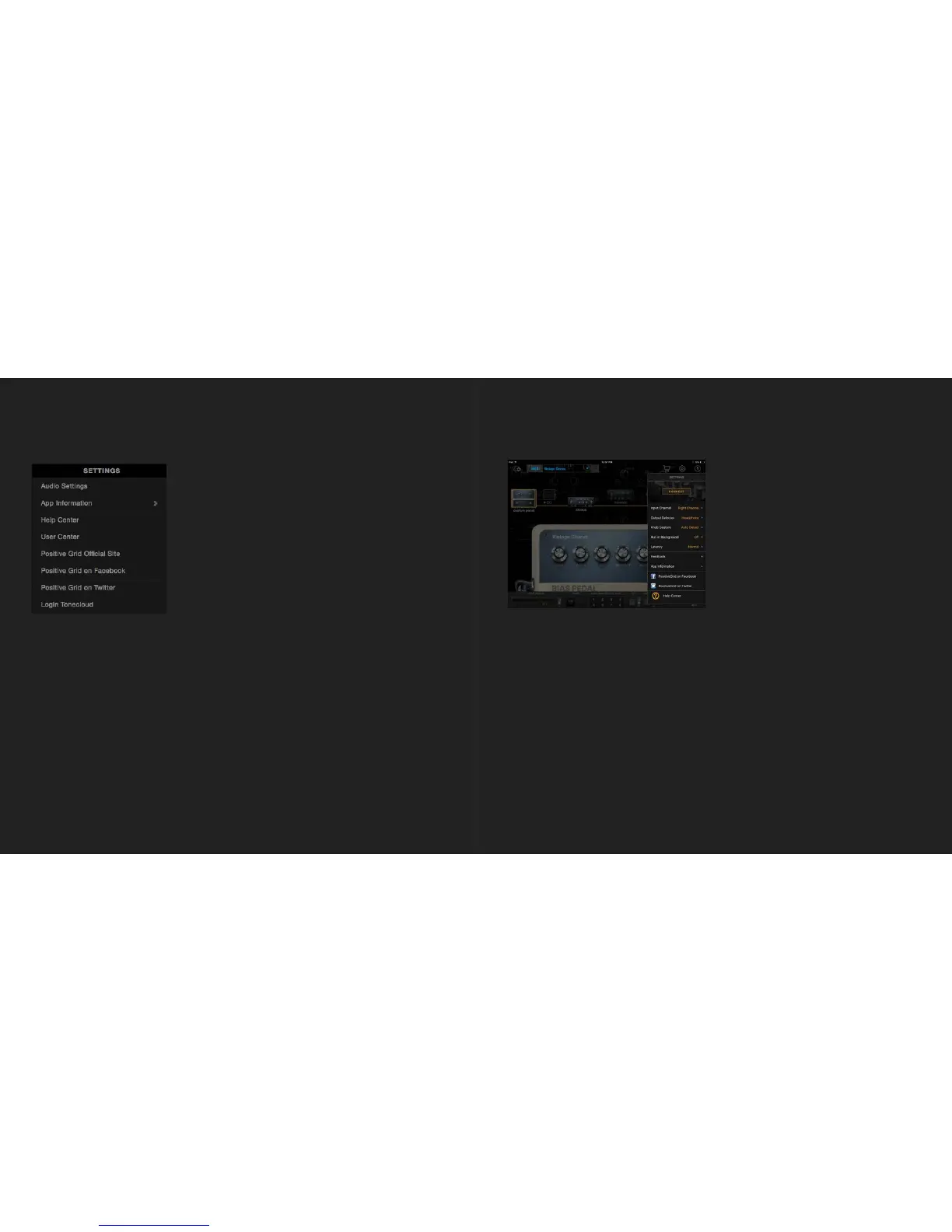
・ Audio Settings - Selects the audio device, input/output routing, sample rate and buffer size
settings.
・ App Information - Executes a factory reset or shows the app version, DSP engine, license and
What’s New page.
・ Help Center - Links to our Help Center website for guides and FAQs or to write to our support
agent.
・ User Center - Links to the User Center. You can manage your ToneCloud account there.
・ Positive Grid Official Site - Links to Positive Grid’s website.
・ Positive Grid on Facebook - Links to Positive Grid’s Facebook page
・ Positive Grid on Twitter - Links to Positive Grid’s Twitter page.
・ Login/Logout - Log in to and out of your ToneCloud account


 To Next Page