The machine will now work as normal when generating Gcode, and the Python error message will not pop up again.In
the next section, we will start a preliminary test on the machine’s connections, and heat the platform and extruder so
that the extruder is ready for its first print.
5 USB Connection & Temperature Setting
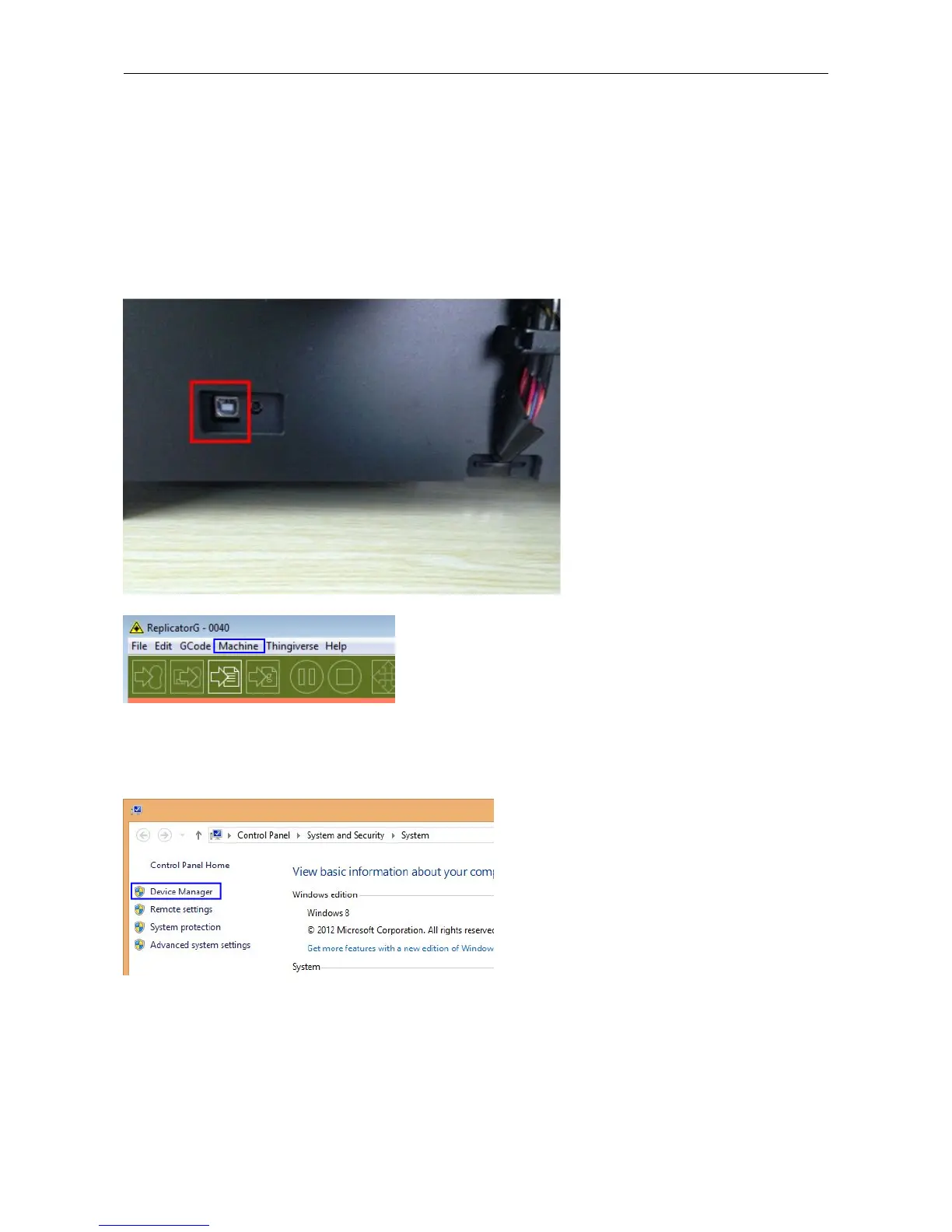
First, connect the machine and computer with the provided USB A to B cable. The USB port on the machine is bound
by the box in the below image. After connecting the cable, open the ReplicatorG software as we are going to link the
computer and printer.
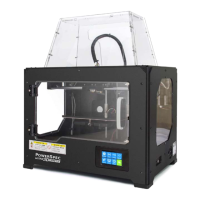
Inside the ReplicatorG software, click Machine > Connection (serial port) > Rescan serial ports, if no new ports appear
then the software driver has not been installed. To install the driver manually, go to My computer and right click on
Properties. The basic system parameters appear. Next select Device Manager.


 To Next Page