Communication
41
Powerware
®
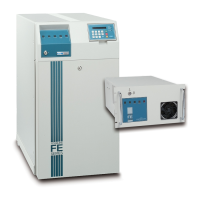
FERRUPS FE/QFE UPS (500 VA–18 kVA) User’s Guide : Rev A www.powerware.com
Connecting a Terminal or Computer to the RS-232 Port
CAUTION
Do not make connections to the RS-232 communication port if the UPS is connected to
a positive ground battery system. The RS-232 ground must be isolated or equipment
damage will result. For help, contact your service representative.
If you are connecting a terminal to the RS-232 port, the terminal must
be capable of serial communication.
If you are connecting a computer, the computer must be running
terminal emulation software (such as HyperTerminal
9
). Most modem
software packages can emulate a terminal; if you do not have a terminal
emulation program, please contact your service representative for more
information.
1. To connect the FERRUPS UPS DB-25S (female) RS-232 port to
your terminal or computer, you need a cable designed
specifically for this purpose. (See Figure 10 and Figure 11.)
Powerware offers cables for computers or terminals using
25-pin or 9-pin serial ports; call your service representative to
order one of these cables. If you would like to build your own
cable, follow these requirements:
:
Use a high-quality, shielded cable.
:
Do not use a standard 25-conductor straight-through cable;
only include straight-through connections for the pins
shown in Figure 10 and Figure 11.
For RS-232 communication, use Pins 2 (transmit data), 3
(receive data), and 7 (signal ground). For hardware
handshaking (request to send on Pin 4 and clear to send on Pin
5), contact your service representative. No other pins should be
connected from the UPS RS-232 port to your terminal or
computer.
For more information on pin connections and the function of
the non-serial pins on the RS-232 port, see Table 5 on page 40
and “Remote Monitoring” and “Remote Shutdown” on page 47.
NOTE To connect a modem, see TIP 503.


 To Next Page