5
6.0 Wireless Control Setup
PreSonus
®
StudioLive
™
RM32AI/RM16AI
Visual Quick Start Guide
6.0 Wireless Control Setup
POWER
100-230V , 50-60 Hz. 120W
MANUFACTURING DATE
SERIAL NUMBER
WARNING
:
TO REDUCE THE RISK OF FIRE OR ELECTR IC
SHOCK, DO NOT EX POSE THIS EQUIP MENT TO R AIN OR
MOISTURE. D O NOT REMOVE COV ER. NO USER S ERVICE ABLE
PARTS INSIDE. REFER SERVICIN G TO QU ALIFIE D PERS ONNEL.
AVIS
:
RISQUE DE C HOC EL ECTRIQUE — NE PAS OUVRIR
DESIGNED AND ENG INEERED BY P RESONU S • MANU FACTURED IN CHINA • P ATENTS PEN DING
“PreSonus”,“STUD IOLIVE” A ND “ACTI VE INTE GRATION” ARE REGIS TERED TRADEMARKS OF PRESO NUS AUDIO ELECTRONI CS
This device complies with Part 15 of the FCC Rules a nd ICES-003 for Canada. Operation is subjected to the
following two conditions: (1) this device may not cause h armful interferenc e, and (2 ) this device must
accept any interference received, includ ing interference tha t may cause undesired operation .
WARNING:
Power down unit before removing option card
32 channel x 25 bus digital mix core
with 32 remote XMAX preamps
R
STUDIOLIVE RM32
S800S800
S800S800
S800S800
S/PDIF
Control Output
S800S800
S800S800
S800S800
IN OUT
LevelLevel
32312 3231302927262524232221
1 2 3 4 5 6 7 8 9 10 11 12 13 14 15 16
17 18 19 20 21 22 23 24 25 26 27 28 29 30 31 32
RightLeft
5 6 7 8 9 10 11 12 13 14 15 16
1 2 3 4 5 6 7 8 9 10 11 12 13 14 15 16
32 channel x 25 bus digital mix core
with 32 remote XMAX preamps
USB
STUDIOLIVE RM32
28
-80
+6
-80
+6
Cue
Mute
All
Meters
+48V
R
L
1 2 3 4 5 6 7 8 9 10 11 12 13 14 1
17 18 19 20 21 22 23 24 25 26 27 28 29 30 31 3
32 channel x 25 bus digital mix core
with 32 remote XMAX preamps
USB
STUDIOLIVE RM32
POWER
100-230V , 50-60
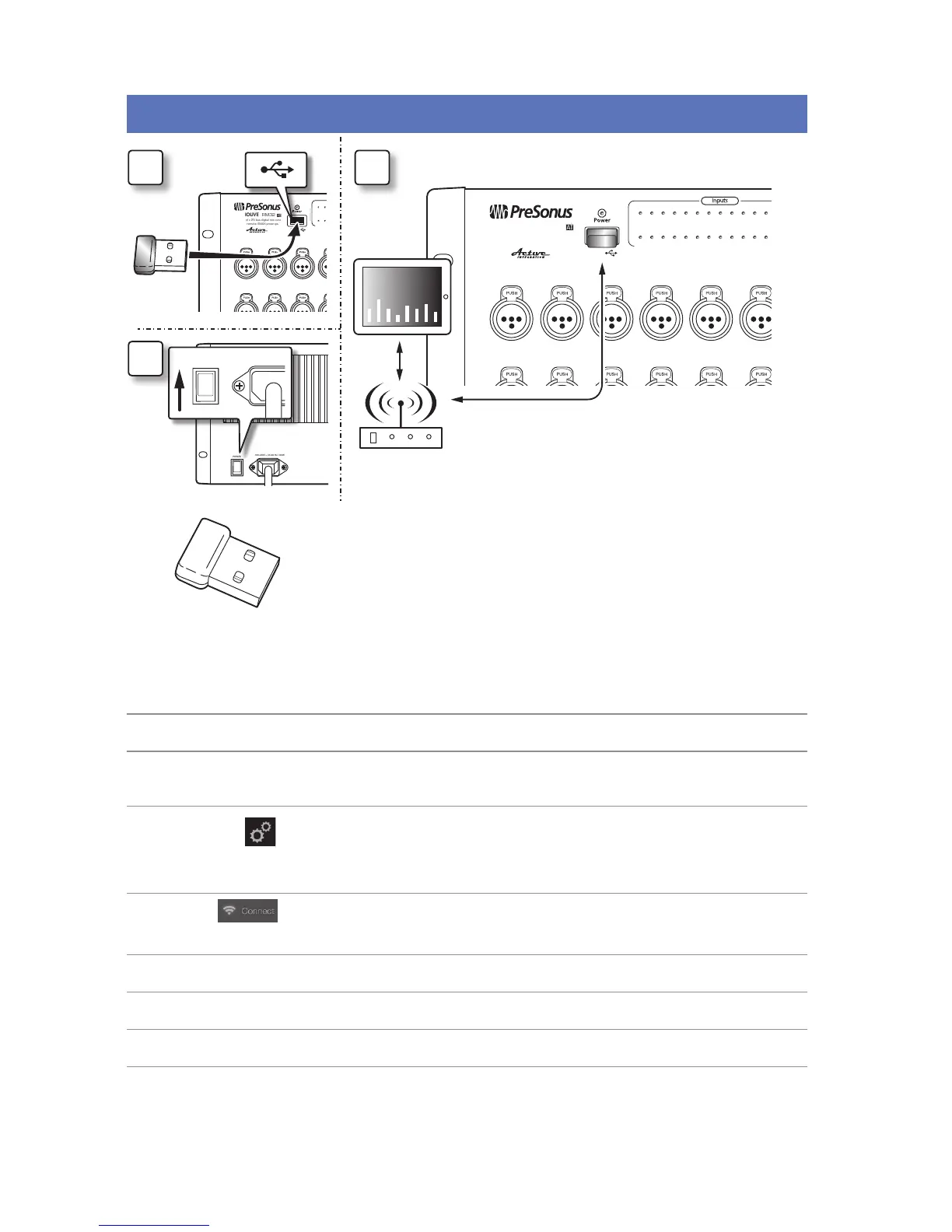
StudioLive AI mixers do not support hot-swapping the Wi-Fi LAN Adapter so you
must have it plugged into the front-panel USB port prior to turning on your mixer.
By default, StudioLive mixers are congured to automatically connect to a wireless
network with the following name and password:
• Wireless network name: StudioLive
• Wireless network password: StudioLive
If you would like to connect to a custom wireless network, you rst need to
connect to the mixer with a wired connection and congure the wireless network
preferences.
1. Connect to a wired control network, as described in Wired Ethernet control setup.
2. Launch UC-Surface on a Mac or Windows computer or iPad that is connected to
the same network.
3. Open the Settings page.
4. At the top of the Settings page select the wireless connection icon.
5. Choose the wireless network you would like to use from the list shown.
6. If a password is required you will be prompted to enter it.
7. You are now congured to connect to the new wireless network for control.
8. Every time you turn on your StudioLive AI mixer, if there is no wired Ethernet
connection, and the USB Wi-Fi dongle is plugged in, the mixer will look for this
network and attempt to connect to it.
Note: StudioLive AI only supports WPA and WPA2 security. Please be sure that your
router is congured using one of these security protocols.
A
C
B










 To Next Page