Using the CDI10
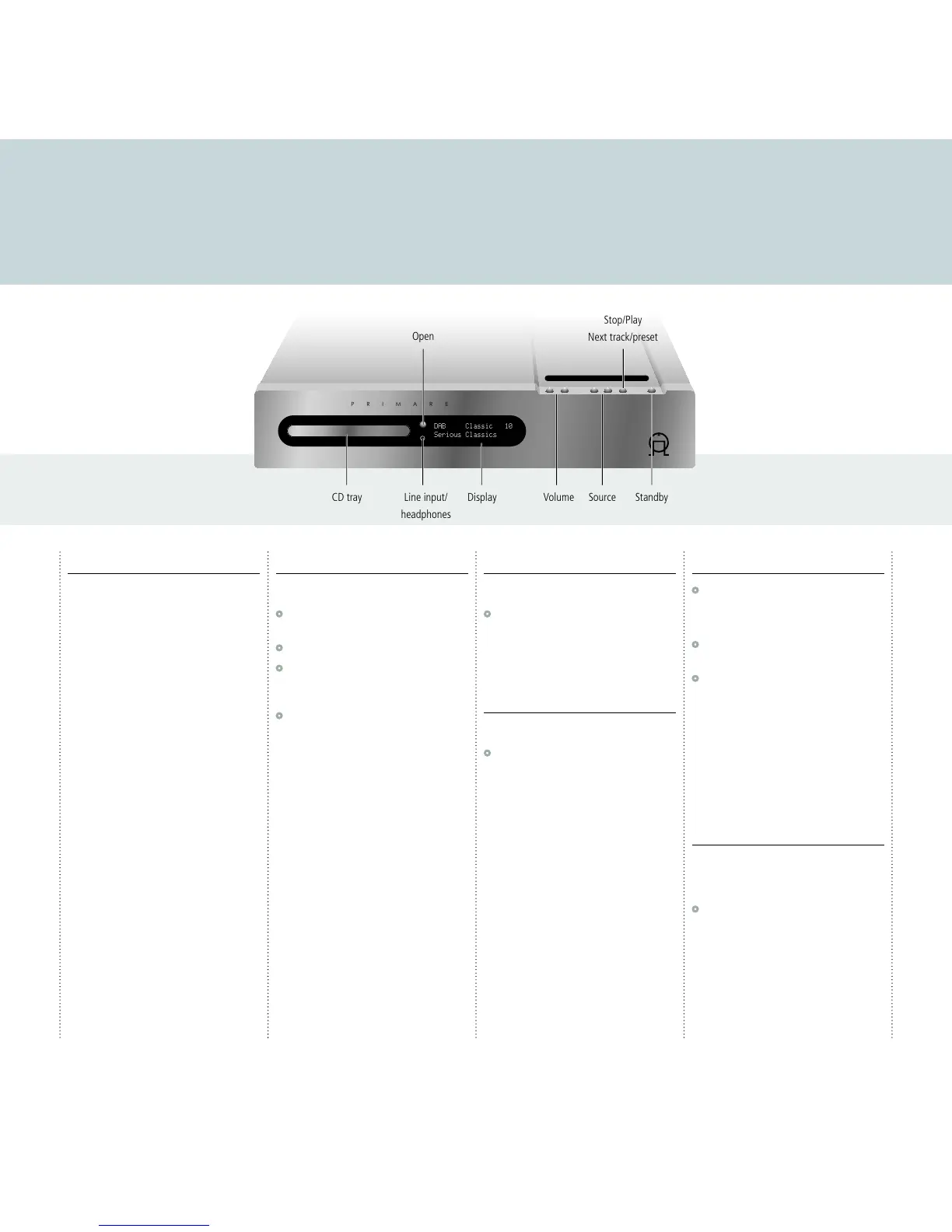
This page explains how to operate your CDI10, with an explanation of the function of each of the front panel controls.
Front panel controls
Volume "
Increase or decrease the volume.
The front panel display shows the current volume,
from 0 to 79.
Previous/Next source
A/V
Step through the sources in the following
sequence: CD, DAB, FM, LINE1, LINE2, and LINE3
and FRONT.
Stop/Play */>
CD: Press to play a CD or skip to the next track.
Hold down to stop a CD.
DAB/FM: Press to step to the next preset.
Standby O
Press briefly to put the CDI10 into standby.
The display will show:
Standby
In standby all the audio circuits remain powered for
best performance when you next switch on.
Hold down to switch the CDI10 off.
The display shows:
-OFF-
Press to switch the CDI10 on.
Playing a CD
To select the CD player
•
Press A or V until the display shows CD, or
press CD on the remote control.
•
Press the Open button to open the tray.
•
Insert a CD and press the Open button again
to close the tray, or gently push the front of the
tray to close it.
•
Press */>.
For more information about playing CDs see
Playing a CD
, page 6.
Listening to FM radio
To select the FM Tuner
•
Press A or V, or press the DAB/FM button on
the remote control, until the display shows:
FM
For more information see
FM
, page 7.
Listening to DAB radio
To select the DAB tuner
•
Press A or V, or press the DAB/FM button on
the remote control, until the display shows:
DAB
When you first select the DAB tuner, the
tuner scans to locate all the stations in your
neighbourhood, and the display shows:
DAB autoscan full...
with a progress bar showing the number of
stations found.
For more information see
DAB
, page 7.
Connecting an MP3 player
•
Press A or V, or press the IN4 button on the
remote control, until the display shows:
FRONT
•
Connect one end of the audio lead to the mini
jack socket on the front panel of the CDI10.
•
Connect the other end of the audio lead to the
headphone socket or line output socket on your
iPod or MP3 player.
For best results turn your MP3 player to maximum
volume, and use the CDI10 volume control to
adjust the volume to your preferred listening level.
WARNING: Disconnect your MP3
player before selecting a source other
than FRONT or it may be damaged.
Changing the display
The CDI10 allows you to adjust the display
brightness between four options: off, dim, medium,
or bright.
•
Press the DIM button on the remote control to
step between the options.
If you turn the display off, it will light up for a short
time each time you change a setting.


 To Next Page