8
z PHASE
This item is used to decrease the horizontal interference.
1. Select one display pattern from your computer.
2. Use + and − buttons on the LCD monitor to decrease the horizontal interference to
get the optimal display.
z RED / GREEN / BLUE
Adjust the value of color gain (Red, Green, Blue) using + and – buttons.
z COLOR TEMP.
This section is for “Color Temperature” adjustment. You can select the Warm, Cool, or
Normal in this section, and then press + and
− buttons to set up. The color temperature
will be recalled as factory preset value.
z RECALL
Press + or
− buttons to recall factory preset values.
Power LED Display & Power Saving
General Power Saving Mode
This monitor is equipped with a function for saving of energy, Time settings are adjusted from
the system unit by software. From indicated inactivity to Power Saving Position “Off” the to
total time must not be set to more than 70 minutes.
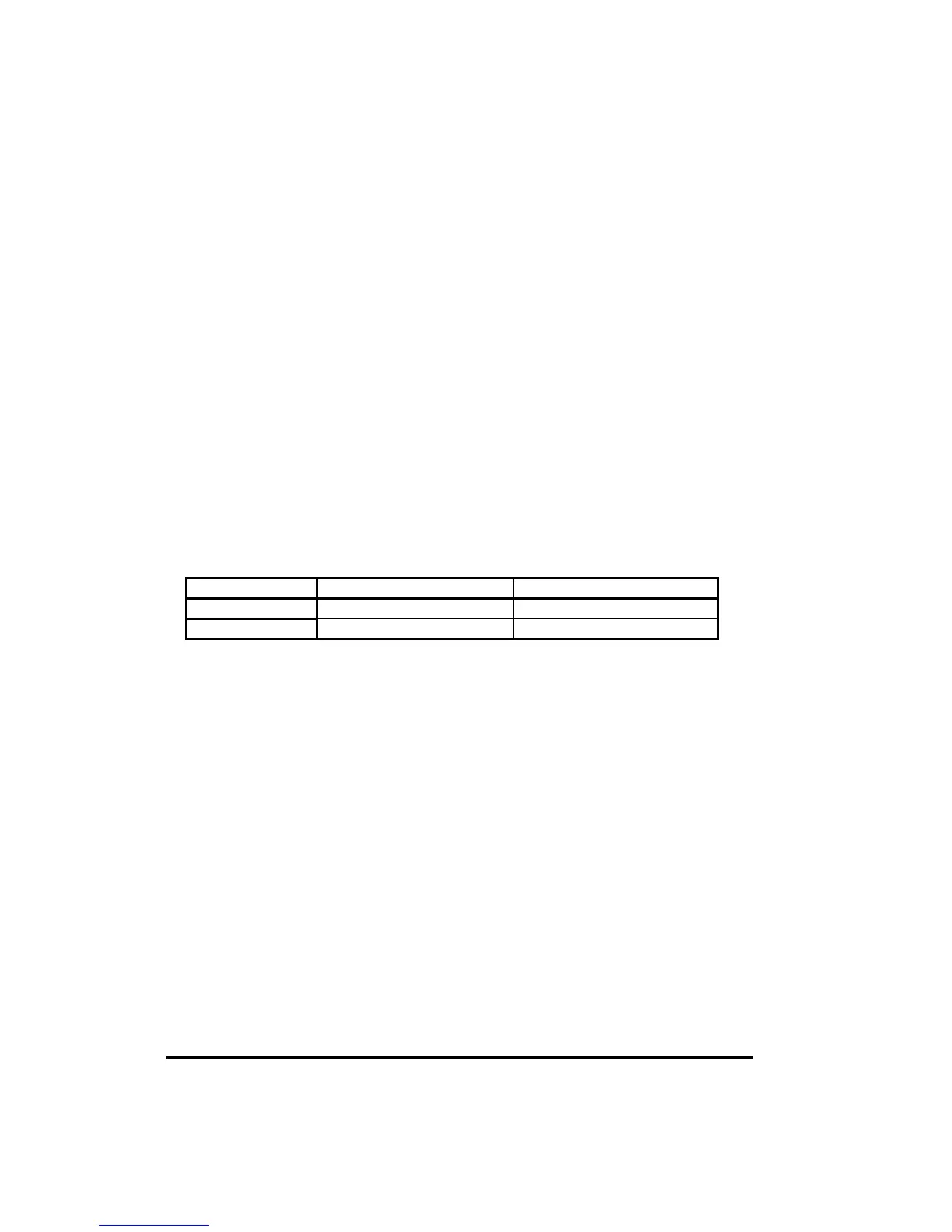
Mode Power LED Color Power Consumption
On
Green 48W (max.)
Off
Orange <5W
* We recommend to switch off the monitor when it is not use for quite a long time.
Troubleshooting
The monitor does not respond after you turn on the system.
• Check if the Power Switch of monitor is turned on .
• Turn off the power and check the monitor’s power cord and signal cable for proper
connection.
The characters on the screen are dim.
• Refer to the Controls and Adjustments section to adjust the brightness.
The screen is blank.
• During operation, the monitor screen may automatically turn off as a result of Power
Saving feature. Press any key to see if the screen comes back.
• Refer to the Controls and Adjustments section to adjust the brightness.
The screen flashes when it’s initialized.
• Turn off the monitor and turn it on again.


 To Next Page