English - 51 -
Remote Control
MENU
Q. MENU
BACK EXIT
LANG. SUBT.
EPG
TXT
.,/@
2
ABC
3
DEF
4
GHI
5
JKL
6
MNO
7
PQRS
8
TUV
9
WXYZ
0
TV
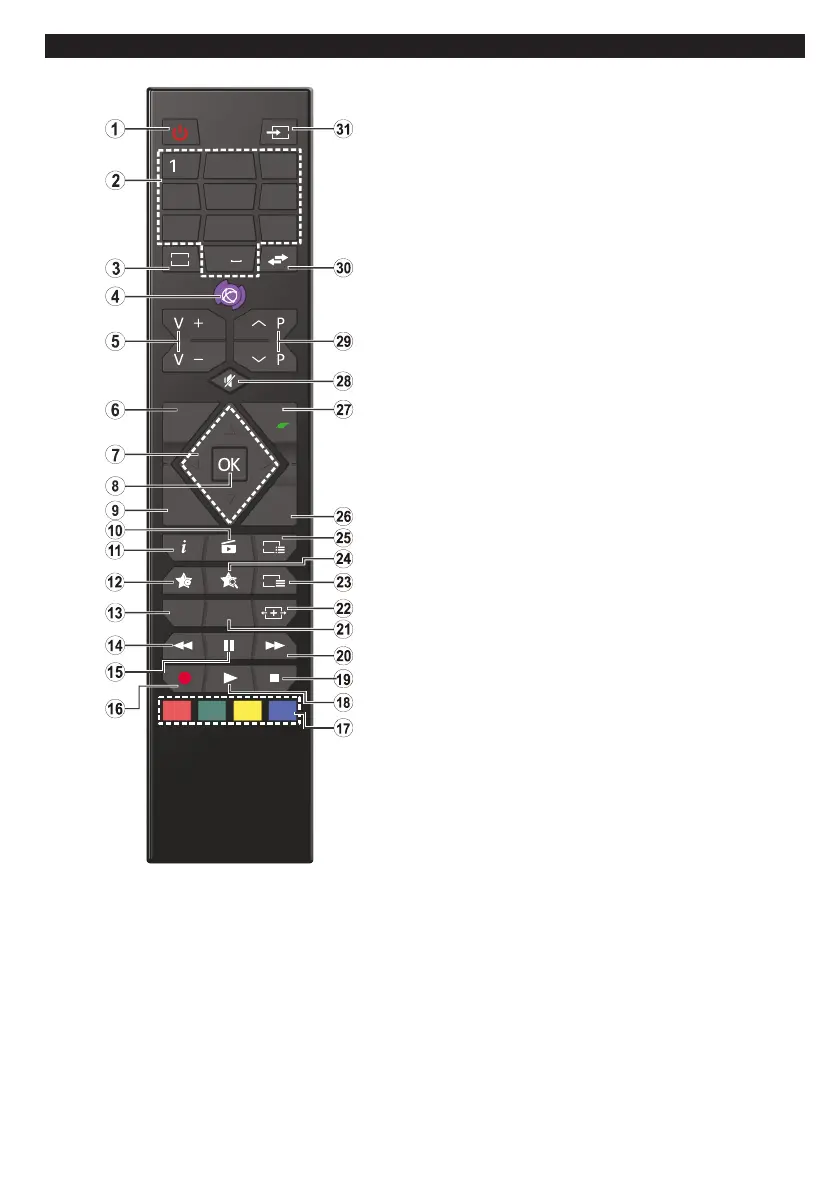
1. Standby: Switches On / Off the TV
2. Numeric buttons: Switches the channel, enters a
number or a letter in the text box on the screen.
3. TV: Displays channel list / Switches to TV Source
4. No function.
5. Volume +/-
6. Menu: Displays TV menu
7. Directional buttons: Helps navigate menus, content
etc. and displays the subpages in TXT mode when
pressed Right or Left
8. OK: Conrms user selections, holds the page (in TXT
mode), views channel list (DTV mode)
9. Back/Return: Returns to previous screen, opens index
page (in TXT mode)
10. Media browser: Opens the media browsing screen
11. Info: Displays information about on-screen content,
shows hidden information (reveal - in TXT mode)
12. My button 1 (*)
13. Language: Switches among sound modes (analogue
TV), displays and changes audio/subtitle language
(digital TV, where available)
14. Rapid reverse: Moves frames backwards in media
such as movies
15. Pause: Pauses the media being played, starts timeshift
recording
16. Record: Records programmes
17. Coloured Buttons: Follow the on-screen instructions
for coloured button functions
18. Play: Starts to play selected media
19. Stop: Stops the media being played
20. Rapid advance: Moves frames forward in media such
as movies
21. Subtitles: Turns subtitles on and off (where available)
22. Screen: Changes the aspect ratio of the screen
23. Text: Displays teletext (where available), press again
to superimpose the teletext over a normal broadcast
picture (mix)
24. My button 2 (*)
25. EPG (Electronic programme guide): Displays the
electronic programme guide
26. Exit: Closes and exits from displayed menus or returns
to previous screen
27. Quick Menu: Displays a list of menus for quick access
28. Mute: Completely turns off the volume of the TV
29. Programme +/-
30. Swap: Quickly cycles between previous and current
channels or sources
31. Source: Shows all available broadcast and content
sources
(*) MY BUTTON 1 & MY BUTTON 2:
These buttons may have default functions depending on
the model. However you can set a special function to these
buttons by pressing on them for ve seconds when on a
desired source or channel. A conrmation message will be
displayed on the screen. Now the selected MY BUTTON is
associated with the selected function.
Note that if you perform First Time Installation, MY BUTTON
1&2 will return to their default function.






 To Next Page