INSTRUCTION DISPLAY
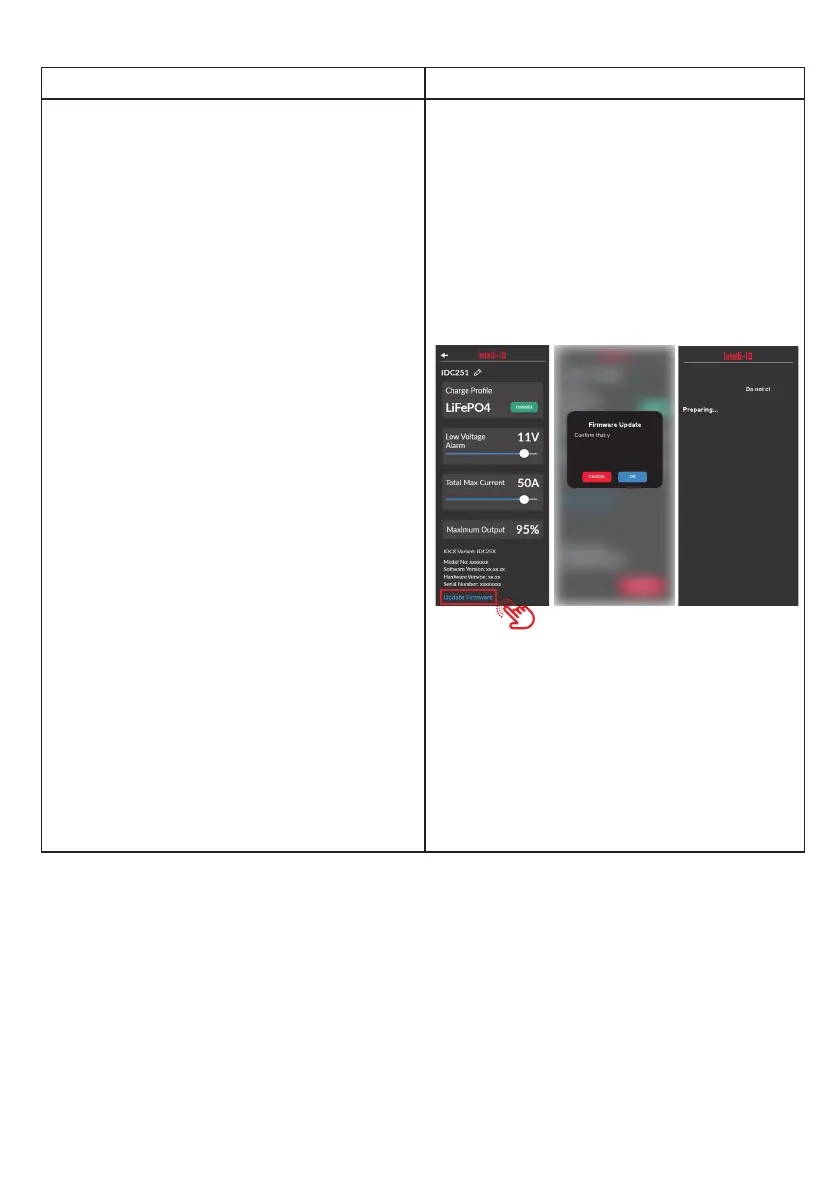
In the IDC device settings screen, at the bottom
of the screen, there will be an Update Firmware
button.
If you cannot see it, swipe up the view.
When tapping this button, we will check if the
device you have requires a rmware update.
If your device does require a rmware update,
you will be asked to conrm. Please select
“CONTINUE” to proceed with the rmware
update.
Once you have started the process, the following
three steps will occur, depending on which
device you are updating.
1. New rmware le download from our cloud
servers.
2. Firmware is uploaded on to the IntelliIQ
3. Firmware is updated on the selected device.
NOTE: To update your rmware, you will
need to have the following ready.
1. A strong internet connection.
2. Phone with more than 50% battery
power.
WARNING: Do not exit or close the app
during a rmware update as it can cause
issues with your device.
Firmware Update
Charge Profile
Lithium
CHANGE
Model No: xxxxxxx
Firmware Version: xx-xx-xx
Serial Number: xxxxxxxx
Aux battery voltage alarm
21 A
IDC25 Sengs
IDC25-1
DELETE
Total Maximum Output Current
125 A
Firmware Update
CANCEL OK
Confirm that you want to update
to the latest firmware. During this
me, the app will be unresponsive.
Do not close or exit the app during
this period.
Updang IDC50
Please wait while we prepare for the
firmware update.
Preparing
…
WARNING: Please wait. Do not close or
exit the app during this period.
SEE FAIL
Update the IDC Firmware:
22


 To Next Page