CYBER24
4
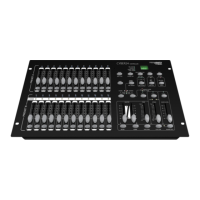
18. RECORD/SHIFT Button: Record is used to acti-
vate: Record mode or program a step. Shift func-
tions only used with other buttons.
19. MASTER A Button: Brings channel 1-12 to full of
current setting.
20. PARK Button: Used to select Single/Mix
Chase,bring Channel 13-24 to full of current set-
ting, or momentarily program a scene into Mas-
ter B slider, depending on the current mode.
21. HOLD Button: This button is used to maintain
current scene.
22. STEP Button: This button is used to go to next
step when the Speed Slider is pushed to the bot-
tom or in Edit mode.
23. AUDIO Button: Activates audio sync of chase and
audio intensity eects.
24. MASTER Slider A: This slider controls overall out-
put of all channels.
25. MASTER Slider B: This slider controlsthe chase of
all programs.
26. BLIND Button: This function takes the channel
out of the chase of a program resulting from
Flash and Full On.
27. HOME Button: This button is used to deactivate
the Blind.
28. TAP SYNC Button: Repeatedly tapping this but-
ton establish the chase speed.
29. FULL ON Button: This function bring overall out-
put to full intensity.
30. BALCK OUT Button: This button is used to kill all
output with exception for that resulting from
Flash and Full On.
31. FADE TIME Slider: Used to adjust the Fade Time.
32. SPEED Slider: Used to adjust the chase speed.
33. AUDIO LEVEL Slider: This slider controls the sensi-
tivity of the Audio input.
1. PRESET A leds: Show the current intensity of the
relevant channel numbered from 1 to 12.
2. CHANNEL Sliders (1-12): These 12 sliders are used
to control and /or program the intensities of
channels 1-12.
3. Flash Buttons (1-12): These 12 buttons are used
to bring an individual channel to full intensity.
4. PRESET B leds: Show the current intensity of the
relevant channel numbered from 13 to 24.
5. SCENE leds: Light when relevant scenes are ac-
tive.
6. CHANNEL Sliders (13-24): These 12 sliders are
used to control and /or program the intensities
of channels 13 a 24.
7. Flash Buttons (13-24): These 12 buttons are used
to bring an individual channel, to full intensity.
They also are used for programming.
8. DARK Button: This button is used to momentarily
black out overall output.
9. DOWN/BEAT REV Button: DOWN functions to
modify a scene in Edit mode; BEAT REV is used to
reverse the chasing direction of a program with
regular beat.
10. MODE SELECT/REC SPEED Button: Each tap will
activate the operating mode in the order: CHNS
/SCENES, Double Preset and Single Preset. Rec
Speed: Set the speed of any of the programs
chasing in Mix mode.
11. UP/CHASE REV Button: Up is used to modify a
scene in Edit mode. Chase Rev is to reverse the
chasing direction of a scene under Speed Slider
control.
12. PAGE/REC CLEAR Button: Tap to select pages of
scenes from Page (1-4).
13. DELETE/REV ONE Button: Delete any step of a
scene or reverse the chasing direction of any
program.
14. Display: Shows the current activity or program-
ming state.
15. INSERT/% OR 0-255 Button: Insert is to add one
step or steps into a scene. % or 0-255 is used to
change display value cycle between % and 0-255.
16. EDIT/ ALL REV Button: Edit is used to activate Edit
mode. All Rev is to reverse the chasing direction
of all programs.
17. ADD or KILL/REC EXIT Button: In Add mode, mul-
tiple scenes or Flash buttons will be onat a time.
In Kill mode, pressing any Flash button will kill
any other scenes or programs. Rec Exit is used to
exit from Program or Edit mode.


 To Next Page